
The Medium is not as good as was expected according to some game critics. Some gamers are complaining that The Medium keeps crashing on their Windows 11/10 PC. In this article, we have outlined potential fixes to resolve the issue.
Why does The Medium keep crashing?
If The Medium crashes frequently on your computer, the first thing you should do is check whether your system meets the minimum requirements. Although your game can still crash if it matches the minimum requirement, there is no way you can play the game with an inferior configuration.
Other than that, you should make sure that the game has the required privileges and permission to run on your computer. You need administrative permissions to run the game. Also, check if your Graphics Driver is outdated. If it is, then there is no way the game is running on your system.
We are going to see some other workarounds and fixes hereinafter to get your game back on track. So, without wasting any time, let us hop into it.
Fix The Medium keeps crashing or freezing on PC
If The Medium keeps crashing or freezing on the PC then start troubleshooting by checking for updates. You need to make sure that you are running the latest Windows build.
If that doesn’t work, then seek out these fixes to get rid of the issue.
- Run the game as an administrator
- Update your Graphics driver
- Verify the integrity of game files
- Run the game on DirectX 11
- Adjust the graphics settings
Let’s get to work.
1] Run the game as an administrator
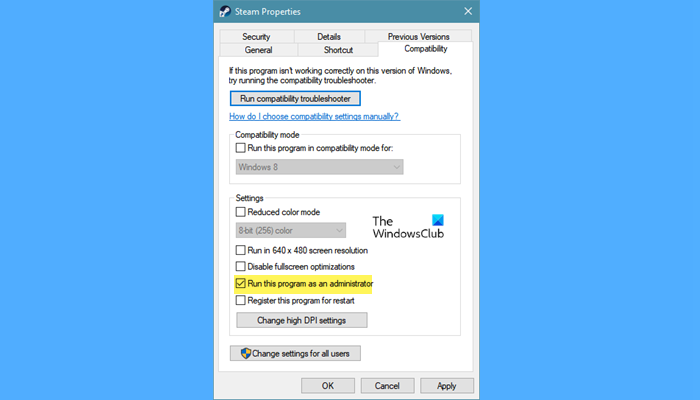
As mentioned earlier, the game needs administrative privileges to run on your computer. This is the same issue one of the subreddits was facing, and simply opening the game as an administrator resolved it. You need to do the same. Right-click on the shortcut of The Medium or Steam and select Run as administrator. This way, your game will run as an admin. But if you want to always launch The Medium will administrative privileges, then follow the given steps.
- Right on the shortcut of the game or Steam.
- Go to the Compatibility tab.
- Tick Run this program as an administrator.
- Click Apply > Ok.
Then check if the issue persists.
2] Update your Graphics driver
The first ground a gamer should check is the status of the graphics driver before pursuing any other fix. It’s recommended to update your Graphics Driver once in a while as well as a quick fix to attain smooth gameplay. However, if you haven’t updated it for quite a time, then update your Graphics Driver now.
3] Verify the integrity of game files
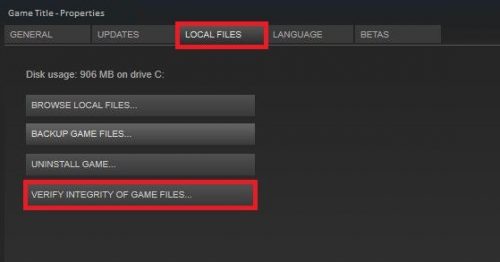
Corrupted and missing files is a direct factor causing The Medium to crash on your computer PC. You can verify the integrity of game files to ensure they are correct. Here’s how to do the same.
- Launch Steam and navigate to Library.
- Right-click on The Medium and then click on Properties.
- In the Local Files tab and click Verify Integrity of Game Files.
The verification may take some time, and Steam will automatically fix the corrupted files. Relaunch the game and see if this issue persists.
4] Run the game on DirectX 11
Disabling DX12 is highly recommended as enabling it is causes freezing and crashing issues. So you can switch to DirectX 11 to ensure the same issue does not arise again. But if switching does not help you to get rid of the issue, then see the next solution.
5] Adjust the Graphics settings
High graphics settings are, more often than not, the reason demanding games crash. However, switching it to low settings can minimize and help you to resolve the issue. You can skip this solution if The Medium is crashing on launch, but if it’s closing mid-game, try the steps below.
Launch The Medium and navigate to the Settings menu. Go to Display and make the following changes
- Resolution: 1920 x 1080
- Disable Full Screen
- Turn off V Sync
Then click on Advanced options. Switch Shadow Quality to low. You can also switch other settings to a lower mode to make sure that they do not interfere with proper functioning.
System requirement for The Medium
The following are the system requirements to play The Medium.
Minimum
- CPU: Intel Core i5-6600 / AMD Ryzen 5 2500X
- RAM: 8 GB
- OS: Windows 11/10 (64bit version only)
- VIDEO CARD: @1080p NVIDIA GeForce GTX 1060 6GB / AMD Radeon R9 390X (or equivalent with 4GB VRAM)
- SOUND CARD: DirectX compatible, headphones recommended
- FREE DISK SPACE: 30 GB
- DEDICATED VIDEO RAM: 4 GB
Recommended
- CPU: Intel Core i5-9600 / AMD Ryzen™ 7 3700X
- RAM: 16 GB
- OS: Windows 11/10 (64bit version only)
- VIDEO CARD: @1080p NVIDIA GeForce GTX 1660 Ti / Radeon RX Vega 56 | @4K NVIDIA GeForce RTX 2070 / Radeon RX 5700 XT
- SOUND CARD: DirectX compatible, headphones recommended
- FREE DISK SPACE: 30 GB
- DEDICATED VIDEO RAM: 6144 MB
Can crashing damage PC?
If your PC is crashing due to problematic software or a game, uninstalling it or repairing it can fix the issue. If a hardware fault causes the crash, ignoring it can damage your system. For example, if your PC is crashing due to memory errors, there is a possibility of RAM failure.
Read Next:
