
You may have noticed that when trying to schedule a critical meeting, MS Teams gets stuck on Setting up your meeting prompt. It’s a common problem with a variety of causes, from simple software glitches to account conflicts. In this article, we will explore the reasons this is happening and what you can do if Teams is not allowing you to set up a meeting.
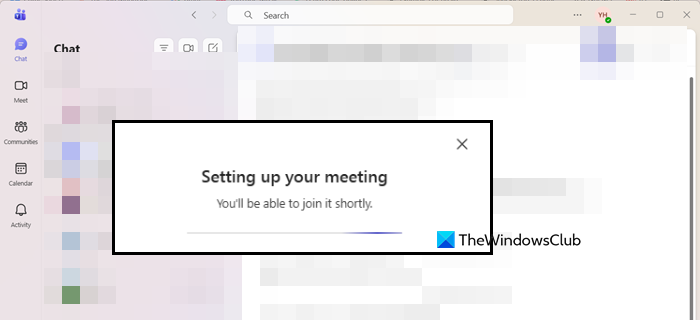
Fix Teams stuck on Setting up your meeting
The process of setting up your meeting typically hangs up due to a breakdown in communication among the components that Teams relies on. A common cause is a mismatch between the accounts you are signed into: if your Outlook client is logged in to a different account than your Teams client, the meeting cannot be created properly.
Other frequent issues include corrupted temporary data (cache) that can slow down the app, an outdated or disabled Teams Meeting add-in in Outlook, or an outdated version of the Teams application that may have unresolved bugs. Additionally, problems such as a poor internet connection or incorrect permissions for shared calendars can also disrupt the setup process.
If MS Teams is stuck during meeting setup, follow the solutions below.
- Restart Teams
- Clear the Teams Application Cache
- Check & Repair Outlook Integration
- Update Teams and other related software
Let us talk about them in detail.
1] Restart Teams
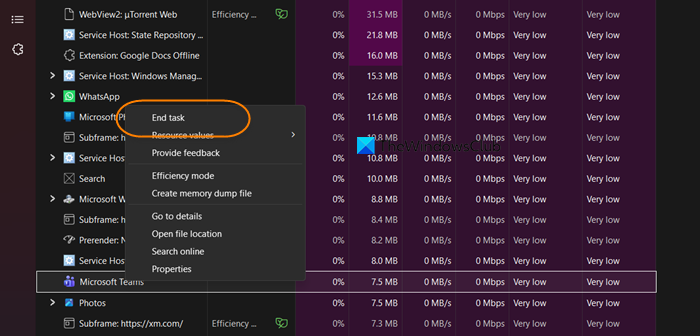
Force-quitting both Teams and Outlook through Task Manager completely terminates all related background processes that may have frozen or become unresponsive. This action clears the app’s temporary state and frees up system resources. When you restart the applications, they reload with a fresh connection to each other and to Microsoft’s servers, allowing the meeting setup sequence to initiate correctly.
You need to open the Task Manager, look for Teams, right-click on it, and select End Task. Then do the same with Outlook (if it’s running).
Finally, restart both applications.
2] Clear the Teams Application Cache

Clearing the cache removes corrupted or outdated temporary files that Teams uses to store information about meetings and its own state. These bad files can cause the app to get stuck in a loop or fail to communicate properly with the scheduling service. When you delete them and restart, Teams rebuilds clean versions, allowing the meeting setup process to proceed without the previous obstruction.
You can follow the steps mentioned below to clear the Teams application cache.
- Terminate Teams completely (using the steps mentioned earlier).
- Navigate to C:\Users\[YourUsername]\AppData\Roaming\Microsoft\Teams.
- Delete the contents of these folders: blob_storage, cache, GPUcache, databases, local storage, and tmp.
- Restart your computer and launch Teams.
Finally, check if your issue is resolved.
3] Check & Repair Outlook Integration
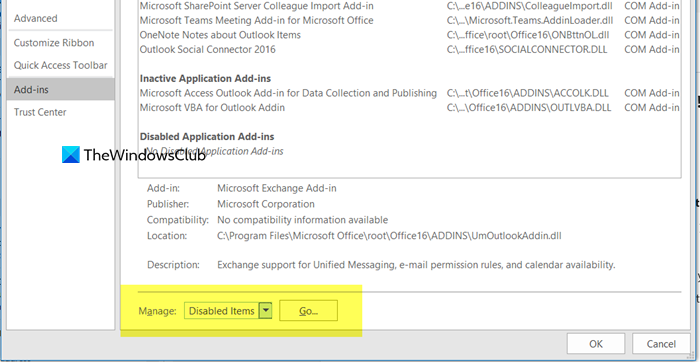
If the Teams Meeting add-in in Outlook is turned off, Teams cannot write meeting information to your calendar, which may cause it to freeze. Also, if you sign in to different accounts in each app, it can create a conflict that prevents access to each other’s calendars, blocking the setup process. To fix this, turn the add-in back on and make sure your accounts are the same. This will restore the important connection needed for your meetings. To do so, you can follow the steps mentioned below.
- Ensure you are signed into the same account in both Outlook and Teams.
- In Outlook, go to File > Options > Add-ins.
- At the bottom, set Manage: to Disabled Items and click Go.
- If the Teams Meeting Add-in is listed, select it and click Enable.
Finally, check if you are able to set up the meeting.
4] Update Teams and other related software
Performing a deep update or reinstall addresses foundational software issues. Updating patches bugs in Teams that may cause the hang, while installing prerequisites ensures all required system components are present for the Outlook add-in to function. A full reinstall replaces any corrupted core application files, giving you a clean, stable version that can properly execute the meeting creation sequence.
In Microsoft Teams, click on the three dots, then on Settings > About Teams, and look for updates.
Now, ensure that .NET Framework 4.8 and the Microsoft Edge WebView2 Runtime are installed on your PC.
Finally, check if your issue is resolved.
Read: Fix Microsoft Teams stuck on the Loading screen
Why is Teams not scheduling my meeting?
This issue typically arises from a few common factors. Your Teams account may not have the necessary permissions, the “Calendar” app might be disabled in the Teams settings, there could be a problem with the Teams Meeting add-in in Outlook, or your computer and Teams app might have an incorrect or mismatched time zone setting. Additionally, for business accounts, there may be a technical issue related to the backend, such as an incompatible Exchange server version or an incorrect coexistence mode.
Read: Microsoft Teams crashing or freezing during meetings
How to fix Microsoft Teams stuck on loading?
To fix issues with Teams, start by force-quitting the app through Task Manager and clearing its cache to remove corrupted files. If problems persist, check for Teams updates and install them. If you still have issues, especially after a fresh install, there might be a conflict with the Teams Machine-Wide Installer. Uninstall both the Teams app and this installer, then reinstall them. Finally, make sure that your Windows system and Microsoft 365 apps are fully updated.
Also Read: Microsoft Teams keeps spinning, loading or putting on hold.
