
The Windows Taskbar is one of the most useful parts of the UI that we have been using. Not many of us have fiddled around with taskbar settings. However, the fact remains that you can Auto-Hide the Taskbar, and this is something that you may want to do if you prefer an uncluttered look. Without the Taskbar, you may like the extra space the desktop offers.
Windows offers the feature to hide the taskbar and the same can be found by heading over to Settings > Personalization > Taskbar. Here you will find an option that will let you “Automatically hide the taskbar in desktop mode” and that which reads “Automatically hide the taskbar in the tablet mode.”
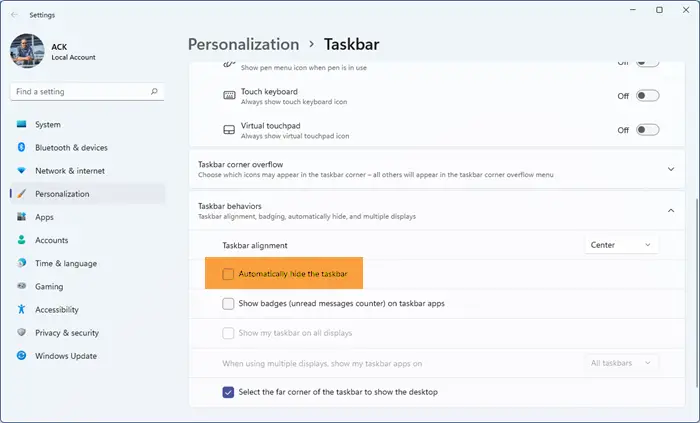
If you use the Windows device as a tablet by switching on tablet mode, you can choose the second option. On the other hand, if you want the Taskbar to automatically hide when in Desktop mode, you can select the first option.
After enabling the hide taskbar feature, one can bring up the taskbar by simply hovering the mouse over it, and this feature has worked flawlessly for me until now. Recently, I have observed that the taskbar refuses to hide!
Taskbar not hiding in Windows 11
If this happens to you first, please check if any of the app icons are flashing; if yes, close the app completely. The same applies to apps running in the background. However, in my case, the issue persisted and needed further troubleshooting.
If you face the issue of the Taskbar not hiding on your Windows 11/10 PC, here are a few things you could try:
1] Restart Explorer
Open Windows Task Manager, identify the process by the name “Windows Explorer” and right-click on the same and then click on Restart and ensure that the explorer.exe process restarts.
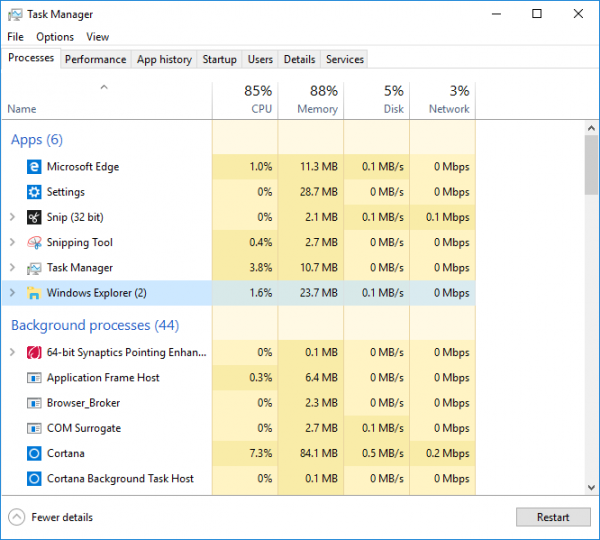
This step ensures that all duplicate instances of Windows Explorer are killed.
2] Check Notifications
Sometimes a hidden notification, like from Teams, Outlook, or system alerts, can force the Taskbar to remain visible.
So check the system tray and dismiss any pending notifications.
3] Disable icons from appearing in Taskbar
It could also be some desktop software that may be programmatically making the taskbar visible. See if any 3rd-party software is preventing this. If so, disable this icon from appearing on the taskbar. Disable showing of notifications for such problematic taskbar icons.
4] Check for App interference
Certain apps, like media players, messaging apps, etc. can force the taskbar to stay visible.
Close all background apps one by one to see if the issue gets resolved.
5] Use Registry
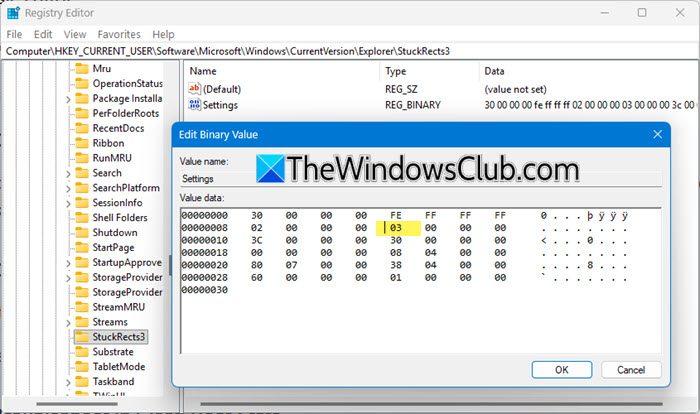
Open REGEDIT and go to this key:
HKEY_CURRENT_USER\Software\Microsoft\Windows\CurrentVersion\Explorer\StuckRects3
In the right pane, double-click the Settings value.
A binary editor will open.
See the value in the 5th column of the 2nd row.
03 indicates that the taskbar is always visible
Change it to 02 to enable auto-hide.
Click OK, close Registry Editor and restart Explorer and see.
6] Troubleshoot in Clean Boot State
If nothing helps, see if it occurs in the Clean Boot State. If it does not, you may have to manually troubleshoot and identify the offending process causing the Taskbar to not auto-hide. If it happens even in Clean Boot State, you may have to Run DISM to repair your system image.
The easiest way to do this is to download our freeware FixWin and click on the Repair Windows System Image button.
Do note that auto-hiding of the taskbar is not supported on Windows Tablet PCs where only touch or pen screen input is utilized with no keyboard or mouse.
The Auto-hide taskbar feature will hide the taskbar and the Start button. If you want to hide only the taskbar, and not the Start Button, use our freeware Hide Taskbar. It lets you hide or show the taskbar with a hotkey.
Related read: Taskbar has disappeared in Windows 11.
