
While attempting to run a Network Discovery scan or when trying to map a network drive from Command Prompt or PowerShell, you may encounter the System error 67 has occurred, The network name cannot be found. In this post, we provide the most suitable solutions to this issue.
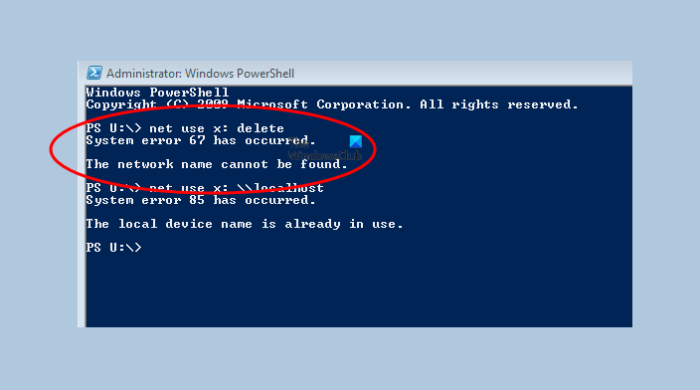
The most widely known cause of this error is incorrect syntax. You may also encounter this error due to the following:
- Incorrect network components configurations on the domain controller.
- Outdated or incorrect network adapter drivers on the domain controller.
- The installed network adapter drivers don’t work with the Microsoft Windows Server version you’re currently running.
System error 67 has occurred, The network name cannot be found
If you’re faced with this System error 67 has occurred, The network name cannot be found issue in Windows, you can try the solutions below in no particular order and see if that helps to resolve the issue.
- Use the correct syntax (if applicable)
- Update Network Adapter drivers
- Restart the Distributed File System service
- Disable IP Network Address Translator (IP NAT) driver
Let’s examine the descriptions of the processes involved with each of the listed solutions.
1] Use the correct syntax (if applicable)
As incorrect syntax is the most common culprit, ensure that in the case of mapping a network drive, you use backward slashes instead of forward slashes. This is a common mistake; by using forward slashes, the terminal will interpret them as indicating an option instead.
2] Update Network Adapter drivers
This solution requires you to ensure that the appropriate network adapter driver compatible with the operating system is in use. Then, update the Network Adapter drivers on the domain controller and check if the System error 67 has occurred. The ‘Network cannot be found’ issue should be resolved. If not, try the next solution.
3] Restart the Distributed File System service
This is more of a workaround than a solution – and it entails you restart the Distributed File System service on the domain controller.
4] Disable IP Network Address Translator (IP NAT) driver
If Network Address Translator (NAT) is installed but is not configured correctly, this error is most likely to occur. To resolve the issue, disable the Internet Protocol (IP) NAT driver in Device Manager, and then restart the computer.
Do the following:
- Open Device Manager.
- On the View menu, click Show hidden devices.
- Expand Non-Plug and Play Drivers section.
- Right-click IP Network Address Translator.
- Click Disable.
- Click Yes.
- Click Yes again to restart the computer.
Hope this helps!
How do I fix Specified network is no longer available?
Windows users can easily fix The specified network name is no longer available on Windows 10/11 computer as follows: open Control Panel and select Programs and Features, then click Turn Windows features on or off. In the pop-up window, simply check the SMB 1.0/CIFS File Sharing Support feature and click OK, and then restart your computer.
Why Network path is not found?
If you’re experiencing unusual system behavior like the Network path was not found error, it could be that the system clocks are set to different times. To resolve this issue, ensure that all Windows devices on a local network are synchronized using the Network Time Protocol (NTP) whenever possible to prevent this problem. Also, disable local firewalls.
How do I remove Internet connection?
To remove or disable Internet connection on your computer, you can run the command below to delete active connections on a local computer.
Net Use * /delete
This command not only deletes all active connections on local computers but can also be used on remote computers to perform the same task.
Related post: Error 0x80070037: The specified network resource or device is no longer available.
