
If Steam Overlay crashes your PC and causes a black screen, this article will help you. According to reports, when users start Steam Overlay, it causes a black screen in-game or crashes their computer.
Steam Overlay crashes PC and causes black screen
Use the following fixes if the Steam Overlay crashes your PC and causes a black screen:
- Disable other overlays
- Disable the Steam Overlay (if applicable)
- Disable GPU acceleration
- Delete Steam cache
- Reinstall your graphics card driver
- Reinstall Steam
All these fixes are explained in detail below:
1] Disable other overlays
If other overlays are active, they might conflict with the Steam Overlay. Disable all other overlays, then check whether the issue persists in Steam.
2] Disable the Steam Overlay (if applicable)
If you do not use Steam Overlay in the game you are experiencing this issue, you can disable Steam Overlay for that game.
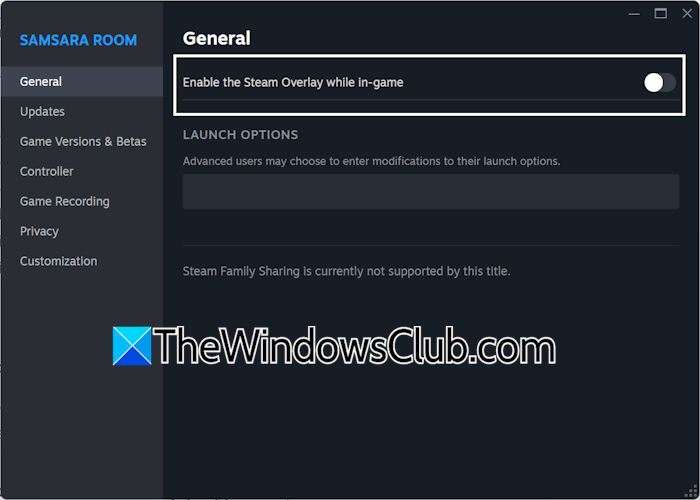
The steps to do this are as follows:
- Launch Steam.
- Go to the LIBRARY.
- Right-click on the required game and select Properties.
- Under the General tab, turn off the “Enable the Steam Overlay while in-game” option.
3] Disable GPU acceleration
If the issue persists, disable GPU acceleration in Steam and see if it helps.
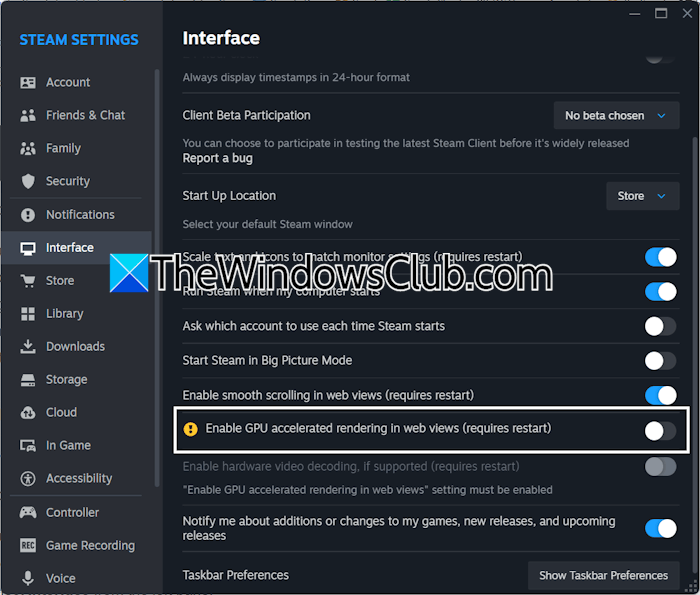
The steps to do this are as follows:
- Launch Steam.
- Click Steam on the top left corner and select Settings.
- Select Interface from the left pane.
- Scroll down and disable the “Enable GPU accelerated rendering in web views” option.
Restart Steam for the changes to take effect. Now, launch the game and see if the problem is resolved.
4] Delete Steam cache
Corrupt Steam cache files might be causing this problem. If the issue still persists, clear the Steam cache by following these steps:
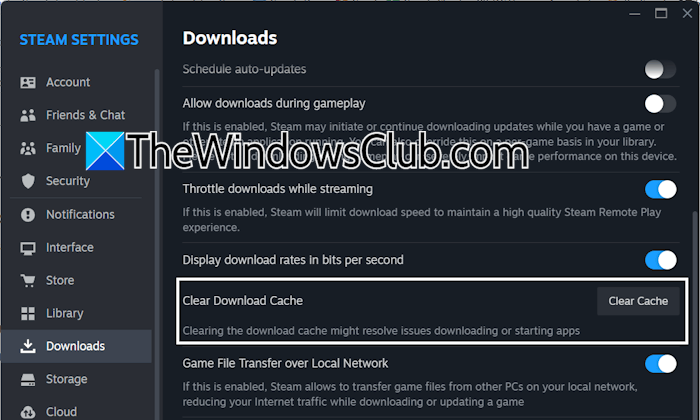
- Launch Steam and open its Settings.
- Navigate to Downloads.
- Scroll down and click Clear Cache next to the Clear Download Cache option.
5] Reinstall your graphics card driver
The issue may also be related to your graphics card driver. We recommend performing a clean installation of your GPU driver. First, visit your computer manufacturer’s official website and download the latest version of your graphics card driver.
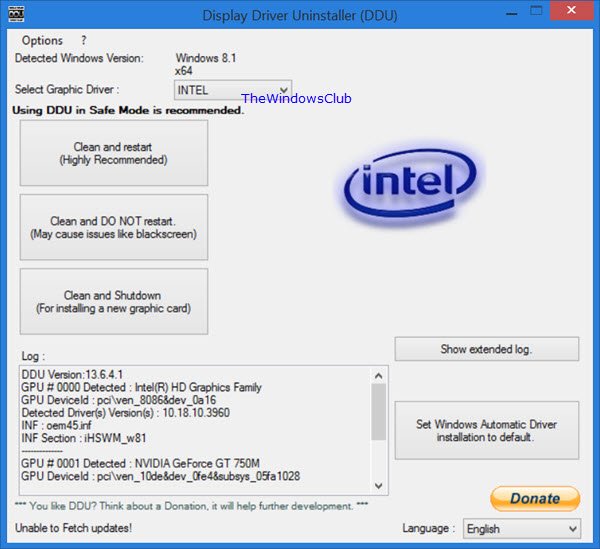
Now, download and install DDU (Display Driver Uninstaller). Boot your system in Safe Mode and run the DDU tool. It will completely remove your graphics card driver and all its components from your system. After that, your system will restore the Microsoft Basic Display Adapter to ensure your display continues to function.
Now, exit Safe Mode and restart your system in normal mode. Run the GPU driver installer file to install the driver from scratch.
6] Reinstall Steam
If none of these fixes resolve the issue, uninstall and reinstall Steam. Use Revo Uninstaller to completely remove Steam from your system. After that, restart your computer and reinstall Steam.
That’s it. I hope this helps.
Why is Steam causing my PC to crash?
There are many reasons Steam may crash your PC. If your PC hardware is not capable of running Steam, you will experience freezing and crashing issues after launching Steam. Additionally, this issue can be caused by a corrupt graphics card driver or overheating.
Why is Steam giving me a black screen?
If you are experiencing a black screen on Steam, your graphics card driver may be corrupted. Additionally, this problem can occur due to the outdated Steam application or corrupted Steam cache.
Read next: Steam Content Servers Unreachable.
