
Some users are unable to upload images to the Steam server from the Steam client app. They can’t share images with friends or upload them anywhere. When they try to do the same, one of the following errors pops up.
Failed to start upload: Image failed to upload or A server error occurred
Uploading image: Failed to start upload, A server error occurred
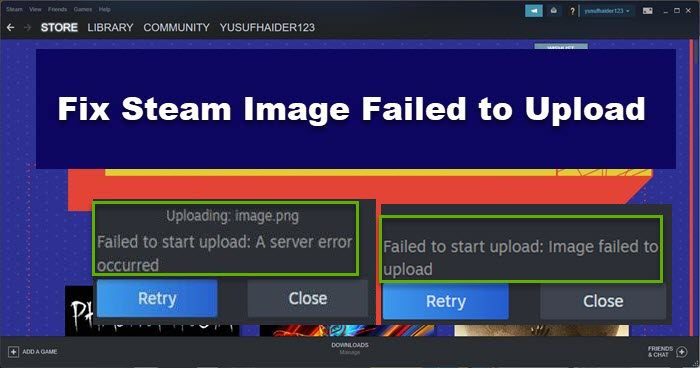
In this post, we’ll cover this issue and what to do if Steam Image fails to upload.
Steam Image Failed to Upload, A server error occurred
If Steam Image failed to upload then try the following solutions to resolve the issue.
- Try updating Steam
- Opt in or Opt out of Steam Beta
- Clear Steam Download Cache
- Disable Family View
- Change your status to offline and then online
- Delete the Steam app cache
Let us talk about them in detail.
1] Try updating Steam
Let us start by updating the Steam client app and make sure that you are running its latest version. You might not know this, if your Steam app is outdated, you won’t be able to upload on the server because of incompatibility. If you have automatic updates enabled, you can skip this step. But if you are using manual update, click on Steam > Check for steam client update. Once Steam is updated, your issue should be resolved.
2] Opt in or Opt out of Steam Beta
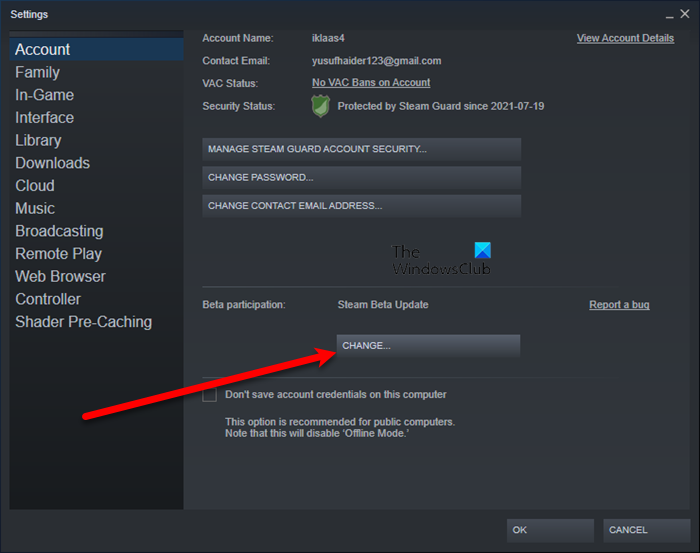
For some users, just opting out of Beta and opting in can do the job. So, let us opt in to Steam Beta and see if that works. Follow the steps below to do the same.
- Open Steam.
- Go to Steam > Settings.
- From Beta participation, click Change.
- Select Steam Beta from the drop-down menu.
Once you have opted into Steam Beta, check if the issue persists. If this doesn’t work, you opt out of Steam Beta using the same method and see if that helps. If this works for you, then in your case the issue was just a glitch.
3] Clear Steam Download Cache
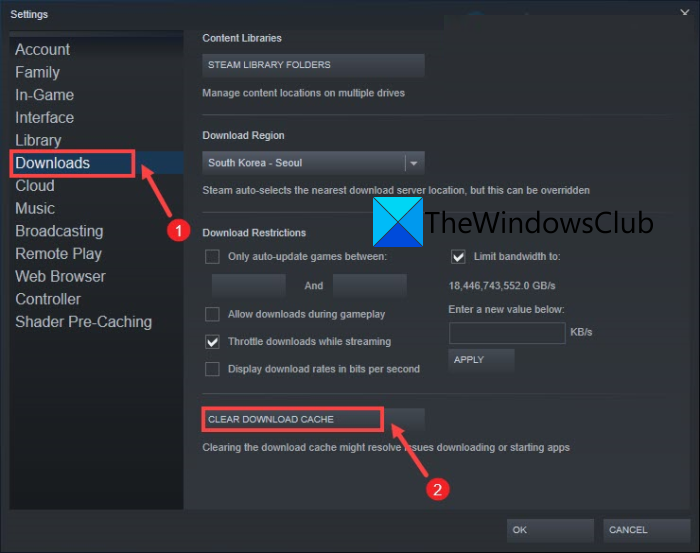
If the Steam client download cache is corrupted, you may encounter the issue. However, you can clear the cache in the Steam client app to fix the issue. Follow these steps.
- Open Steam.
- Go to Steam > Settings.
- Click on the Downloads tab.
- Finally, click on CLEAR DOWNLOAD CACHE.
After clearing the cache, retry uploading your image and see if that works.
4] Disable Family View
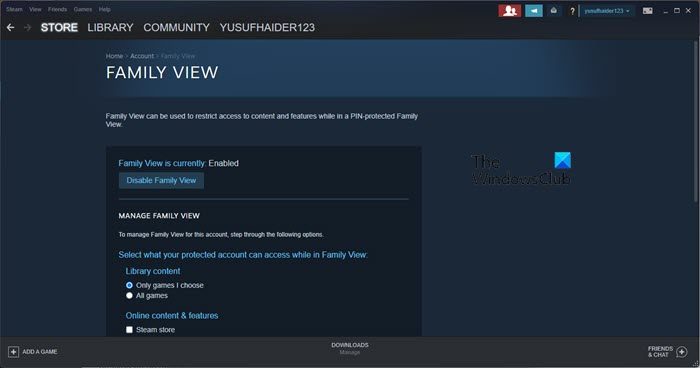
Apparently, there is a bug that stops the Steam client app from uploading images to the server, this bug is called Family View. As you may already know, this feature lets you share games with friends and family. To disable it, follow the prescribed steps.
- Open Steam.
- Go to Steam > Settings.
- Click on the Family tab.
- Go to Manage Family View.
- Enter your security pin.
- Click on Disable Family View.
Finally, restart Steam and see if the issue persists. If the issue is resolved, you can wait for a bug fix in an update.
Read: Steam Friends List not working on Windows PC
5] Change your status to offline and then online
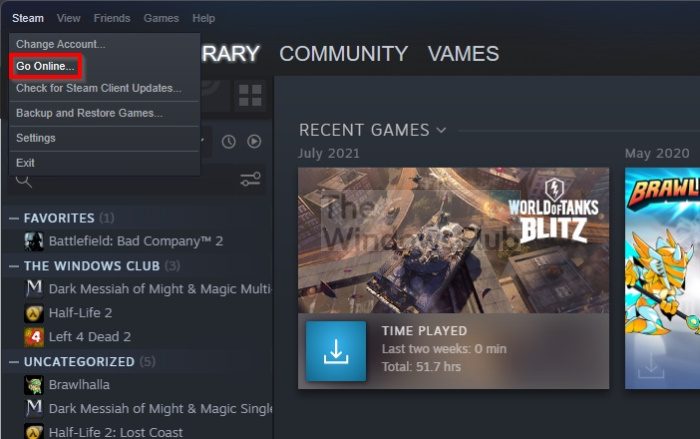
A network glitch may be causing the issue. One way to fix this issue is to go offline and then go back online. To do the same, click on Steam > Go Offline. Now, go back online, just click on Steam > Go Online.
Hopefully, this will do the job.
Read: Steam needs to be online to update error on Windows PC
6] Delete the Steam app cache
Steam caches temporary data and files about your games and the app itself. So, the corrupted cache can cause this issue. Delete the Steam app cache and see if it helps. First of all, open Task Manager using Ctrl + Shift + Esc hotkey and close all processes related to Steam.
Now, open File Explorer and go to the following location.
C:\Program Files (x86)\Steam
Copy the appcache folder and paste it somewhere else as a backup. Then delete the folder. Finally, restart Steam and see if the issue persists.
Hopefully, these solutions will do the job.
How do you upload a picture to Steam?
You can easily upload a screenshot to the Steam cloud library using the following steps.
- In the Steam Client app window, click on View > Screenshots.
- Right-click on the image you want to upload and select Upload.
- Click on Upload again.
This should do the job.
Can you send files over Steam chat?
Yes, Steam now lets you send any type of file. Earlier, you could only send images, but now you can send anything over Steam chat. So, if you want to share a file with your friend, try sending it via Steam chat.
Also Read: Steam failed to send chat message.
