
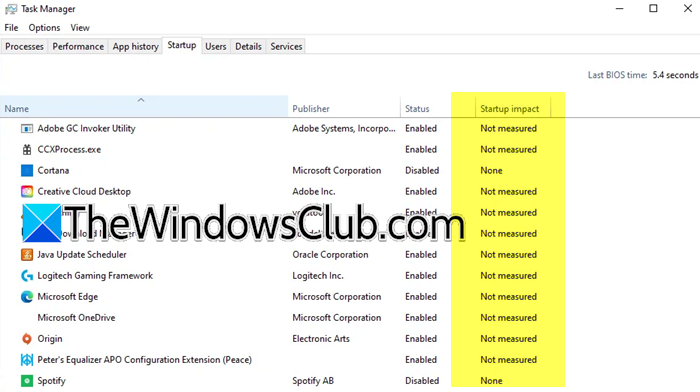
If the Startup Impact column in Task Manager is showing Not measured, this post will help you. This usually means Windows is not tracking startup apps at boot time. The good news is that it is usually fixable with a few tweaks. In this article, we will see how to fix them.
Why is Startup impact not measured?
Startup impact is not measured when Windows can’t collect reliable boot data. This usually happens when startup tracking is disabled, Fast Startup is enabled and skips full boot logging, or when third-party security or cleanup tools interfere. The column may say Not measured or show a Blank entry.
- Not measured – Windows couldn’t calculate impact (too fast, background, invalid entry).
- Blank entry – Program metadata missing (e.g., generic “Program” with no publisher info).
Startup Impact Not measured in Windows 11 Task Manager
If some or all apps show a blank status or “Not measured” instead of the usual low, high, or medium impact ratings, follow the solutions below.
- Perform a clean boot cycle
- Check for diagnostic logs and temporarily disable third-party security and cleanup software
- Turn off Fast Startup
- Enable startup tracking in Group Policy
- Run a system performance trace reset
- Reset Task Manager startup data
Let’s get started with the troubleshooting guide.
1] Troubleshoot in Clean Boot
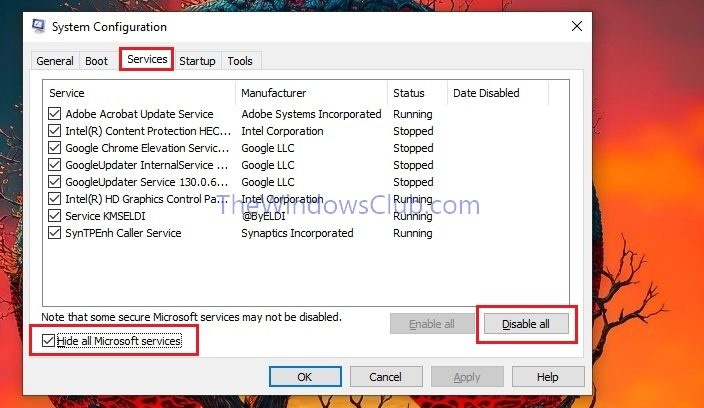
Windows can only measure startup impact when it gets an uninterrupted view of what loads during boot. To ensure this, we are going to perform a Clean Boot to allow Windows to observe startup behaviour properly.
- Click Win + R to open the Run dialogue box, type msconfig, and press Enter to open System Configuration Utility.
- Navigate to the Services tab, check the Hide all Microsoft services box, and click on the Disable all option.
- Now, go to the Startup tab, click on the Open Task Manager link, and disable all startup apps. Once done, close Task Manager and hit the OK button.
Reboot the device, log in normally, wait a few seconds, and check whether the issue is resolved. If the issue is resolved, you need to disable services to determine what’s causing it.
2] Check for diagnostic logs and temporarily disable third-party security and cleanup software
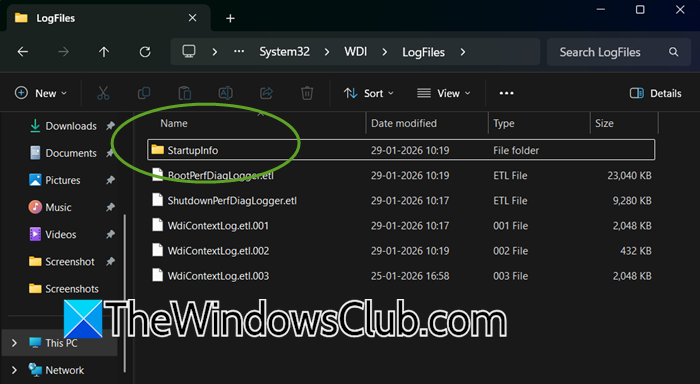
In this solution, we will determine whether Windows is failing to generate startup management logs due to interference from antivirus software or system cleanup tools. When these tools block or delete diagnostic files, Task Manager has no data to calculate the startup impact. We will temporarily disable them to determine whether they are the root cause of this issue.
For that, launch the File Explorer dialogue box, navigate to C:\Windows\System32\wdi\LogFiles\StartupInfo, and hit Enter to open the Log entry.
If the folder is empty, keep it open and temporarily disable third-party antivirus, cleaner, or optimizer software. Restart the device two to three times, and check the StartupInfo folder again and again.
If files appear and impact the rating, reconfigure third-party software to exclude this folder from scans or cleanups. If this doesn’t resolve the issue, go to the next solution.
3] Turn off Fast Startup
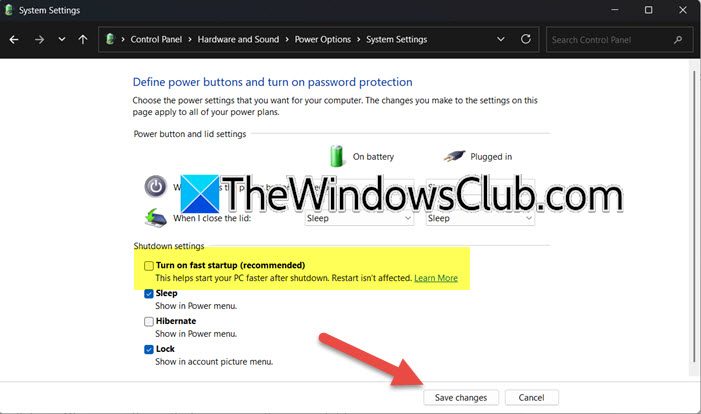
Fast startup shortens boot time by skipping parts of the full startup process; however, doing so may prevent Windows from recording detailed startup performance data. To allow Windows to properly measure startup impact, we will disable fast startup.
- Go to the Search bar, type and open Control Panel, and click on Power Options.
- Select Choose what the power buttons does, and click on the Change settings that are currently unavailable option.
- Untick the Turn on fast startup box, click on the Save changes button, and shut down the PC completely.
Once the PC boots up, open Task Manager and review the startup impact. If this doesn’t resolve the issue, slide to the next solution.
4] Enable startup tracking in Group Policy
If Startup performance is disabled at the policy level, Windows cannot measure startup impact, regardless of how many times Windows reboots. Terefore its necessary to ensure that it is enabled in Group Policy.
- Launch the Run dialogue box, type gpedit.msc, and hit Enter to open the Local Group Policy Editor.
- Navigate to the following location: Computer Configuration >Administrative Templates > System > Boot.
- In the right-hand pane, double-click on the Turn off Windows startup performance tracking policy, and select the Disabled or Not configured option.
- Click Apply and OK to save the changes.
After the process completes, reboot the device and check Task Manager. Proceed to the next solution if the issue persists.
5] Run a system performance trace reset
Running a system performance trace reset forces Windows to rebuild its startup performance database from scratch. If the existing boot traces are corrupted or incomplete, this approach provides Task Manager with fresh data to work with.
The xbootmgr tool is not a built-in Windows command. The error occurs because the tool is not installed on your system; it’s part of a separate download called the Windows Performance Toolkit (WPT). If you have installed WPT, follow the steps below.
- Click Win + R to open the Run dialogue box, type cmd, and hit Ctrl + Shift + Enter to open it with administrative rights.
- Execute the command mentioned below:
xbootmgr -trace boot -prepSystem
- The system will restart automatically, and will display a Preparing system screen. It is important not to disturb this process.
Once it completes, restart it manually once more, then check Task Manager. If the situation remains unchanged, proceed to the next solution.
Read: Windows Task Manager Tips and Tricks you may not be aware of
6] Reset Task Manager startup data
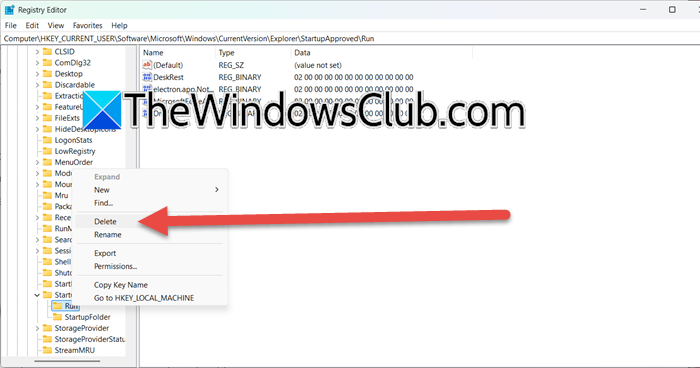
Sometimes, Task Manager can store corrupted or outdated startup approval data, preventing it from displaying impact measurements. In such cases, resetting the Task Manager startup data can help resolve the issue.
- Ensure Task Manager is closed, then open the Run dialog box, type regedit, and press Enter to open Registry Editor.
- Navigate to the following key:
HKEY_CURRENT_USER\Software\Microsoft\Windows\CurrentVersion\Explorer\StartupApproved
- Right-click on Run and StartupFolder subkeys and select the Delete option. Click yes when the confirmation prompt appears.
Close the Registry editor, and reboot the device. Task Manager will rebuild this data on startup.
If nothing helps, consider resetting or reinstalling the particular app.
Read: Stop apps from opening or running at startup in Windows 11
How to set startup impact in Windows 11?
Startup impact in Windows 11 cannot be set per app. Windows automatically calculates it based on how much CPU and disk activity an app uses during boot and labels it as low, medium, or high in Task Manager. They can only enable or disable programs from starting with Windows.
Also Read: Startup Apps not showing in Settings app of Windows 11.
