
After installing Microsoft Office 365 on Windows 10, you need to sign in to your Microsoft account to activate the product. However, if you see an error message saying Sorry, we are having some temporary server issues after clicking the “Sign in” button. Although it is usually a temporary issue, if it persists, you can follow these troubleshooting steps.
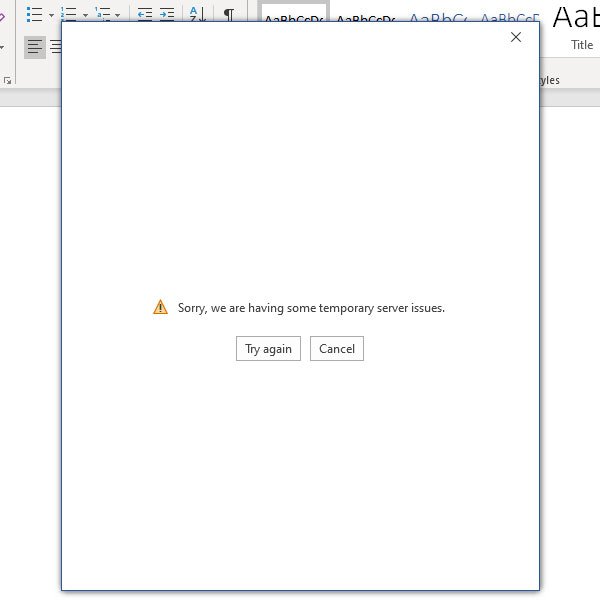
Sorry, we are having some temporary server issues – Microsoft 365 error
There are many reasons why this problem might occur on your computer, and some of them are mentioned below-
- You do not have an internet connection.
- Your internet settings are completely misconfigured.
- Microsoft Office internal files have been corrupted by malware.
To solve the Office 365 activation issue on Windows 11/10, follow these steps-
- Verify internet connectivity
- Reset Internet Properties
- Repair Office
- Run Microsoft Support and Recovery Assistant
- Disable 2-step verification in Microsoft account.
1] Verify internet connectivity
To activate Office 365, you must be connected to the internet. Otherwise, you cannot sign in to your Microsoft account and activate the product. Even if you are linked to a Wi-Fi network or an Ethernet connection, it is recommended to check if that source has valid internet or not.
2] Reset Internet Properties
If your Internet settings are misconfigured and you are unable to connect to the internet, you may encounter this issue when activating Office 365 on Windows 11/10. Therefore, it is a well-known trick to get rid of the activation issue by resetting Internet Options.
To get started, search for “internet options” in the Taskbar search box and open the respective result. Then, switch to the Advanced tab and click the Reset button.
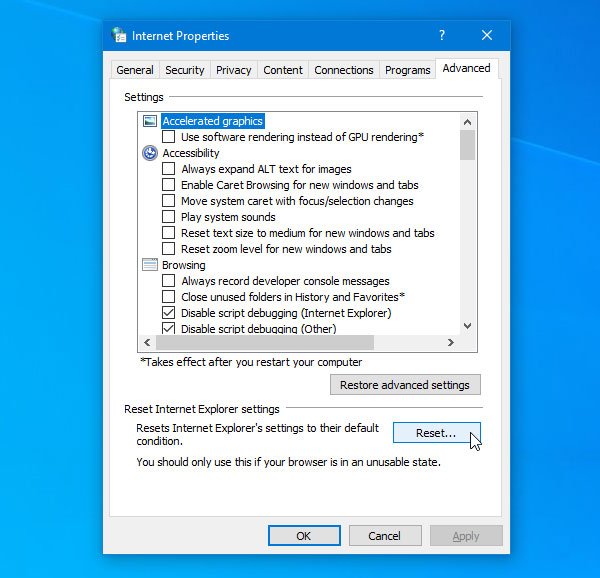
After finishing, restart your computer and check whether you can sign in to your Microsoft account in Office apps.
3] Repair Office
If a virus attacked your computer recently, it may have corrupted your Office installation. At such a moment, you should try to repair your Office installation. To do this, open Control Panel first and go to Uninstall a program under the Programs menu.
Then, select the Microsoft Office installation from the list and click the Change button. It should open a window where you can choose either Quick Repair or Online Repair.
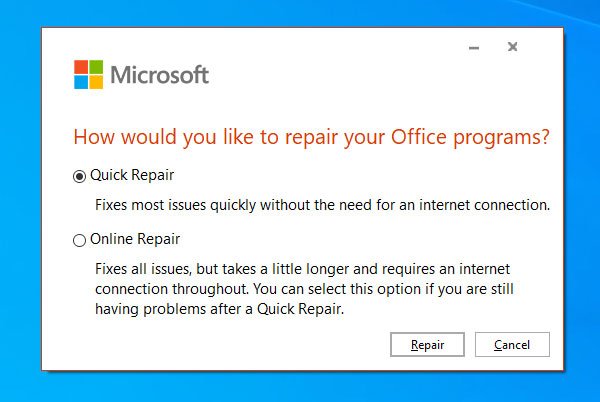
At first, use the Quick Repair option. If it doesn’t help, use the Online Repair option and follow the on-screen instructions.
4] Run Microsoft Support and Recovery Assistant
Microsoft Support and Recovery Assistant is an official tool that recognizes and fixes all activation-related issues. Download the tool, and run it on your PC.
5] Disable 2-step verification in Microsoft account
It is recommended to enable two-factor authentication on your Microsoft account to add an extra layer of security. However, if you are encountering this error, you can disable 2-step verification and try logging in.
If it solves the issue, don’t forget to re-enable the two-factor authentication in Microsoft account.
That’s all!
