
If PowerPoint shows Sorry, no design suggestions for this slide error while asking for design suggestions, here is how you can troubleshoot the issue. This article is for those who are continuously getting this error even though they have a full PPT.
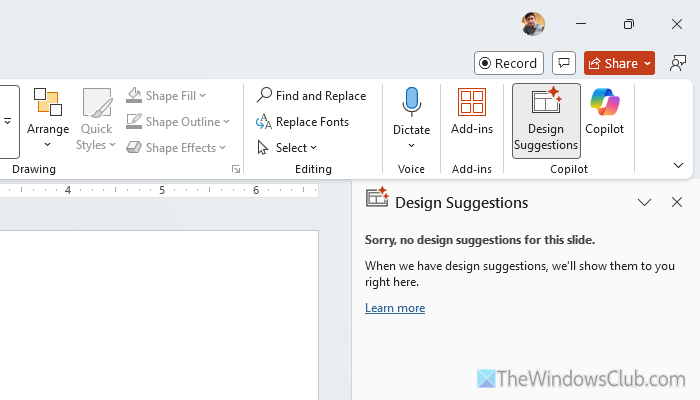
Why does PowerPoint show Sorry, no design suggestions?
PowerPoint shows Sorry, no design suggestions error because of these reasons:
- You have a blank PPT.
- The Designer is disabled.
- Your add-ins are creating conflict.
- Your presentation doesn’t have the PPT extension.
- Your PPT is encrypted.
Sorry, no design suggestions for this slide error in PowerPoint
To fix the Sorry, no design suggestions for this slide error in PowerPoint, follow these instructions:
- Add a title to your PPT
- Verify if Designer is disabled
- Convert file to PPT
- Disable all add-ins
- Turn off additional components
- Update Microsoft 365
- Repair Microsoft 365
To learn more about these solutions, continue reading.
1] Add a title to your PPT
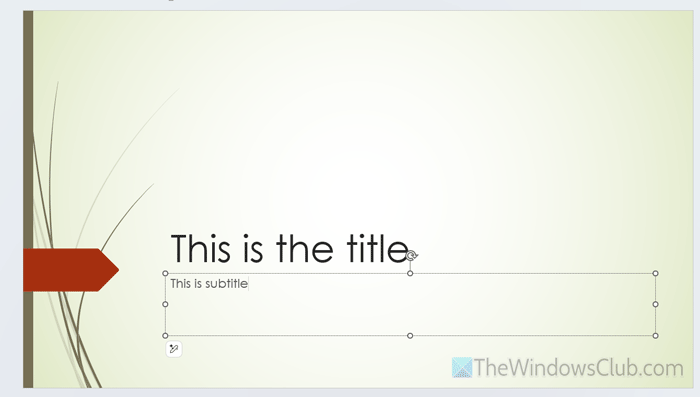
This is the very first thing you must do since PowerPoint Designer fetches details from the content you have written so far in your slides. If the content is unclear or blank, the Designer won’t show any suggestions. As a result, you will encounter the aforementioned error message.
Pro tip: Always try to write a clear and to-the-point title and subtitle for your presentation.
2] Verify if Designer is disabled
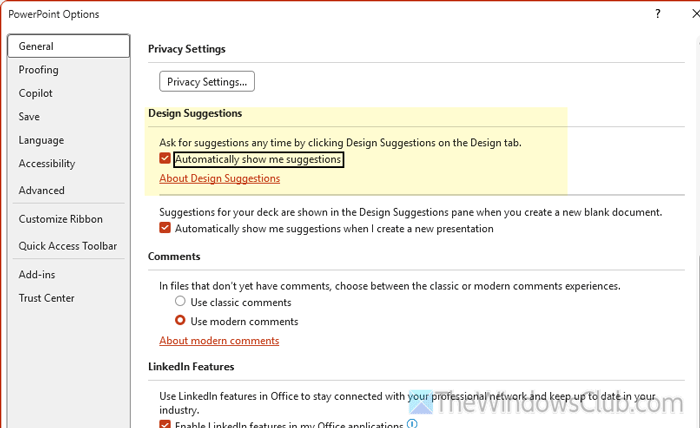
You can enable or disable design suggestions for your slides in PowerPoint. If you are editing on a shared computer and the owner has disabled this feature, you will encounter the error message mentioned above.
Therefore, follow these steps to verify whether Design is disabled or not:
First, open PowerPoint and go to File > Options. Make sure that you are in the General tab. If so, find the Automatically show me suggestions option.
Tick the respective checkbox and click the OK button. Next, click on the Design Suggestions menu.
Read: Microsoft Designer Tips and Tricks to get creative
3] Convert file to PPT
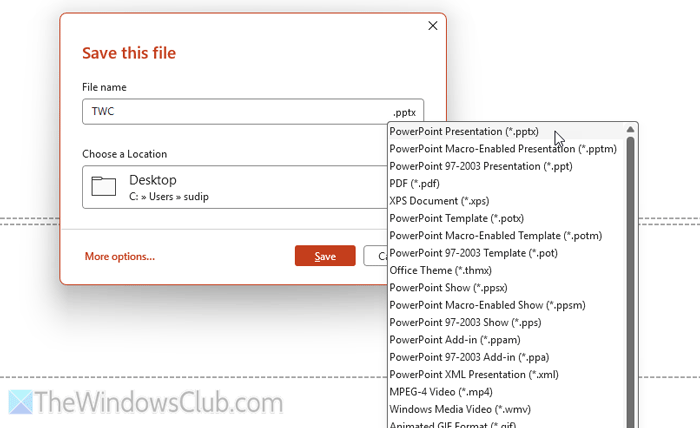
If your presentation has a different format other than PPT or PPTX, you won’t find any suggestions from the Designer. As of now, it is mandatory to have either of those two file extensions. Therefore, if it is in PDF, you can go through this guide to convert it to PPT.
4] Disable all add-ins
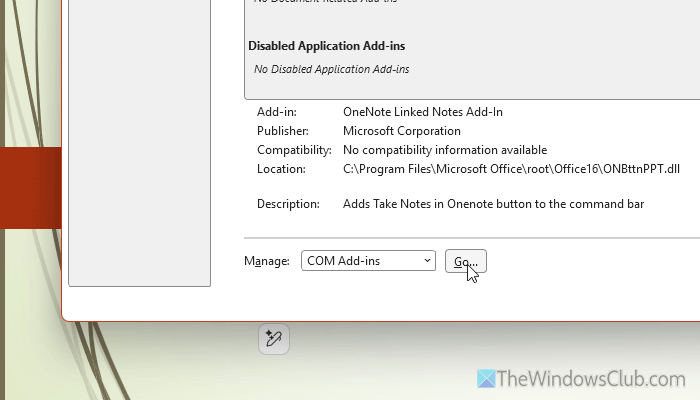
To disable all add-ins, go to File > Options > Add-ins. Select COM Add-ins and click the Go button. Remove ticks from all the checkboxes and click the OK button.
It disables all add-ins. If this helps, keep them disabled. However, the problem still remains; you can revert the change.
Read: View, manage, install and remove Add-ins from Office programs
5] Turn off additional components

PowerPoint allows you to install other apps and integrate them to enhance the user experience. For example, you can use Grammarly to check grammar while typing a text.
At times, those interlinks could cause this issue. That is why it is suggested to disable all the third-party app integrations.
Read: 5 best AI tools for Microsoft Office
6] Update Microsoft 365
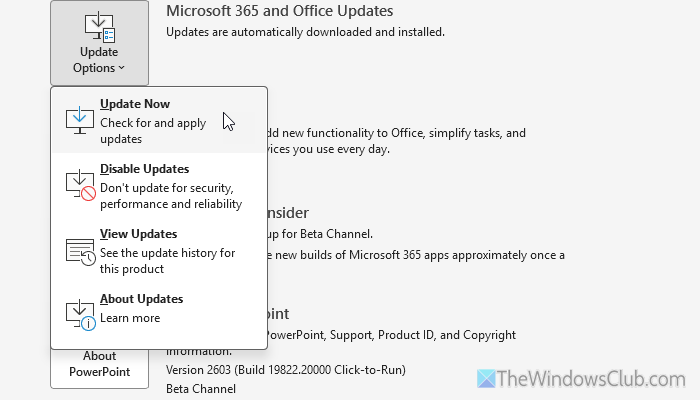
If PowerPoint has not been updated for a very long time, there is a high chance of getting this error. As a Designer needs the latest version of PowerPoint all the time, you must install the recent updates as soon as possible.
To update Microsoft 365 or PowerPoint, open PowerPoint and click on File > Account.
Then, click on the Update Options menu and select the Update Now button.
It may take several minutes to finish downloading and installing the update.
7] Repair Microsoft 365
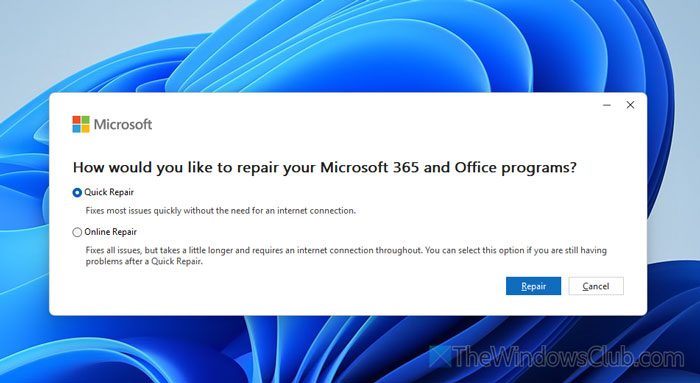
To repair Microsoft 365, open the Windows Settings panel and go to Apps > Installed apps. Find Microsoft 365, click on the three-dotted icon, and select Modify.
Choose Quick Repair and click on the Repair button.
If it doesn’t help, choose the Online Repair option and click on the Repair button. For your information, the second option requires a valid internet connection and takes longer than the first.
Read: How to use PowerPoint Designer in Microsoft 365
How to fix sorry there are no designs in PowerPoint?
To fix this error, you must add a few words first so that the Designer can fetch them and show suggestions based on them. After that, you must check whether the Designer feature is disabled.
How do I activate design suggestions in PowerPoint?
To activate design suggestions in PowerPoint, click on File > Options. Then, find the Automatically show me suggestions option in the General tab and tick the respective checkbox. Click the OK button.
