
For many of us, the Microsoft Store is the go-to place for installing new software. However, users often encounter the Something went wrong and Microsoft Store failed to initialize error when opening the app in Windows 11. As a result, the store becomes inaccessible. However, the good thing is that fixing the issue isn’t complicated and only requires clearing the cache or re-registering the app.
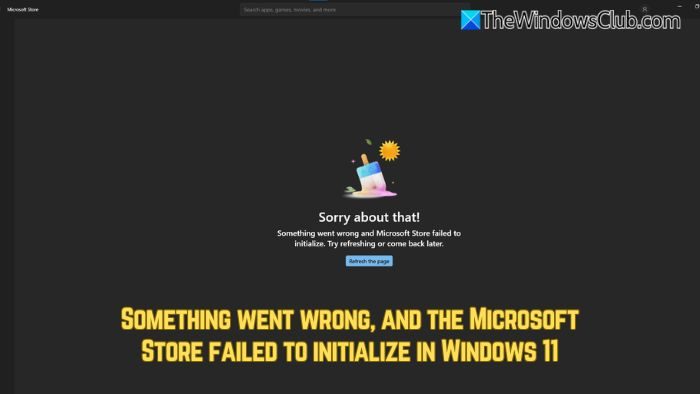
Something went wrong and Microsoft Store failed to initialize in Windows 11
There are three ways to fix the Something went wrong and Microsoft Store failed to initialize error in Windows 11/10:
- Update Windows
- Clear Microsoft Store cache
- Repair or Reset Microsoft Store
- Re-register and reinstall the Microsoft Store
1] Update Windows
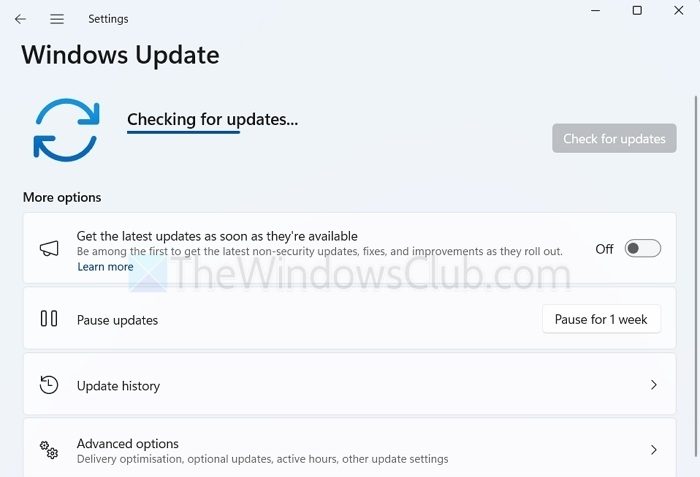
Start by updating your Windows; this will rule out any possible glitches that might be causing the error.
To update Windows, go to Windows Settings > Windows Update, then click the Check for updates button.
2] Clear Microsoft Store cache
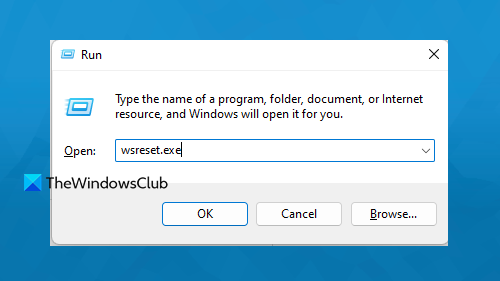
The issue often occurs due to cached data, so clearing the cache is a good move.
- Press Windows key + R to open Run.
- Then type wsreset.exe and press Enter.
- Once you run the command, a blank Command Prompt opens and closes automatically within a few seconds, confirming that the cache has been cleared.
Also, it will open the Microsoft Store for you.
3] Repair or Reset Microsoft Store
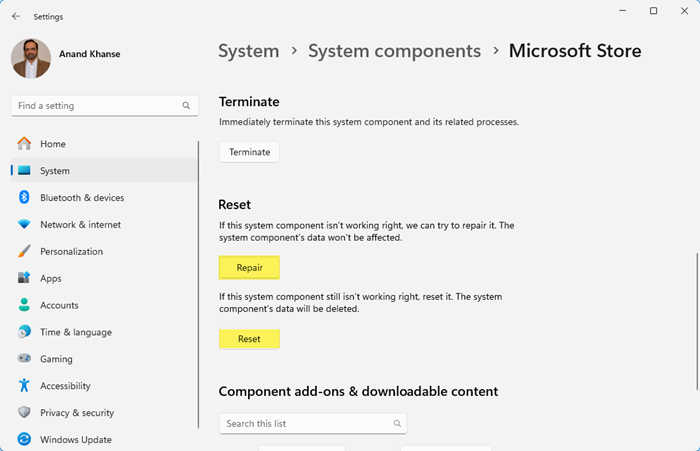
You can Repair or Reset the Microsoft Store via Windows Settings as follows:
- Open Settings by Win + I.
- Go to Apps > Installed apps.
- Scroll down and click on System components.
- Look for “Microsoft Store”, click on the three dots, and select Advanced options.
- Click on Repair first and check if the issue is resolved. If the issue persists, click on Reset.
3] Re-register and reinstall the Microsoft Store

In case the above suggestions do not work for you, then the next step is to re-register and reinstall the app. Here’s how:
- Go to Windows Search, type PowerShell, right-click on it, and select Run as administrator.
- In PowerShell, copy and paste the following command and press Enter:
Get-AppxPackage WindowsStore | Remove-AppxPackage
- Next, run the following command to reinstall the Microsoft Store:
Get-AppxPackage -allusers Microsoft.WindowsStore | Foreach {Add-AppxPackage -DisableDevelopmentMode -Register “$($_.InstallLocation)\AppXManifest.xml”}
- Once done, check if you are still getting the same error or not.
So those were three quick fixes that help you fix the Something went wrong and Microsoft Store failed to initialize error in Windows 11. Even after these steps, if you still encounter the same issue, you can consider resetting Windows. Just make sure you have taken a proper backup before doing it.
Why does the Microsoft Store still malfunction after reinstalling it?
This usually happens when core Windows system files are corrupted, and running SFC and DISM repairs those deeper issues so the Store can function normally.
Read: Microsoft Store error codes, descriptions, resolution: Complete list
Can antivirus software cause the Microsoft Store to fail?
Yes, some third-party antivirus tools block Store services or connections, and disabling them temporarily or adding exceptions often resolves the issue.
