
Here we will talk about what you can do if Shadow Warrior is crashing, stuttering or freezing on Windows 11/10. Shadow Warrior is a popular action first-person shooter video game available for PC. And, like its predecessor, it has received many positive reviews around the globe. However, there is one issue that has been troubling gamers a lot. Many gamers have reported that Shadow Warrior crashes at launch on Windows PC. If you are experiencing the same problem, continue with this troubleshooting guide to resolve it.
Shadow Warrior crashing, stuttering or freezing on Windows PC
If Shadow Warrior 3/2 is crashing, stuttering or freezing on your Windows 11/10 PC, try the solutions below.
- Ensure that your PC matches the recommended requirement
- Check the latest Graphics Driver update
- Run Shadow Warrior in administrator mode
- Close all the unnecessary applications
- Verify Shadow Warrior Integrity
- Perform SFC scan
- Troubleshoot in Clean Boot
- Whitelist the game in Windows Firewall
- Disable the Overlay feature
- Reinstall Game
Let’s check out these solutions in detail.
1] Ensure that the system matches the minimum requirement
Shadow Warrior is a graphics-oriented game. Therefore, you must have a high-spec system to run the game without any problem. But if your system doesn’t meet the minimum requirements, you will experience crashes. So, here are the recommended system specifications for Shadow Warrior 3 on a Windows PC.
- OS: Windows 11/10 (64-bit)
- Processor (CPU): Intel Core i7-6950X (10 cores, 3.0 GHz) or AMD Ryzen 7 2700 (8 cores, 3.2 GHz)
- Memory (RAM): 8 GB
- Graphics (GPU): NVIDIA GeForce GTX 1080 (8 GB VRAM) or AMD Radeon RX 5700 (8 GB VRAM)
- DirectX: Version 11
- Storage: 31 GB available space.
2] Check the latest Graphics Driver update
An outdated graphics driver is another major reason triggering the crashing problem. So, download the latest graphics driver update to fix the problem. You can either manually update your GPU drivers or use a third-party driver updater to download the latest graphics card driver update.
3] Run Shadow Warrior in administrator mode
Running the game in administrator mode is another solution you can rely on. Games like Shadow Warrior require administrator privileges to run without any issue on PC. Here’s how to run Shadow Warrior in administrator mode.
- To begin with, right-click on the Shadow Warrior shortcut icon and choose the Properties option.
- Tap on the Compatibility tab.
- Checkmark Run this program as an administrator option.
- Tap on Apply > OK.
Open the game and check whether the problem is fixed.
4] Close all the unnecessary applications
A lot of background running applications can also interfere with the smooth launch of Shadow Warrior. So, close all the applications that are no longer of use. Here’s how it’s done.
- Launch the Task Manager by pressing Ctrl + Shift + Esc shortcut key.
- Right-click on all those applications of no use and choose the End Task option.
5] Verify Shadow Warrior Integrity
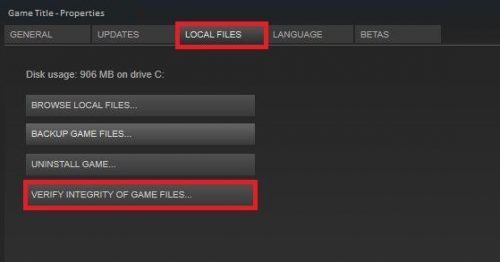
If the Shadow Warrior files have been corrupted for some reason, then you will face the launch issue on your system. Fortunately, you can get rid of the problem via Steam itself. Here are the steps you need to follow.

- Launch Steam > Library > right-click on Ready or Not.
- Choose Properties.
- Click on Verify Integrity of game files.
Once done, open the game, and check if the problem persists.
6] Perform SFC scan
Running SFC scan is another effective way to fix the problem. SFC scan will eliminate any kind of corrupted file that is causing the mentioned problem. You can run the scan by following the steps below.
Open the Start menu.
Type command prompt and choose Run as Administrator.
In the command prompt window, type the code below and press Enter.
sfc /scannow
Windows will take some time to complete the scan process. Once completed, check for the issue.
7] Troubleshoot in Clean Boot
As reported by users, background-running applications can be the main cause of the crashing issue. In such a scenario, the best thing you can try is to perform a clean boot and check if it fixes the problem. To do so, here are the steps you need to follow.
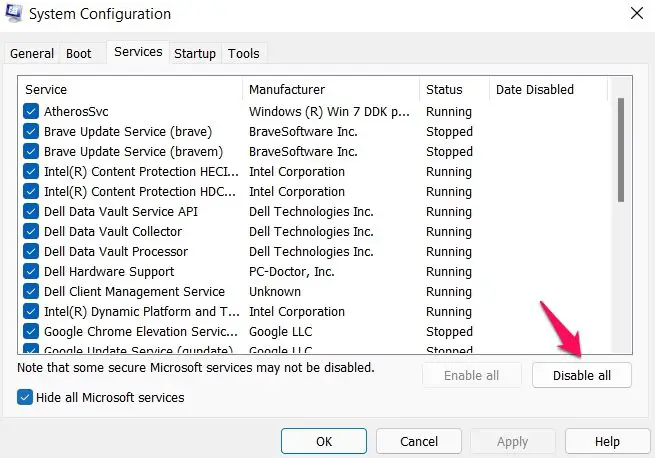
- Open the Run dialogue box, type msconfig and press Enter.
- Tap on the Services tab and check the Hide all Microsoft services option.
- Click on Disable all options.
- Now, press Ctrl+Shift+Esc to open Task Manager.
- Go to the Startup tab.
- Right-click on all the unnecessary programs and tap on the Disable option.
Now, restart your system, launch Shadow Warrior and check if the crashing is fixed.
8] Whitelist the game in Windows Firewall
The Windows Firewall settings can cause the crashing issue in Shadow Warrior. Firewall stops the connection or game files which automatically disrupts the smooth functioning of games. While temporarily disabling Windows Firewall is an option, whitelisting the game in Windows Firewall is the better option.
9] Disable the Overlay feature
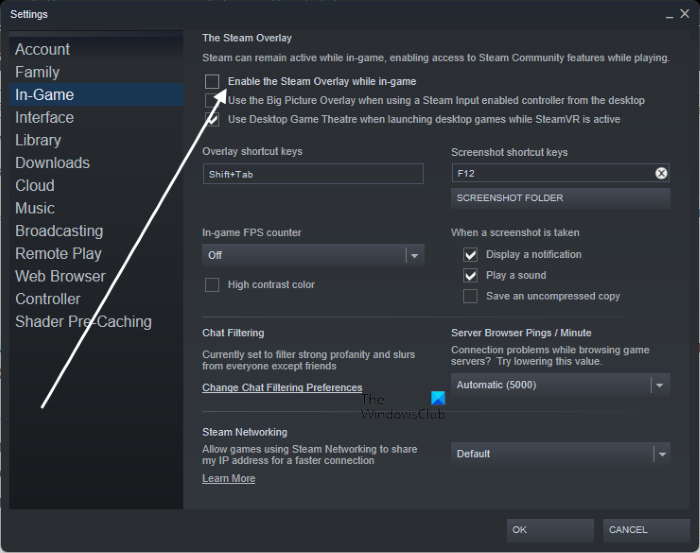
The overlay feature of Steam helps to unlock advanced features in the game. However, it can also be a major reason behind the crashing problem. So, you’ll have to disable the in-game overlay feature to get rid of the issue. Here’s how it’s done.
- Launch the Steam Client.
- Tap on Steam, followed by selecting Settings.
- Under the In-Game tab, uncheck Enable the Steam Overlay while in-game.
- Tap on the OK button to save the changes.
10] Reinstall Game
If you have tried all the above methods and are still facing the problem, the last option is to reinstall the game. Do it to fix the crashing problem.
Why is Shadow Warrior crashing on Windows PC?
The crashing issue with Shadow Warrior on Windows PC can occur if your computer doesn’t match the system requirements to run the game. The problem can also occur due to an outdated graphics card driver, overlay feature, corrupted game files, or Windows firewall settings.
Read Next: PUBG Crashing or Freezing on Windows PC.
