
This post will show you what you can do if you receive Error 0xC004D307, Security processor reported that maximum allowed number of re-arms has been exceeded, You must re-install the OS before trying to re-arm again message on your Windows computer. Re-arming is typically done when clearing TPM ownership, reinstalling Windows, or troubleshooting BitLocker or Secure Boot issues. TPM has a limited number of times it can be reset or re-armed, and if this count is exceeded (usually three times), you may see this message.
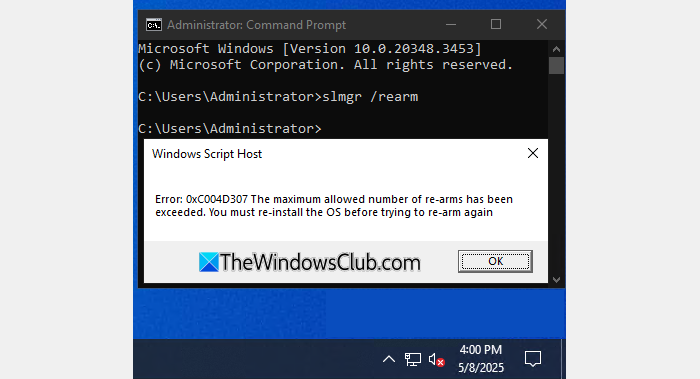
Security processor reported that maximum allowed number of re-arms has been exceeded
Here are the steps you can take to resolve this issue:
1] Check TPM status
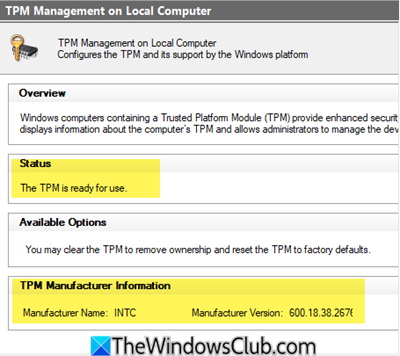
Press Win+R, type tpm.msc, and press Enter.
Check the Status and Manufacturer Information to confirm whether the TPM is functioning.
2] Update firmware and drivers
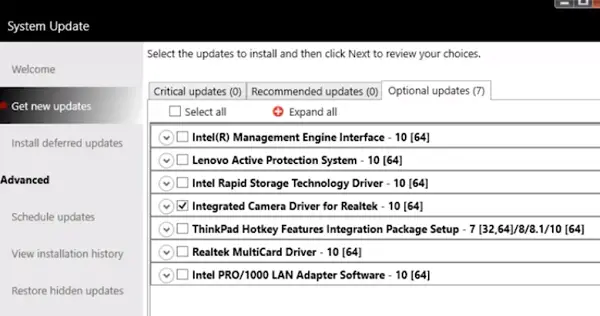
Go to your PC manufacturer’s support site and install the latest BIOS/UEFI and chipset/TPM firmware updates.
- If you own a Dell laptop, you can head over to Dell.com or use Dell Update Utility.
- ASUS users can download the ASUS BIOS update utility from the ASUS support site.
- ACER users can go here. Enter your Serial Number/SNID or search for your product by Model, select BIOS/Firmware, and click the Download link for the file you want to download.
- Lenovo users can use the Lenovo System Update Tool.
- HP users can use the bundled HP Support Assistant.
This often resolves the issue.
3] Clear TPM
Clearing the TPM may help, but please read this post before doing so.
Open Settings > Update & Security > Windows Security > Device Security > Security processor details > Security processor troubleshooting.
If the option is available, you can clear the TPM. This will erase keys used by BitLocker and other encryption features. Make sure you have recovery keys backed up.
If TPM is locked out, look for Clear TPM or Reset Security Processor in your BIOS/UEFI settings.
NOTE: If the counter has reached its hardware limit, the only fix may be a TPM replacement.
Read: Windows Activation Errors
4] Suspend BitLocker Encryption
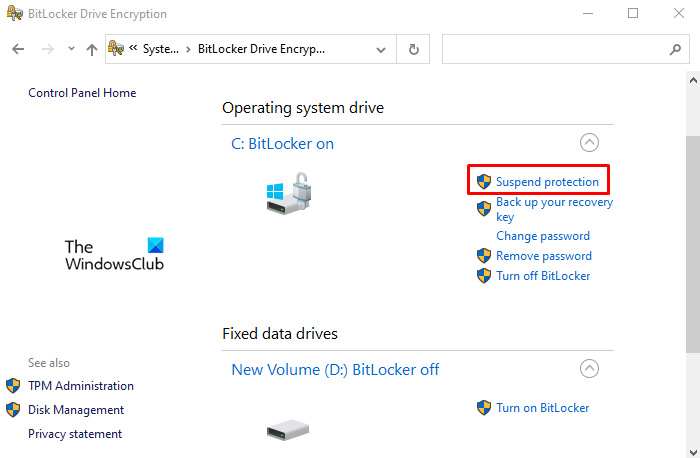
If you use BitLocker, ensure you have your recovery key saved. You may need to suspend BitLocker Encryption before attempting TPM operations.
Read: SkipRearm lets you use Windows without activating
5] Edit Registry
This can happen if you’ve used the SLMGR -REARM command more than three times. You can edit the Registry to resolve the issue.
Open REGEDIT and navigate to:
HKEY_LOCAL_MACHINE\SOFTWARE\Microsoft\Windows NT\CurrentVersion\SoftwareProtectionPlatform
Locate SkipRearm, double-click on it, and change the Value Data from 0 to 1.
Click OK and restart your computer.
6] Use Command Prompt
Open Command Prompt as Administrator and execute the slmgr -rearm command.
Restart your computer.
If none of these steps help you, you may need to reinstall Windows.
Related: Use Slmgr to Install, Uninstall, Activate, View or Extend Windows License.
