
Most people use Bing Search to look up websites, images, news, or quick answers. However, Bing offers many built-in features that can help you search faster, find more accurate information, and even complete everyday tasks without opening additional websites. In this guide, we’ll explore some of the hidden Bing Search features you may not know about.
Hidden Bing Search features you didn’t know existed
Here are some useful Bing Search features that often go unnoticed:
- Advanced Search Operators
- Visual Search
- Copilot Search
- Bing Videos preview
- Travel and flight tracking
- Unit and currency conversion
- Calculator and quick math
- Weather and time lookup
- Package tracking
- Translator
- Word Meanings and Pronunciations
Let’s look at them in detail.
1] Advanced Search Operators
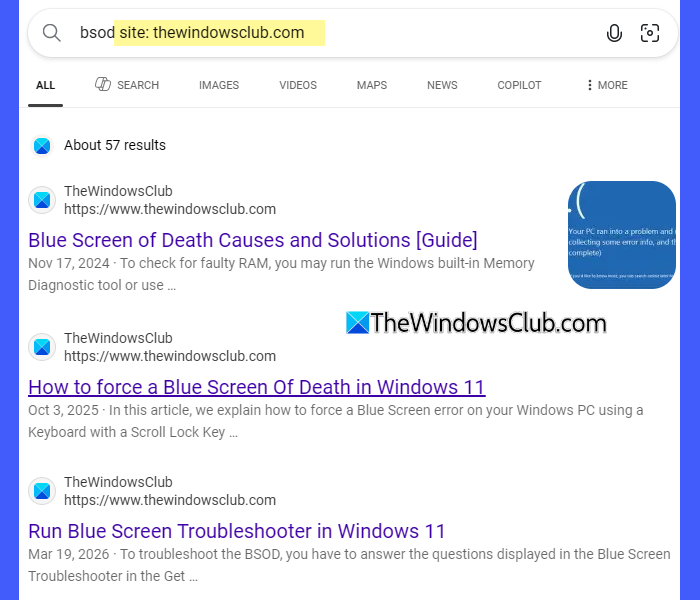
Bing isn’t limited to keyword-based searches. It also supports search operators, which are special commands that give you greater control over your searches and help you find more relevant results.
Since these operators aren’t visible anywhere in the Bing interface and require you to know the correct syntax, many users never discover them. Some of the most useful operators include:
| Operator | What it does | Example | How the example works |
|---|---|---|---|
" " |
Searches for an exact word or phrase instead of individual keywords. | "Windows Backup" |
Returns results containing the exact phrase Windows Backup, rather than separate results for Windows and Backup. |
site: |
Searches within a specific website or domain. | Windows Backup site:microsoft.com |
Searches for Windows Backup only on Microsoft’s official website. |
filetype: |
Finds documents in a specific file format, such as PDF or DOCX. | Microsoft Defender filetype:pdf |
Returns PDF documents related to Microsoft Defender. |
intitle: |
Finds pages that contain a specific word or phrase in the page title. | intitle:"Excel Tips" site:thewindowsclub.com |
Searches TheWindowsClub.com for pages that have Excel Tips in the title. |
inurl: |
Finds pages with a specific word in the URL. | inurl:copilot site:microsoft.com |
Searches Microsoft’s website for pages whose URLs contain “copilot”. |
OR |
Finds pages containing either of two search terms. | Surface OR ThinkPad |
Returns results related to either Surface or ThinkPad devices. |
- |
Excludes a word or phrase from the search results. | Windows Update -Windows 10 |
Returns results about Windows Update while excluding pages that mention Windows 10. |
2] Visual Search
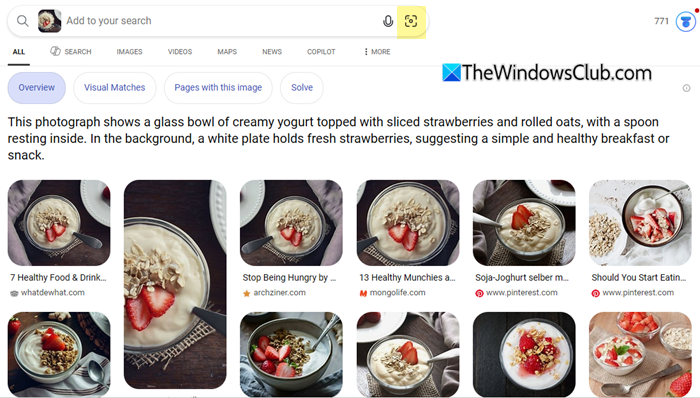
Bing also includes Visual Search, a feature that lets you search using an image instead of text. Since the Visual Search option is tucked away behind the Images tab or the camera icon on the Bing homepage, many users don’t realize it exists.
Visual Search is useful when you don’t know the name of an object or don’t know how to describe it in words. To use Visual Search, open the Images tab in Bing and click the Visual Search (camera) icon. Upload an image, paste its URL, or take a photo, and Bing will display visually similar images and related information.
3] Copilot Search
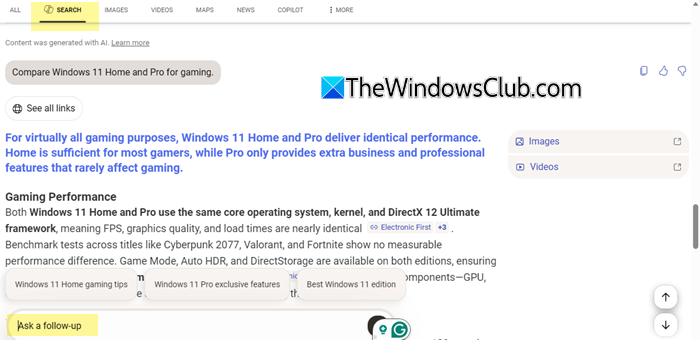
Bing now offers ChatGPT-like conversational search through Copilot Search, allowing you to ask questions in natural language instead of relying on keywords. Instead of typing a few keywords, you can ask complete questions or requests, such as:
- Compare Windows 11 Home and Pro for gaming.
- Explain BitLocker in simple terms.
Copilot Search generates a summarized response by combining information from multiple web sources. It also provides links to the original sources, allowing you to verify the information or explore a topic in greater detail. One of its biggest advantages is that it supports follow-up questions. Copilot Search remembers the context, so you don’t have to repeat your original query.
To use Copilot Search, visit the Bing homepage and select the Copilot Search option, then enter your query in natural language. Copilot Search is especially useful when you’re researching a topic, comparing products, planning a trip, or trying to understand a complex concept.
4] Bing Videos preview
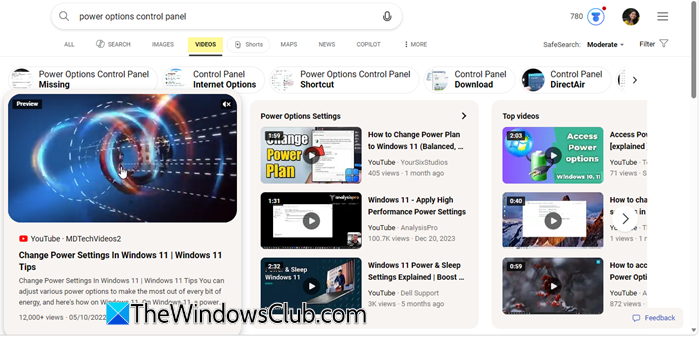
When searching for videos online, most users open multiple results before finding the one they need. However, Bing lets you preview many videos directly from the search results without opening them.
To use this feature, search for a video on Bing and switch to the Videos tab. Hover your mouse pointer over a video thumbnail to see a short preview. If the video looks relevant, click it to open the full video on the hosting platform.
Keep in mind that video previews may not be available for every search result, as they depend on the source website and the type of video being displayed.
5] Travel and flight tracking
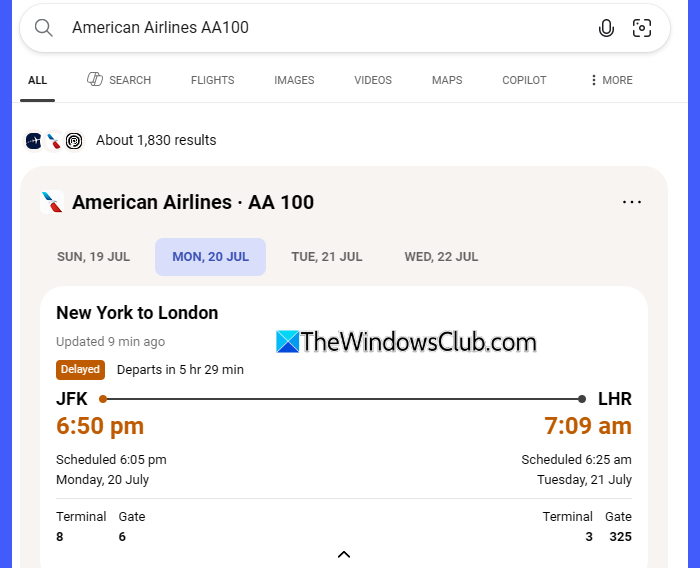
If you need to check a flight’s status, you don’t always have to visit the airline’s website. Bing can display flight information directly in the search results, making it quick and easy to see the latest updates. Simply search using the airline name and flight number, such as American Airlines AA100 or Delta 245. Bing can show details like the flight’s departure and arrival times, current status, terminal information, and any delays, if available.
Bing can also help when planning a trip. Search for a destination, hotel, or tourist attraction, and you’ll see useful information such as maps, photos, reviews, nearby places, and other travel details right on the results page.
6] Unit and currency conversion
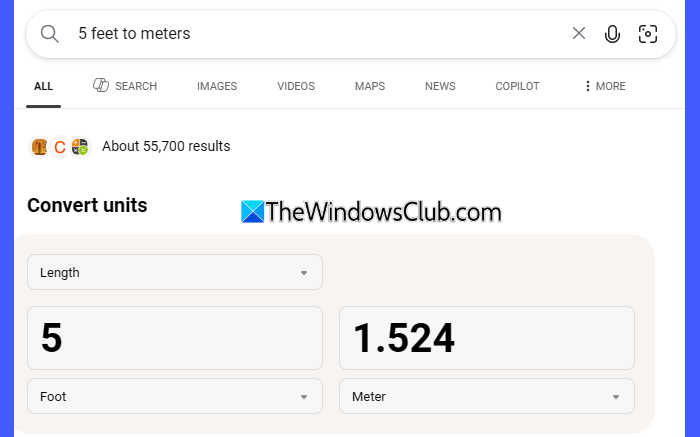
Bing has a built-in converter that appears only when you search for a conversion. The converter supports a wide range of conversions, including currencies, length, weight, temperature, volume, area, speed, and more.
To use it, type your conversion into the Bing search box. For example, you can type:
- 10 miles in kilometers
- 5 pounds to kilograms
- 100 USD to EUR
- 50 GBP to USD
Bing instantly displays the converted value, and also provides an interactive converter that lets you change the amount or units without running another search.
7] Calculator and quick math
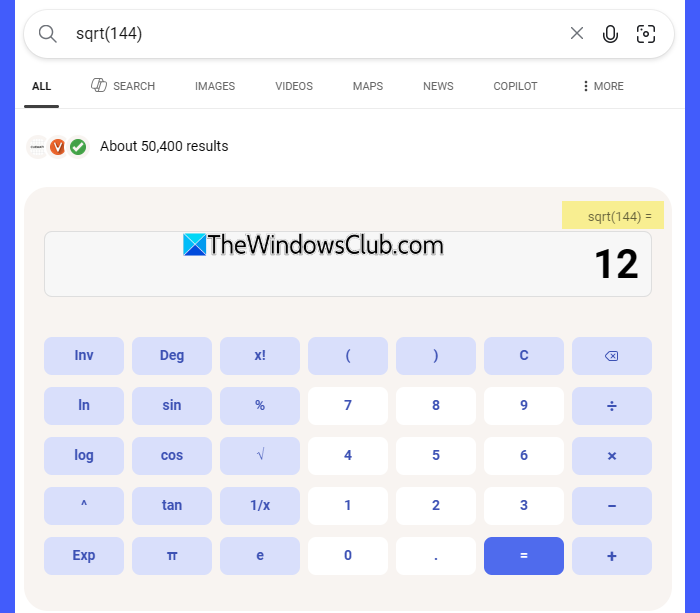
Bing can also function as a built-in calculator for both basic and advanced mathematical calculations. Simply type your mathematical expression into the Bing search bar, and Bing will calculate the answer instantly.
You can use Bing for:
- Basic arithmetic: 45 + 30, 100 – 25, 12 * 8, 144 / 12
- Complex expressions: (5 + 3) * 12, (10 + 20) / (5 – 2)
- Exponents: 2^4
- Square roots: sqrt(144)
- Logarithms: log(1000)
- Trigonometric functions: sin(30 degrees), cos(45 degrees) (specify degrees or radians for accurate results)
- Percentage calculations: 25% of 200
- Financial calculations: Expressions such as (Selling Price – Cost Price) / Cost Price * 100 to calculate profit margin or markup.
Bing also understands natural-language queries like “What is 25 percent of 180?“, making it easy to perform calculations without worrying about mathematical syntax.
This feature is particularly useful for solving homework problems, budgeting, adjusting recipe quantities, calculating expenses, or performing quick calculations without opening a dedicated calculator app. For more complex formulas, use parentheses to ensure Bing evaluates the expression in the correct order.
8] Weather and time lookup
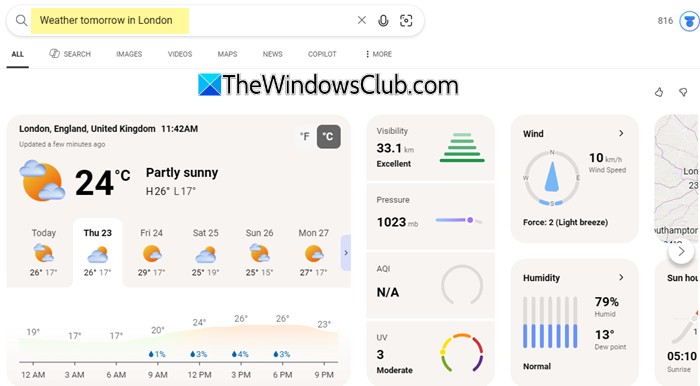
Bing Search can provide instant weather forecasts and display the current time for virtually any location in the world. This feature is especially useful when planning trips, scheduling international meetings, checking the weather before heading outdoors, or simply finding the current time in another part of the world without leaving the search page.
Type your query into the search bar, and the information appears directly in the search results. For example, you can search for:
- Weather in New York
- Weather tomorrow in London
- Current time in Sydney
- What time is it in Paris?
Bing displays current weather conditions along with useful details such as temperature, humidity, wind speed, precipitation, and multi-day forecasts. If you’re checking the time, Bing shows the local time and time zone for the requested location, making it easy to coordinate meetings, travel plans, or calls across different regions.
9] Package tracking
If you’re waiting for a delivery, Bing Search can help you track your package directly from the search results. Enter your tracking number into the search box. If Bing recognizes the shipment, it will display the latest tracking status, including the package’s current location, transit updates, and estimated delivery date. For example, you can search for:
- Track package 1Z999AA10123456784
- Track FedEx 123456789012
- Track DHL shipment 1234567890
- Or simply paste the tracking number into Bing.
Bing supports tracking for many popular shipping carriers, though availability varies by carrier and region. If your shipment isn’t recognized, try including the carrier’s name along with the tracking number to improve the search results. Since tracking information comes directly from the shipping carrier, updates may take some time to appear after a package is scanned.
10] Translator
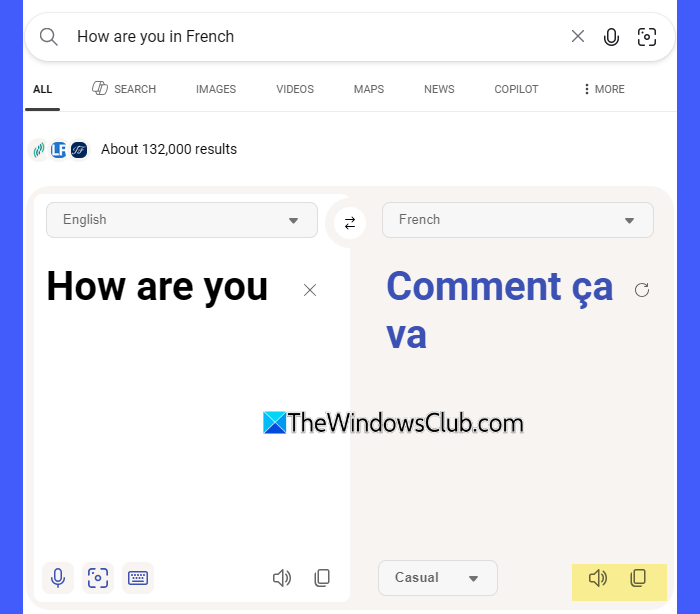
Bing includes a built-in translation feature that lets you translate words, phrases, or entire sentences without visiting a separate translation website. Simply enter your translation request in the Bing search box, and the translated text appears directly in the search results.
For example, you can search for:
- Translate hello to Spanish
- How are you in French
- Translate good morning to German
Bing supports dozens of languages and also understands natural-language queries. Besides translating text, Bing can also identify the source language automatically when it is clear from the input. This makes it convenient for translating emails, messages, travel phrases, or short documents without switching to another translation tool.
11] Word Meanings and Pronunciations
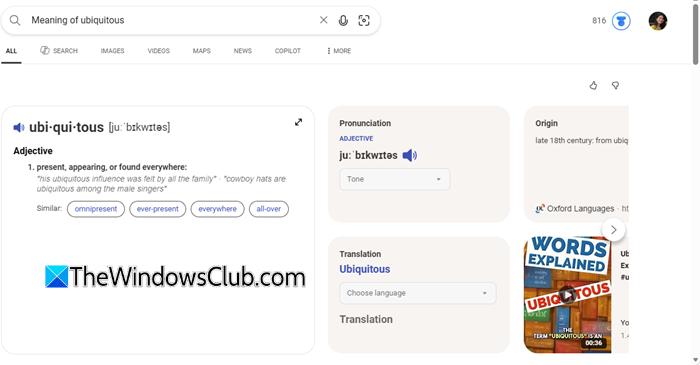
Bing can instantly define words and help you learn their correct pronunciation without opening a dictionary website. Type a word or phrase into the Bing search box, and it displays the definition, pronunciation, part of speech, and, in many cases, example sentences and synonyms directly in the search results.
For example, you can search for:
- Define serendipity
- Meaning of ubiquitous
- Pronounce epitome
- What does resilience mean?
Depending on the word, you may also see phonetic spelling, an audio pronunciation, and related words.
By taking advantage of these hidden Bing search features, you can search smarter, find answers more quickly, and perform many everyday tasks directly from the search results. If we’ve missed any useful ones, feel free to share them with us in the comments below.
Read: How to use Bing Voice Search on desktop.
Does Bing have advanced search?
Yes. Bing supports advanced search through search operators such as site:, filetype:, intitle:, and quotation marks (” “). These operators help you narrow down search results and find more relevant information.
Read: Bing Search Tips and Tricks to improve Search Experience
Does Bing have private browsing?
Bing itself does not have a private browsing mode. However, you can search Bing privately by opening an InPrivate window in Microsoft Edge or a Private/Incognito window in your preferred browser. In these modes, your browsing history, cookies, and site data are not saved on your device after you close the window.
Read Next: How Microsoft Bing is more secure and private than Google Search.
