
If you have a two-monitor setup and the second monitor on your Windows 11/10 system is flickering on and off, this post offers helpful suggestions to resolve the issue.
Why is the second monitor flickering on and off on my computer?
In reality, the computer screen is constantly flickering, but we do not notice it. The Frame Rate for an entry-level monitor is usually 60 FPS, which means the frame changes 60 times per second. You need to make sure that both monitors have similar Frame Rates; otherwise, the flickering becomes noticeable, sometimes to the point where it is impossible to use them.
Other than that, faulty cables, misconfigured settings, corrupted, buggy, or missing drivers can cause the problem in question. The good news is that all software-related issues can be resolved without spending a penny; as for the hardware issues, you should contact the seller.
Fix Second monitor flickering on and off on Windows PC
If the second monitor is flickering on and off on your Windows 11/10 computer, then check out the following solutions to resolve the issue.
- Check the cables
- Configure Display Settings
- Check Frame Rates using Windows Settings
- Reinstall Graphics Drivers
- Update Graphics Drivers
Let us talk about them in detail.
1] Check the cables
You should first check whether the cables have malfunctioned. You can do that by connecting the same cable to another computer or attaching a different cable to your setup. If you conclude that the cable is not faulty, you can move to the next solution.
2] Configure Display Settings
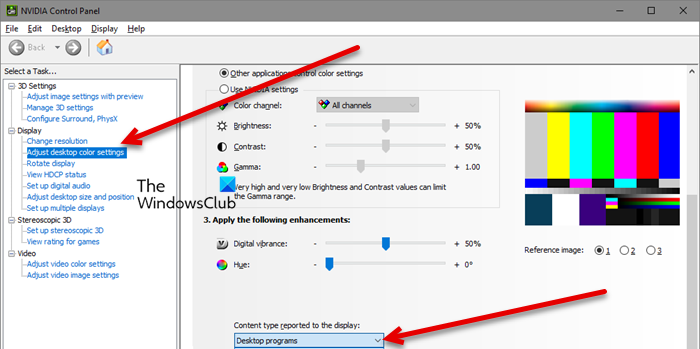
You should check and configure your Display Settings and make sure that it is mismatched. What you have to do is open the NVIDIA Control Panel by searching it out of the Start Menu. Then, click on Configure Surround, PhysX. Tick Span displays with surround and then click Configure. Now, change your Display layout, set the maximum resolution and a frame rate (at least 60Hz). Finally, click Enable Surround.
You should also adjust the Color Settings. In the NVIDIA Control Panel app, click on the Adjust desktop color settings tab, select Desktop programs from Content type reported to the display, and apply the settings.
Hopefully, it will resolve the issue for you.
Related: How to set up Dual Monitors on Windows 11
3] Check Frame Rates using Windows Settings
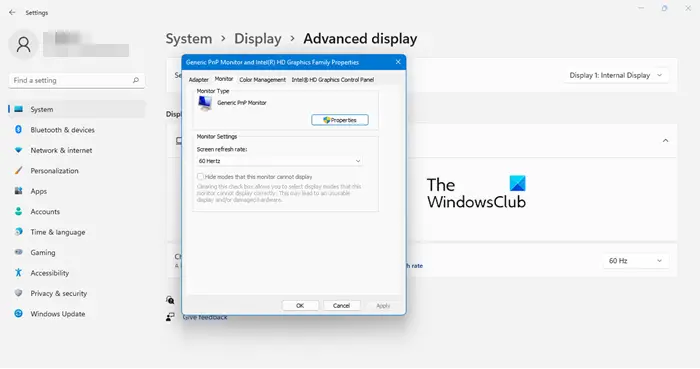
If you do not have an Nvidia GPU, then check the FPS via Windows Settings. Follow the given steps to do the same.
- Open Settings by Win + I.
- Go to System > Display > Advanced display settings.
- Now, click on Display adapter properties.
- Navigate to the Monitor tab and make sure your Screen refresh rate is at least 60 Hz.
4] Reinstall Graphics Drivers
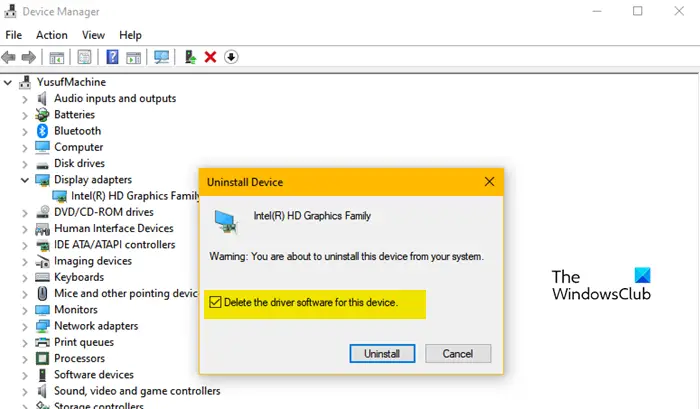
As mentioned earlier, you can see the flickering of the screen because of corrupted Graphics Drivers. In order to resolve this, we can reinstall the driver in question. But before that, you need to install the driver for your model from the manufacturer’s website. Make sure to download the right driver for your model.
Now, follow the prescribed steps to reinstall Display or Graphics Drivers.
- Open Device Manager by Win + X > Device Manager.
- Then, expand Display adapters, right-click on your driver, and select Uninstall device.
- Click Uninstall. Your screen will go blank for a few seconds
- Now, right-click on Display adapters and select Scan for hardware changes.
- Your computer will install Generic Driver.
- Finally, install the downloaded driver.
Hopefully, your issue is resolved.
5] Update Graphics Drivers
Outdated Graphics Drivers are another reason for the flickering issue. They cause compatibility issues and hence, should be updated immediately. There are various methods to update the driver. They are-
- Install Optional and driver updates from Windows Settings.
- Update the driver from Device Manager.
- Use free driver update software.
After updating the driver, you should detach and reattach the setup and check if the issue persists. Hopefully, this solution will resolve the problem and you won’t be facing any flickering issues.
We hope these solutions have helped you enjoy your multiple-monitor setup to the fullest, without any peculiar flickering or fluctuations.
How to Change Screen Resolution on Windows 11?
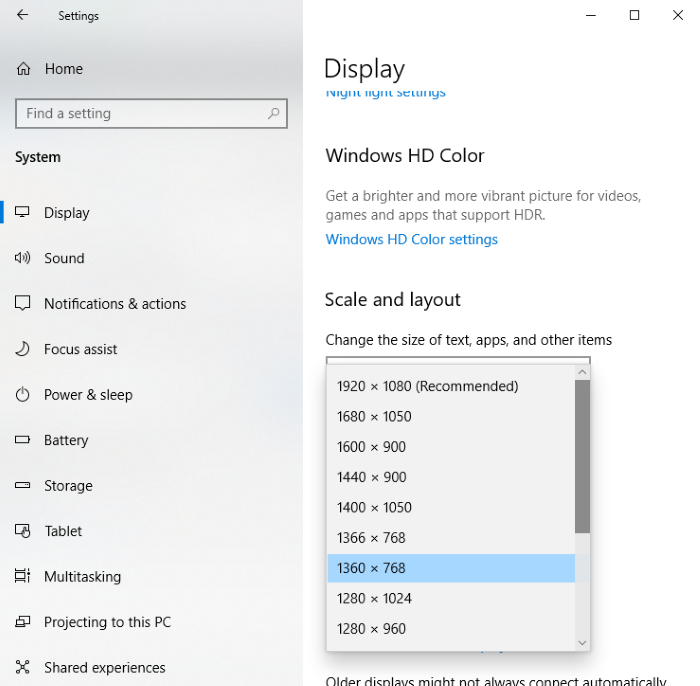
To change the screen resolution on a Windows 11 or Windows 10 computer, follow the prescribed steps.
- Open Settings by searching for it in the Start Menu.
- Go to System > Display.
- Change Display Resolution using the drop-down menu.
However, you should use Recommended resolution in order to get the best viewing experience.
Second monitor keeps going black randomly
If your second monitor keeps going black randomly, it could be because of a loose cable or a malfunction. So check and, if need be, replace your HDMI, DisplayPort, or VGA cables to ensure a strong connection. Checking the monitor’s power supply and updating graphics drivers can also help resolve this issue.
Also Read:
- How to change Primary and Secondary monitor on Windows
- Monitors showing different colors in dual monitor setup on Windows.
