
While accessing Outlook on the web browser, if you get The content can’t be displayed because the S/MIME control isn’t available error on Chrome, Firefox, or Edge browser, this guide will help you fix the issue.
S/MIME (Secure/Multipurpose Internet Mail Extensions) is a type of encryption that encrypts your email so that only the intended recipient can read it after successful authentication. However, if you encounter this error while using Outlook Web Access, the following troubleshooting tips might help you resolve the issue.
S/MIME control isn’t available error on Chrome, Edge, Firefox
To fix S/MIME control isn’t available error on Chrome, Firefox, Edge, follow these steps:
- Clear browser cache
- Add Trusted site in Internet Options
- Run browser in compatibility mode
- Do not save encrypted pages to disk
- Install S/MIME control
To learn more about these steps, continue reading.
1] Clear browser cache
It is the first thing you need to do in order to fix the error on your browser. If there are some issues with the browser, you may not be able to access Outlook on your computer. Therefore, it is wise to clear the browser cache first. However, at first, you can try clearing cookies and cache for the specific website. If it doesn’t work, you need to remove them browser-wide.
2] Add Trusted site in Internet Options
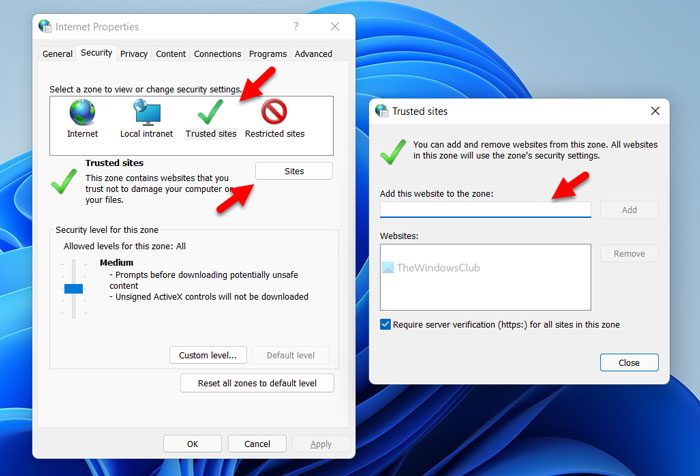
If there are issues with S/MIME, it means the browser doesn’t recognize the entered website as trusted. Therefore, you need to manually include the website in the list. To add a Trusted site, follow these steps:
- Search for internet options in the Taskbar search box.
- Switch to the Security tab.
- Select the Trusted sites option.
- Click on the Sites button.
- Enter the website URL in the Add this website to the zone button.
- Click the Add button.
- Click on the Close and OK options.
After that, try opening Outlook to send, receive, or check your email.
3] Run browser in compatibility mode

If there are any browser compatibility issues, you might encounter the same problem on a Windows 11/10 PC. Therefore, you can try running the browser in compatibility mode and running the compatibility troubleshooter to fix potential issues. Here we have shown the steps to run Google Chrome in compatibility mode. However, running Firefox and Edge in the same mode is identical.
- Navigate to the browser installation directory.
- Right-click on the browser.exe file.
- Select the Properties option from right-click context menu.
- Switch to the Compatibility tab.
- Click on the Run compatibility troubleshooter button.
- Follow the screen instructions.
However, if it doesn’t fix the issue, you can manually change the setting and run the browser in compatibility mode. Alternatively, you can tick the Run this program in compatibility mode for checkbox and select an OS from the drop-down list.

In Microsoft Edge, you can search for the browser in the Taskbar search box, right-click it, and select the Open file location option. Then, you can follow the aforementioned steps.
4] Do not save encrypted pages to disk
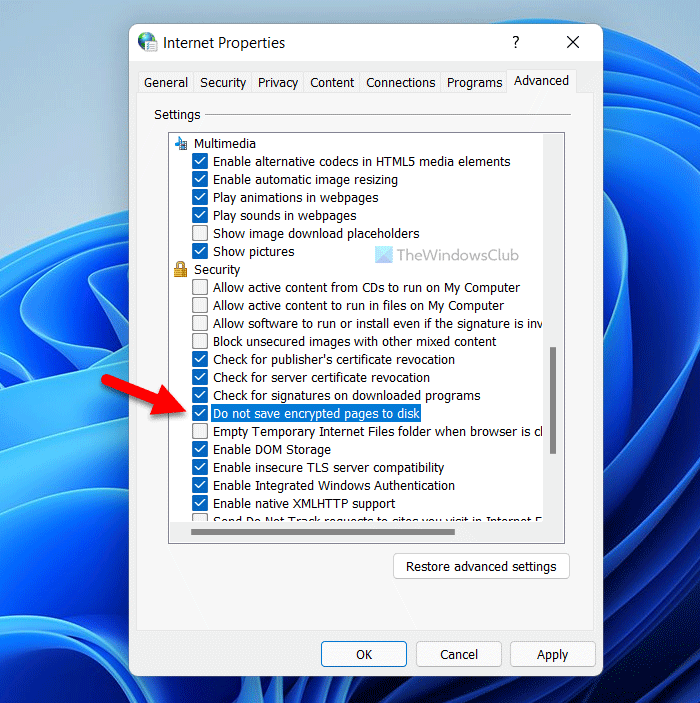
If you encounter the aforementioned error when accessing Outlook Web Access, you need to disable the “Do not save encrypted pages to disk” setting. For that, do the following:
- Search for internet options in the Taskbar search box.
- Click on the individual search result.
- Switch to the Advanced tab.
- Find the Do not save encrypted pages to disk setting.
- Tick the corresponding checkbox.
- Click the OK button.
After that, you should not have issues using your email.
5] Install S/MIME control
If you are an IT admin or you work in an organization, install S/MIME control might be necessary for you. Otherwise, you may receive the aforementioned error while accessing Outlook. To install the S/MIME control, you need to obtain the certificate first from your IT administrator.
Following that, you can open Settings and go to Mail > S/MIME. After that, find out the To use S/MIME, you need to install the S/Mime control option. Click on the Click here option. After entering the certificate, you need to click on the Run or Open button.
In some cases, you might need to verify that you want to run the selected software. If you receive the same message, click the Run button.
Once done, you will be able to use Outlook without any problem. It is important to note that S/MIME on Chrome doesn’t work if your computer isn’t part of the Microsoft Active Directory domain.
That’s all! Hope this guide helped.
Where do I get S/MIME certificate?
You can buy the S/MME certificate from a retailer or a Certificate Authority. If you are working in an organization, you can contact your IT Administrator for the same. The Certificate Authorities provide S/MIME certificates as PKCS #12 files. While downloading the PKCS #12 file, you have to create a strong password. Keep this file in a safe place, as it contains the private key, which is required to decrypt the emails. To send the encrypted emails using S/MIME, you have to install the S/MIME certificate in Outlook or another email client.
How do I make the S/MIME control available?
To make the S/MIME control available, you need to open the Settings first. Then, switch to the Mail tab and click on the S/MIME option. Then, tick the Encrypt contents and attachments for all messages I send and Add a digital signature to all messages I send checkboxes. At last, click the Save button.
Read: Cannot open Hyperlinks in Outlook email on Windows.
