
Windows offers a built-in feature that can repair or reset Windows Store apps downloaded from Microsoft Store, but at times you need reset apps in bulk, but there is no direct option for that. However, you can do this using PowerShell. In this post, we will show you how to reset Microsoft Store Apps in Windows 11/10 using PowerShell. You can reset a single app, multiple apps, or apps based on a keyword.
Reset Microsoft Store apps using PowerShell
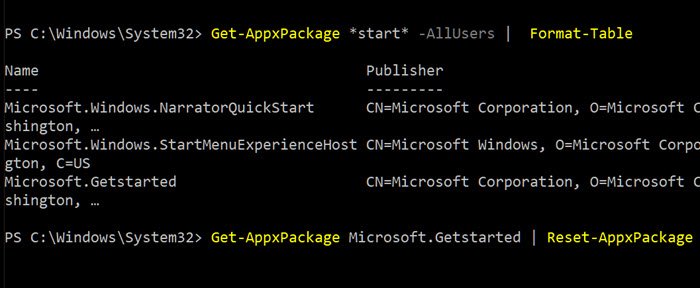
PowerShell offers extensive commands for managing apps on Windows, such as Get-AppxPackage, which can list app packages installed in a user profile or for all users. However, you will need to run it with admin permissions.
The biggest benefit is that you will be able to run reset commands for certain system components, such as the camera app, that you could not reset until now. Follow the steps as below:
Open PowerShell as Administrator. If you haven’t, it would be better to use PowerShell 7. Type and execute the following command to see a list of apps installed on the system:
Get-AppXPackage -AllUsers
Get-AppxPackage *start* -AllUsers
The second command helps you search for a specific. So whatever word you put under stars, the command will find and list those apps. So, in this case, it lists down NarratorQuickStart and GetStarted, and StartMenuExperienceHost apps.
Now, to reset the apps, execute the following command in this format
Get-AppxPackage <app-package name> | Reset-AppxPackage
Where <app-package name> is the package name. So for the “Get Started” app, the package name is Microsoft.Getstarted, so the command to reset will be
Get-AppxPackage Microsoft.Getstarted | Reset-AppxPackage
A lot can be done with this like using wild cards if you are trying to find more apps, or you can perform a mass reset for all the apps. Until now, the only way to reset apps was to reinstall it by running the complicated command as below:
Get-AppxPackage -allusers | foreach {Add-AppxPackage -register "$($_.InstallLocation)\appxmanifest.xml" -DisableDevelopmentMode}
Remember that when you reset apps this way, it deletes all user data, cache, and offline files.
However, it is still useful if you want to start fresh with an app instead of reinstalling everything.
Related: How to Re-register Microsoft Store Apps.
