
Education took a big shift and everything became online. The classes, the notes, and everything. Many apps came into existence with this and each subject has a dedicated app available. Even the concepts of some subjects have standalone apps as those concepts form the basics of that particular subject like the periodic table for Chemistry. A lot of apps are available for Periodic Table. In this guide, we review the Periodic Table app for Windows 11/10 PC that is available for free on Microsoft Store.
Download Periodic Table app for Windows PC
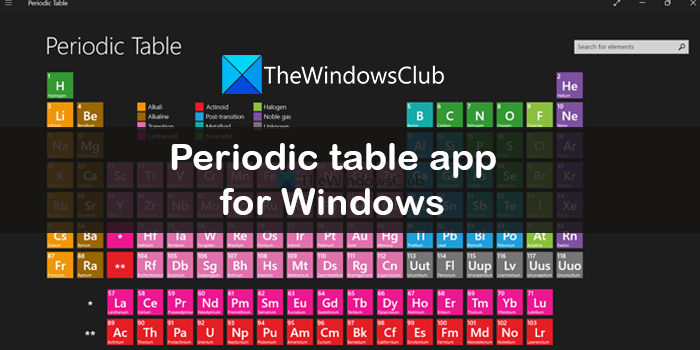
The Periodic Table app on Windows comes with a lot of features for users. The following are the best things about this app.
- Clean UI
- Customizable Table
- Detailed data with images
- Can Pin an element to the Start menu
Let’s get into the details.
1] Clean UI
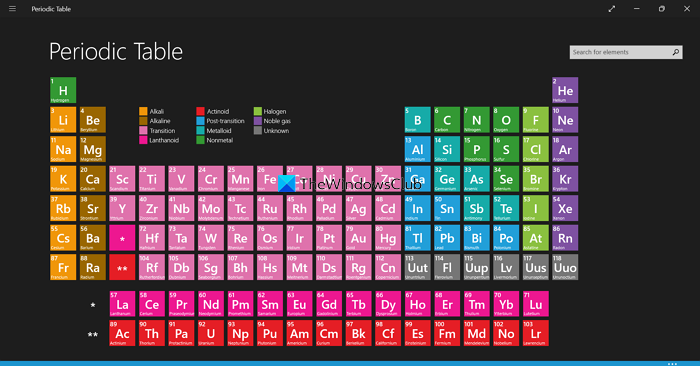
The Periodic Table features a clean UI, like a physical chart on paper. You just click an element to learn more about it. Each element is color-coded according to the element’s nature for easy remembering by the user. Even the detailed section has a simple, clean UI that shows all the data for the element you select. The app has no overlaying ads or distracting content.
2] Customizable Table
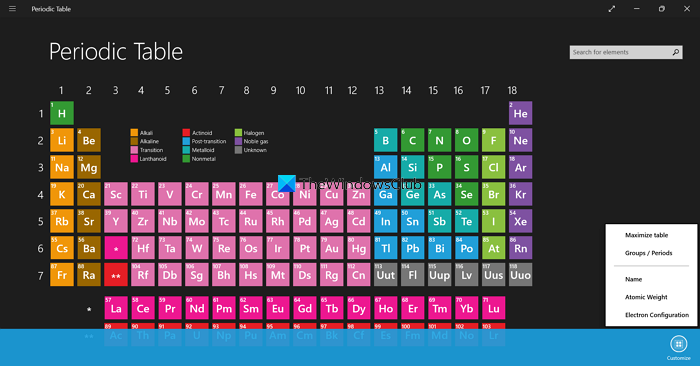
The Periodic Table also lets you customize how it looks. Just click the three-dot button at the bottom of the app to see the Customize button. If you click on that you’ll see options to resize the table by clicking on Maximize table, see groups of different elements by clicking on Groups/Periods, see names of the elements by clicking on the Name, see atomic weight by clicking on the Atomic weight, and Electronic Configuration. You can adjust it to your needs and make the periodic table work for you.
3] Detailed data with images
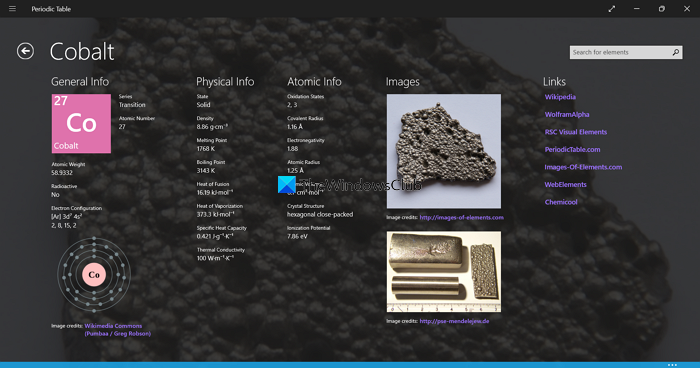
When you click on a particular element in the Periodic Table, it opens a new page with all the details and images of that particular element. They are sourced from Wikipedia and other trusted sources that can help gain more knowledge and understand them better. There are even links provided in the details page under the Links section to read more about that particular element.
4] Can Pin an element to the Start menu
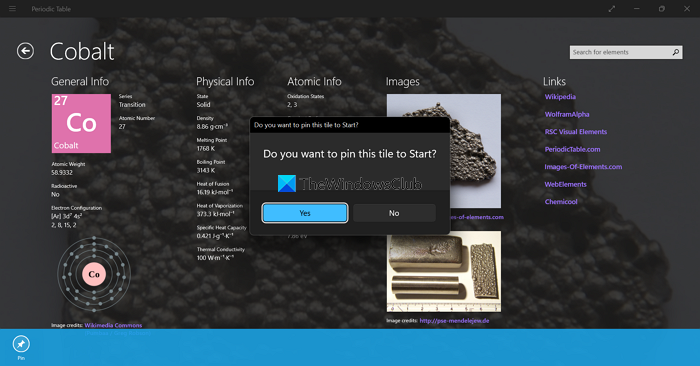
If you want to add a shortcut of an element to the Start menu for easy accessibility, the Periodic table has the option to add an element or pin as a tile to the Start. You can do this by clicking the three-dot button on the details page, then clicking Pin. You will see a prompt where you need to click on Yes to add the element as a tile to Start.
These are the different features that make the Periodic Table app stand out from the others on the Microsoft Store.
Read: Best essential & useful apps & services for Students
What is the best periodic table app?
Many periodic table apps are available on the Microsoft Store, both free and premium. We zeroed in on Periodic Table by Revolution Software, which is free and offers the best features to help you customize the table for easier understanding and learning.
Read: Best e-Learning Apps, Websites & Tools to educate Kids at Home
What is an interactive program for the periodic table?
Periodic Table by Revolution Software is an interactive periodic table app with many customization features for better understanding and easier learning. You can click each element to learn more, increase the table size and click the links in the app for further reading.
Related read: Chem4Word is a Chemistry Add-in for Microsoft Word.
