
EarTrumpet for Windows 11/10 is a UWP app hosted on the Microsoft Store. By installing this app, users can get a modern, redesigned Volume Mixer with a single click from the system icons list. No matter what we use our computers, laptops or tablets for, we use sound in one way or another.
If you are a developer, a gamer, or use your computer for office work or to browse the Internet, you will face times when you need to adjust the volume on your Windows machine. For that, Microsoft has provided users with standard volume control for a long time in the system icons group. That volume control is the master volume control that works for all applications playing sound. Sometimes, users wish to control the volume of these applications individually. But fortunately, Microsoft has you covered here as well.
Volume Mixer in Windows
When you right-click on the Volume Control icon in Windows 10 and click on Open Volume Mixer, you see the Volume Mixer Control box open up.
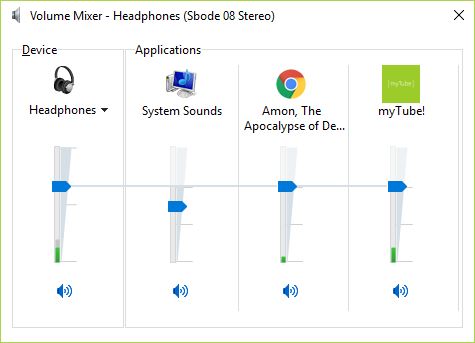
In Windows 11, the Settings app opens with these settings.
Now, getting here takes a bit longer than it should. But what if we can just do it with a click? This is where EarTrumpt hops in. It is a UWP app, so you can find it on the Microsoft Store, and it’s free. That means you get a full-featured app without advertisements or service limitations. This app is also open-source and hosted on GitHub.
EarTrumpt Volume Control Mixer app for Windows 11
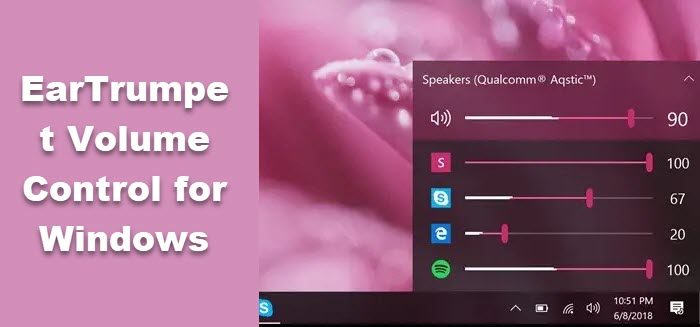
EarTrumpet for Windows works on Windows PCs running Windows 11 and Windows 10 builds. This app adds an additional Volume Control icon, identical to the default Windows Volume Control icon, to the System Icons list. With it, you get all the Volume Control Mixer controls in a new Windows Fluent Design, reachable in a single click. Here’s what the Volume Control center looks like in the new design.
Features in a nutshell:
- Controls default audio device with two clicks
- Controls classic and modern app volumes
- Supports moving apps between playback devices
- Matches the look and feel of Windows
- Integrated with Feedback Hub.
This app is compatible with all computing devices with an x86-based chip. This means all the laptops, tablets and computers running Windows 11/10. This also means new low-powered hybrid laptops and tablets powered by Qualcomm’s Snapdragon processors will be compatible because the operating system’s architecture includes an x86 emulation layer.
To download this app to your computer, go to the Microsoft Store and install it. You can also visit eartrumpet.app to download it and for further reference.
TIP: Sound Lock is another Sound Volume Controller Software you may want to take a look at.
