
While typing faster, do you always hit the wrong buttons on your computer? Then you must consider remapping your keyboard buttons. Remapping is a technique of allotting a different function to a keyboard key. For example, you can use the ‘Tab Kay’ as ‘Backspace’ key or vice versa. Remapping can be done at your convenience, and it is useful too. I am organizing my Computer’s keyboard keys so that I can reach them easily and type faster than before.
Remap Keyboard Keys with SharpKeys
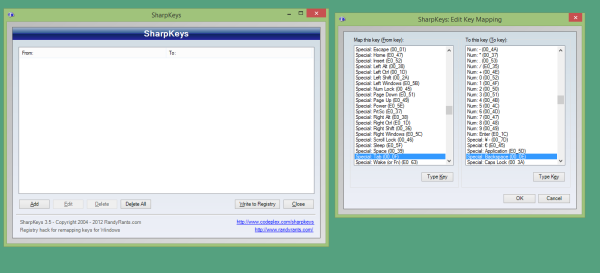
Remapping can be easily done with SharpKeys. Remapping involves registry editing, so it is recommended that you create a system restore point before proceeding. SharpKeys is open-source software that lets you remap your keyboard functions as per your convenience. With its intuitive interface, it never makes you feel like you’re doing something geeky, like registry editing. It is very simple to operate.
Once you have created the system restore point, you can use SharpKeys without any risk. In the main window, you will see an empty list. In this list, you can add your mappings. You can even delete or edit them afterward.
To add a new mapping, click on the ‘Add’ button and then choose a key that you want to map. Alternatively, you can hit the ‘Type Key’ button, press that key from the keyboard, and then choose the key with which you want to map. For example, I am mapping the ‘Tab’ key to the backspace key so that every time I press the ‘Tab’ key, the backspace function is performed.
TIP: You can remap Keyboard Shortcuts using PowerToys in Windows 11
Similarly, you can press the ‘Edit’ button to edit the saved mappings. You can even click the ‘Delete’ button to delete the mapping; additionally, there is an option to delete all mappings. Once you are done creating your mappings, click on the ‘Write to Registry’ button to save those mappings with your system. You need to log out or reboot for the changes to take effect.
SharpKeys is a very useful application that lets you personalize your keyboard controls, and personally, I feel that it has helped me increase my typing speed by bringing some essential features closer to my fingers. An excess of everything is bad; overpersonalization may cause difficulty while typing on different keyboards. Therefore, take care and do not forget to create a system restore point before using this software.
SharpKeys free download
SharpKeys can be downloaded from github.com. Works on all Windows.
Similar tools that may interest you:
Mouse Manager | KatMouse | KeyTweak.
