
KeyTweak is a free keyboard remapping software for Windows 11/10, which lets you easily reconfigure, reassign, and redefine your keyboard according to your needs. Remapping is the reallocation of keyboard functions. You can remap a key to some other function so that whenever you press that key again, a different function occurs. You can perform remapping to adjust the keyboard according to your needs and customize your Windows computing experience.
Reassign and redefine Keyboard Keys
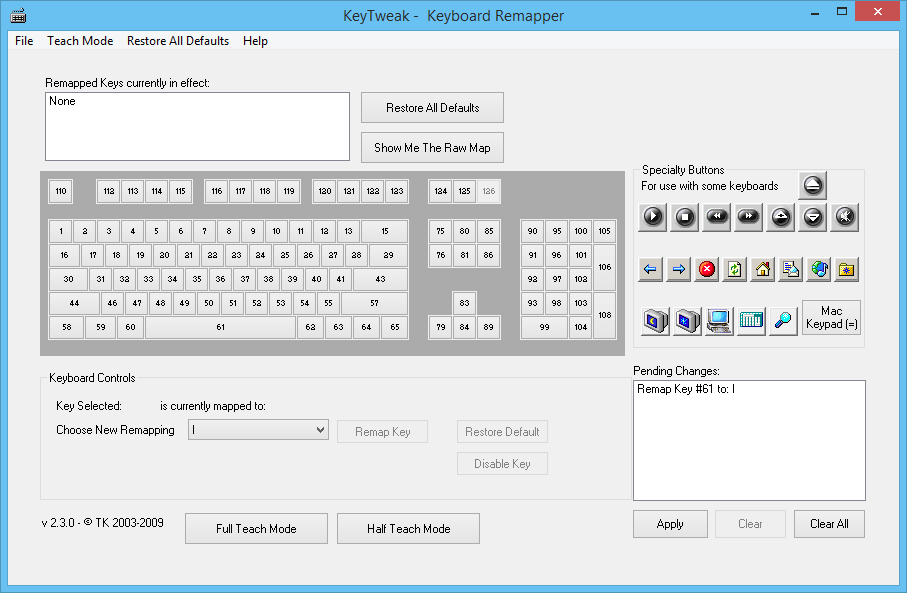
KeyTweak is a simple yet powerful tool that can make changes to the Windows Registry to re-allocate the keyboard functions. It comes with an intuitive UI which makes the whole process a lot easier. The virtual keyboard is displayed with numbers that resemble the most common keyboards, and using this virtual keyboard, you can remap almost any key of your keyboard.
How to Remap Hot Keys
The program can roll back changes made to the keyboard functions, but it is still recommended to create a system restore point before remapping the keys.
First of all, locate the button on the virtual keyboard that you want to remap. Please press the button and confirm its current mapping.
Now choose the new remapping from the dropdown and then hit the ‘Remap Key’ button. You can even disable a keyboard key by simply pressing the ‘Disable Key’ button. All the changes made by you will be shifted to Pending Changes. Once you have remapped the keys, click the ‘Apply’ button. The application will prompt you for a restart. Click Yes to restart your computer, for the changes to take place.
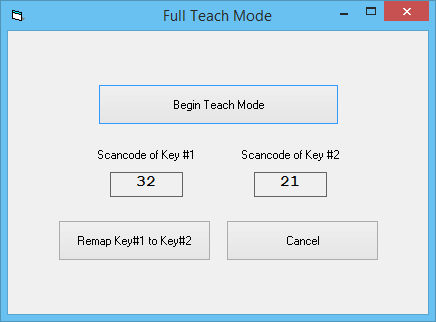
Though the program is easy to understand and use, it still includes a Full Teach and a Half Teach mode, that are more task-oriented and easy to understand. Under the Half Teach mode, the program automatically scans a key you’ve pressed. You then need to choose the remapping action from the drop-down menu. Under the Full Teach mode, the program first scans the original key that you press. To remap that again, you need to press the action, which is a relatively very easy task.
KeyTweak can even work with the specialty buttons on your keyboard, which are typically located at the top, just before the function buttons.
The application is well-designed and built. It is easy to work with and even comes with the capabilities of rolling back the settings to defaults, which comes in handy when you’ve messed up with the settings. Moreover, Teach modes are interesting to follow.
KeyTweak free download
Click here to download KeyTweak. It has not been updated in several years now but works fine on Windows 11/10 too.
TIP: You can remap Keyboard Shortcuts using PowerToys in Windows 11
Similar tools that may interest you:
Mouse Manager | KatMouse | SharpKeys.
