
Routers play a vital role in our daily web browsing activity. The role of cables has gradually moved to the backend. Signals and frequencies have taken over the internet connection via WiFi. We connect to the internet via a WiFi password on every device once and then use it forever. Since we do not use our WiFi passwords every day, we may forget them. If we haven’t used our WiFi for a long time, it is even possible to forget usernames too, if we didn’t name them directly, which is instantly recognizable. In such a situation, we show you how to recover the WiFi router username and password without resetting the router completely.
How to recover the WiFi router username and password without resetting
If you don’t want to reset your router but need to find and change the username and password, there are a few options. These will help you gain access to your router, make changes, and reconnect devices.
- Check the label on the router
- Find the password through a connected device
- Check the ISP’s mobile app
- Recover through the router’s admin page
Let’s go through each method and learn how to use them to recover your Wifi router.
1] Check the label on the router
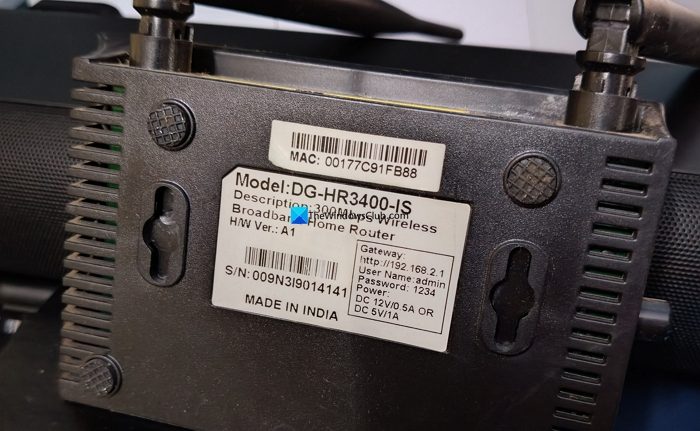
Manufacturers provide labels on the back of the label with essential details like the gateway link to set up the router to your network, and its credentials. There will also be the WiFi username and password mentioned on the latest routers. You can try using them in case you have set it up with the default credentials and have not tweaked them.
2] Find the password through a connected device
The easiest way to find the password of a WiFi connection is through a device that is already connected to it. If you have connected through a PC, it is even easier to find the WiFi password on a Windows PC. The simplest way is through the Command Prompt.
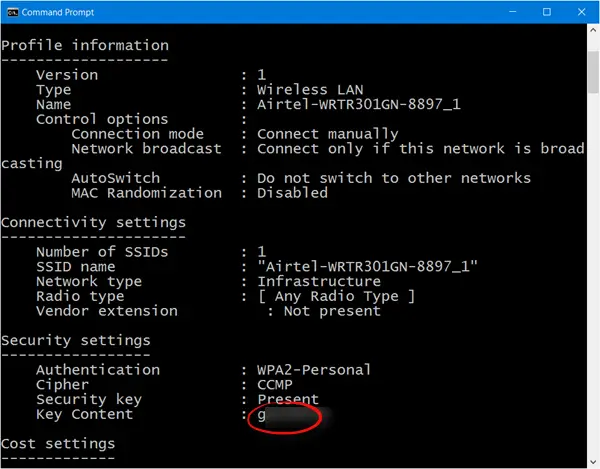
Open Command Prompt on your Windows PC and enter the following command, by replacing “YOURWIFINAME” with the name of your WiFi connection, and press Enter.
netsh wlan show profile name=YOURWIFINAME key=clear
It will run a show you all the details of the network along with the password. You can find the password under Security settings with the Key Content label.
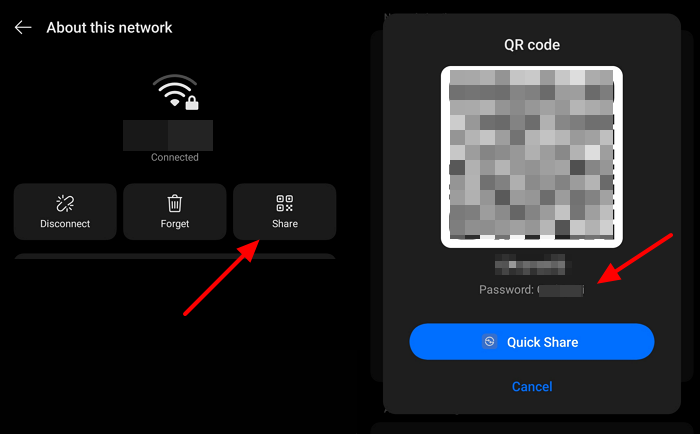
If you have connected to the Wi-Fi network on Android, open Settings and go to Network settings. Then select WiFi and click the information button next to the connection you want the password for. Tap the Share button, then verify your identity by entering your fingerprint or thumbprint. It will show a QR code along with the password.
If you are connected to the network on iOS, open the Settings app, tap Wi-Fi, and then select Edit. Then, verify your identity using a passcode, Face ID, or Touch ID. You will see the list of WiFi networks you have connected to previously. Tap the info button next to the network you want to find the password for. Then, select the Password field to reveal it.
Read: How to find and connect to Hidden WiFi Networks on Windows 11
3] Check the ISP’s mobile app
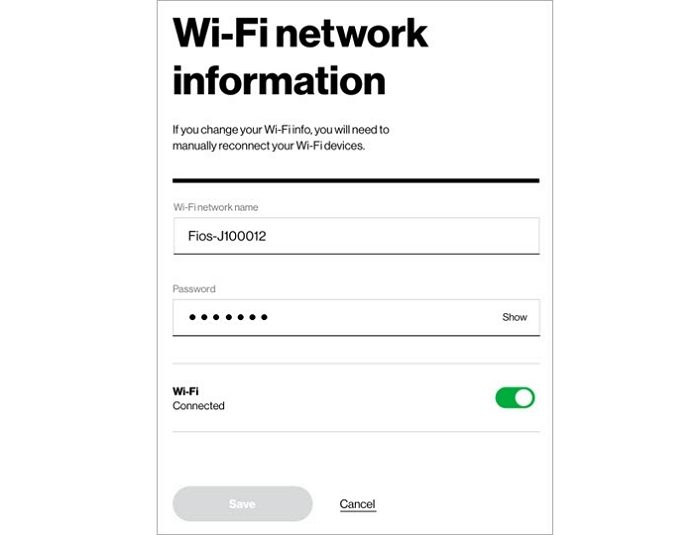
Internet service providers (ISP) are now providing mobile apps to track the status of connection, pay bills, and manage the network. We can also use it to find the password and troubleshoot the router. Select your network on the ISP mobile app by logging in with your mobile number or email ID, then go to the Settings page. Check the WiFi network options and choose to display them. You can see the network name and password easily.
4] Recover through the router’s admin page
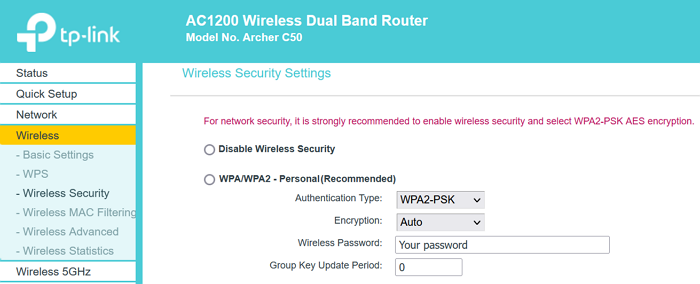
It is easy to connect to a router, find the username and password, and manage them. All you need is an Ethernet cable, using which you can connect your Windows PC to the internet. Then, open a web browser and go to your router’s configuration page. You can find the address and credentials for the configuration page on the back of the router. Log in with the default credentials, and then select Wireless configuration or something similar based on your router’s brand. In the Wireless settings, you can find the name of your Wireless Network and its password. You can change them to something you can easily remember, or use the existing ones.
If you still haven’t managed to recover the username and password of your router, you can contact your ISP to reset and reconfigure your router.
Read: Use a wired connection instead of a Wireless connection in Windows 11
Forgot the WiFi password and lost access to the admin page
If you have forgotten the WiFi password and lost access to the admin page, you can use devices already connected to the network via WiFi to recover it. Try the default admin page credentials and see if they can help. If not, you need to press the reset button or the pin hole on the router and hold it for 15 seconds to reset it. You will need to reconfigure it properly with the correct IP address assigned by your ISP.
How can I recover my 192.168.1.1 username and password?
Forgetting the 192.168.1.1 username and password locks you out of your router’s configuration page. The only option you have is to reset the router to factory settings by pressing the reset button or pinhole on the router for 15 seconds. The red lights on the router turning to one green light indicates the successful reset. Then use the details on your router’s label to reconfigure it.
Related read: Get information on Wi-Fi networks around you with WifiInfoView.
