
Wi-Fi 7 (IEEE 802.11be) is the newest wireless networking standard, delivering up to 46 Gbps top speeds, much lower delay times, and 320 MHz-wide channels across the 2.4 GHz, 5 GHz, and 6 GHz bands. WiFi 6 is a 6th generation WiFi and the successor of WiFi 5. It is also known as AX WiFi or 802.11ax WiFi. WiFi 6 has a number of benefits over its older counterparts. WiFi 5, or 802.11ac, was introduced in 2014. Since its launch, the number of devices connected to a wireless network in a home and an office has started increasing.
The speed of a WiFi network decreases as the number of devices connected to it starts increasing. WiFi 7 and WiFi 6 are designed with this in mind to ensure that each device connected to the same network can get higher data rates. If you want to upgrade to WiFi 7 and WiFi 6, you should know whether your PC supports the WiFi 7 and WiFi 6 technology. In this article, we will see how to tell if your PC has WiFi 7 or WiFi 6.
The main focus of introducing WiFi 7 and WiFi 6 technology is to reduce network congestion and allow users to connect more devices to the same network. WiFi 7 and WiFi 6 uses the MU-MIMO technology. MU-MIMO stands for multi-user, multiple-input, multiple-output technology. By using this technology, a WiFi router can communicate with multiple devices simultaneously.
To use WiFi 6 technology, both your router and system must support WiFi 6. In this article, you will learn how to check if your Windows 11/10 PC supports WiFi 7 and WiFi 6.
How to tell if my PC has WiFi 7 and WiFi 6
As we explained earlier, if you want to connect to WiFi 7 and WiFi 6, both your device and WiFi router should support WiFi 7 and WiFi 6. To know if you have a WiFi 6 router, you have to check the documentation that came along with it. Or, you can visit the official website of your router manufacturer and see whether your router model supports WiFi 7 and WiFi 6.
To find out whether your PC supports WiFi 7 and WiFi 6, check the user manual that came with it. If you don’t have the user manual, visit the official website of your computer manufacturer and enter your computer model number to view its specifications. If this does not help, there is one more way to check whether your PC supports WiFi 7 and WiFi 6. You have to execute a command in the Command Prompt. Go through the following instructions.
Click on Windows Search and type cmd. Select the Command Prompt from the search results. This will open the Command Prompt.
Copy the following command and paste it into the Command Prompt. To paste the command, right-click anywhere in the command prompt. After that, press Enter.
netsh wlan show drivers
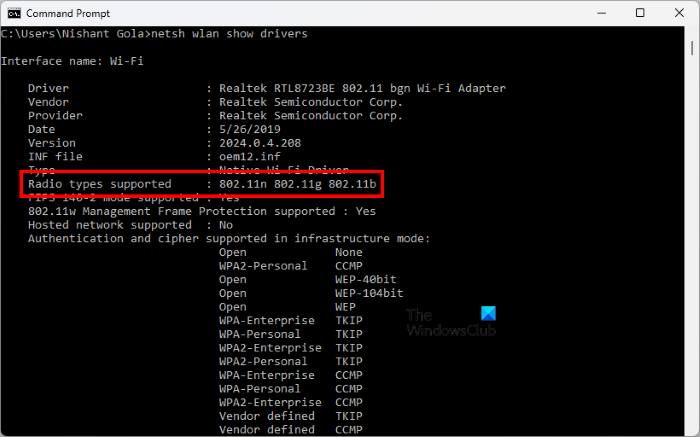
The command will take a few seconds to show you the output. When the command is executed completely, look for the Radio types supported in the result. All the WiFi versions supported by your PC will be displayed next to it.
- If your PC supports WiFi 7 you will see 802.11be
- If your PC supports WiFi 6 and WiFi 6E you will see 802.11ax
You can see in the screenshot above that my laptop supports three versions of WiFi, namely 802.11n, 802.11g, and 802.11b. The Command Prompt output does not show 802.11ax, which means my laptop does not support WiFi 6.
802.11, 802.11a, 802.11b, etc., are the IEEE standards. These standards are renamed as WiFi versions so that people can understand them easily. The following information will help you know which IEEE standard represents which WiFi version.
- 802.11 – WiFi 0
- 802.11b – WiFi 1
- 802.11a – WiFi 2
- 802.11g – WiFi 3
- 802.11n – WiFi 4
- 802.11ac – WiFi 5
- 802.11ax – WiFi 6 and WiFi 6E
- 802.11be – WiFi 7
Read: What is Wi-Fi 6E and how does it differ from Wi-Fi 6?
How to check if your Windows PC is connected with WiFi 7or WiFi 6
If you are connected to a WiFi network, how can you check if it is WiFi 7 and WiFi 6 or not? The following instructions will help you know whether you are connected to a WiFi 7 and WiFi 6 network or not. Follow the steps written below:
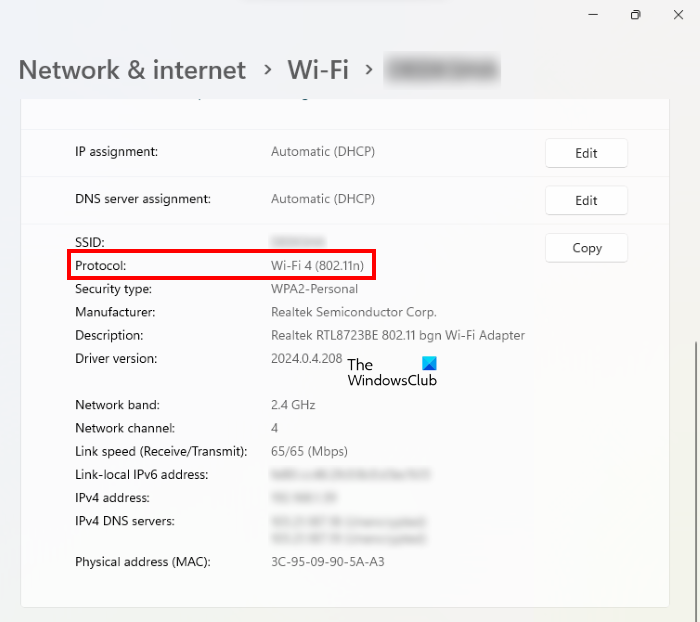
- Open Windows Settings.
- Go to “Network & internet > Wi-Fi.”
- Click on your Wi-Fi properties tab.
- Scroll down. You will see the WiFi version next to Protocol.
In the above screenshot, you can see that my laptop is connected to a WiFi 4 (802.11n) network.
Read: How to check Wi-Fi Network Security type in Windows.
Do all computers support WiFi 7?
Not all computers support WiFi 7. If a WiFi 7 module is installed on your motherboard, your computer will support WiFi 7. You can check your computer documentation to see whether your computer supports WiFi 7. The same information is also listed on the official website of your computer manufacturer.
Do I have WiFi 6 or 7?
If you do not know whether your router supports WiFi 7 and WiFi 6, check the documentation that came along with your router. You can also visit your router manufacturer’s official website to read its specifications.
That’s it.
Read next: How to install WiFi drivers for Windows.
