
This Hyper-V VM error occurs during a system’s Secure Boot or Trusted Platform Module (TPM) verification process, where a pre-launch health check detects that a critical hardware or firmware component is no longer functioning correctly. It typically prevents the system from proceeding with secure boot or attestation, halting startup to preserve system integrity and security. So, if a Hyper-V VM says Pre-attestation health checks confirm a critical component has failed, follow these solutions.
Fix Pre-attestation health checks confirm a critical component has failed Hyper-V VM error
In a Hyper-V environment, failures typically occur due to a mismatch or corruption in the state of the virtual TPM (vTPM) assigned to the guest VM, not the host’s physical TPM. Common causes include corruption of the vTPM state file (.VTPM) after a guest OS update (like the mentioned Windows Defender update), a configuration mismatch in Hyper-V’s Secure Boot or Trusted Platform Module settings for the VM, or an issue where the guest OS’s expectations for the vTPM no longer align with its actual provisioned state from Hyper-V.
If Pre-attestation health checks indicate that a critical component has failed, follow the solutions below.
- Recreate the Virtual TPM (vTPM) for the VM
- Verify and Reconfigure Hyper-V Secure Boot & VM Generation
- Check for Host Hyper-V Updates
- Restore or create a new VM from a checkpoint or backup
- Inspect and Clean the vTPM Storage Location on the Host
Let us talk about them in detail.
1] Recreate the Virtual TPM (vTPM) for the VM
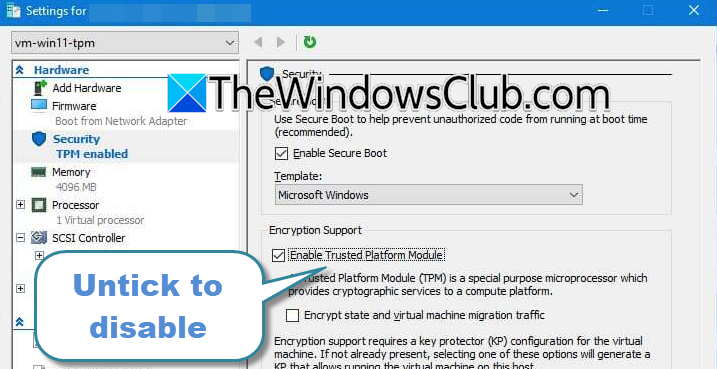
Since the vTPM is a virtualized component, you can delete and re-add it, which creates a fresh state file. This mirrors replacing a physical TPM in a hardware scenario.
To recreate the virtual TPM (vTPM) for your VM, follow the steps below.
- Shut down the machine completely.
- Open Hyper-V Manager, right-click on the VM, and select Settings.
- Go to the Security tab and clear the Enable Trusted Platform Module checkbox.
- Click Apply. This will delete the existing vTPM state.
- Immediately go back and re-check the Enable Trusted Platform Module box.
- Finally, click OK.
The guest OS will detect a new TPM and initialize it.
2] Verify and Reconfigure Hyper-V Secure Boot & VM Generation
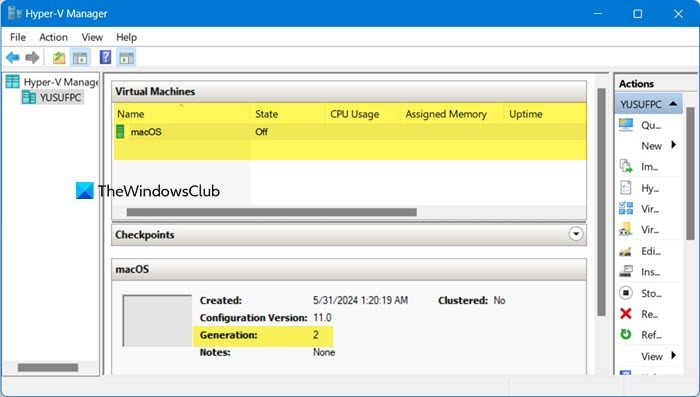
vTPM requires a Generation 2 VM and a properly configured Secure Boot template (like Microsoft Windows or Microsoft UEFI Certificate Authority). An incorrect setting here can cause attestation failures.
First, shut down the virtual machine completely, then open its settings within Hyper-V Manager. Navigate to the Hardware section and confirm the virtual machine is configured as Generation 2, as this is a prerequisite for vTPM support. Next, proceed to the Security settings; within this section, ensure that the Enable Secure Boot option is checked and that the template is set specifically to Microsoft Windows. Once confirmed, apply all changes and proceed to start the virtual machine.
3] Check for Host Hyper-V Updates
The virtualization layer (Hyper-V) itself may have a compatibility bug with the guest OS version, especially given the different build numbers (host 26200, guest 26100). A host update can resolve hypervisor-level vTPM emulation issues.
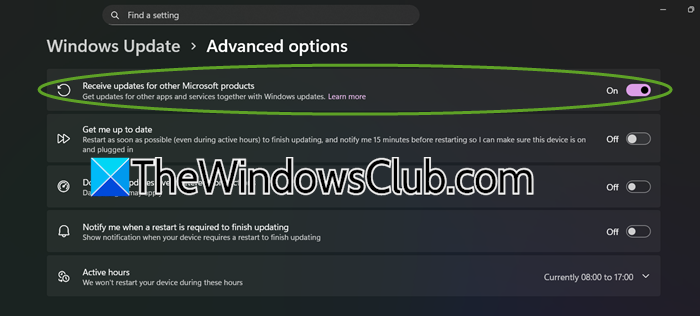
First, check for Windows Updates on the host. Then, open Settings > Windows Updates > Advanced options andmake sure that Receive updates for other Microsoft products is on. Install any available updates, particularly for Windows Feature Updates or Hyper-V platform updates. After updating, restart the host machine and try starting the VM again.
4] Restore or create a new VM from a checkpoint or backup
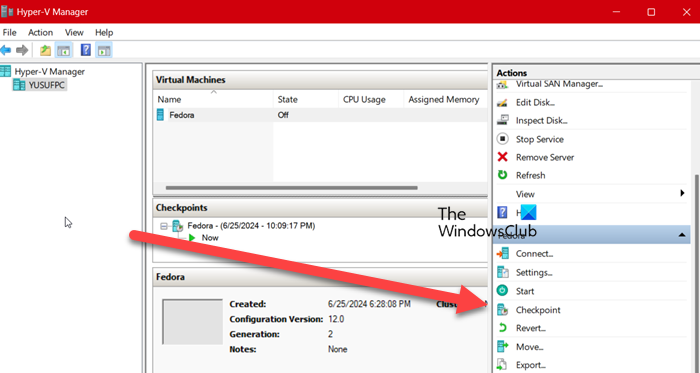
If the vTPM corruption coincided with a specific guest update (e.g., the Windows Defender update), reverting to a state, using a checkpoint, just before that change can confirm the cause and provide an immediate workaround.
To restore your virtual machine (VM) using Hyper-V Manager, first open the application on your computer. Then, choose the VM you want to restore.
To revert your VM to its previous state, click on the VM and select Revert from the Actions menu. Confirm your choice by clicking Revert in the pop-up that appears.
If you want to restore your VM to a specific snapshot, click on the VM, select Checkpoint, and then click Apply.
5] Inspect and Clean the vTPM Storage Location on the Host
The .VTPM file might have filesystem corruption or permission issues on the host side. Ensuring the host can write to this file correctly is essential.
So, you need to shut down your machine, open File Explorer, and go to VM’s configuration folder (found in Hyper-V Settings under Virtual Hard Disks path, or default C:\ProgramData\Microsoft\Windows\Hyper-V\).
Find the file named <VM_GUID>.VTPM (e.g., F081B2C5-1A1B-4A32-BF1C-123456789ABC.VTPM).
As a last resort, you can delete or rename this file (after making a backup copy). When you restart the VM with the vTPM enabled in settings, Hyper-V will generate a new one, effectively performing a low-level reset.
Hopefully, with these solutions, your issue will be resolved.
Read: VM could not initialize, 0x80070539 Hyper-V error
Why is my Hyper-V VM reporting a TPM failure when the host computer is fine?
The error is isolated to the virtual environment because Hyper-V provides a software-emulated vTPM to the guest machine, which operates independently from the host’s physical TPM. The failure usually stems from corruption in the vTPM’s state file, a configuration mismatch in the VM’s security settings, or a compatibility issue following a guest OS update. Consequently, the host system remains unaffected because the problem resides in the virtual machine’s configuration and virtualized hardware.
Read: Hyper-V Virtual Machine stuck in Saved State
Can I clear the TPM from inside the VM to fix this attestation error?
No, using the TPM management console (tpm.msc) within the guest operating system is ineffective for this virtualized error because it attempts to manage a component controlled by the hypervisor. The vTPM is provisioned and managed at the host level by Hyper-V. Therefore, the resolution requires administrative action on the host, such as recreating the vTPM in Hyper-V Manager or correcting the VM’s security configuration, rather than relying on tools within the guest OS.
Also Read: Fix Hyper-V Failed to change state with error 32788.
