
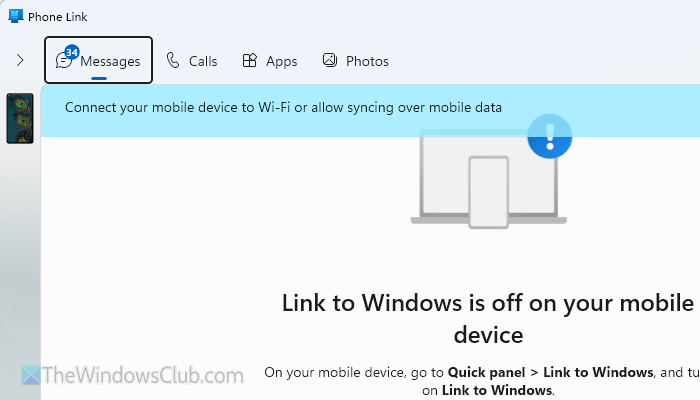
If the Phone Link is not receiving messages or showing sent messages in Windows 11, here is how you can fix the issue. Whether you use Samsung, OnePlus, or any other mobile with the Phone Link app, you can go through these solutions to get rid of this problem.
Why is Phone Link not receiving messages or showing sent messages?
If the Phone Link is not receiving messages or showing sent messages, these could be the reasons:
- There are some issues with the Bluetooth feature of your mobile or computer.
- You have revoked Phone Link’s access to your messages.
- There are some issues with your Link to Windows app.
- The Phone Service has issues or has stopped working.
- Your mobile doesn’t have a valid internet connection.
Phone Link not receiving messages or showing sent messages
If Phone Link is not receiving messages or showing sent messages, follow these solutions:
- Restart the entire process
- Allow Phone Link to run in background
- Ensure you have a valid Bluetooth and internet connection
- Allow Phone Link to access SMS
- Restart Phone Service
- Repair and Reset Phone Link app
- Disable and enable Link to Windows Service
To learn more about these solutions, continue reading.
1] Restart the entire process
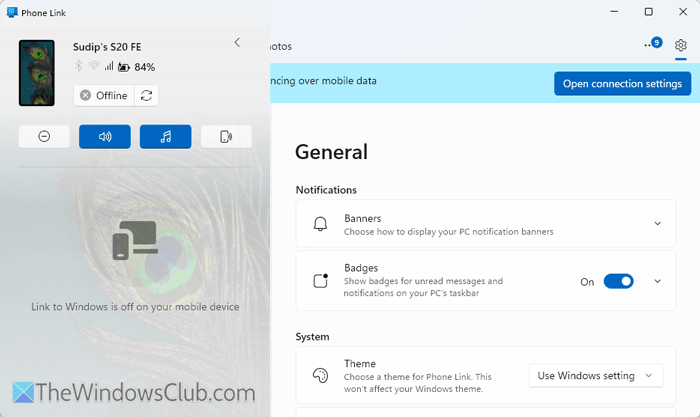
When you get such an error, it is wise to go through the same setup process again. At times, the existing setup might have some issues, and a new setup could fix it within moments.
That is why it is recommended to follow this article to setup Phone Link app to connect your phone and computer.
2] Allow Phone Link to run in background
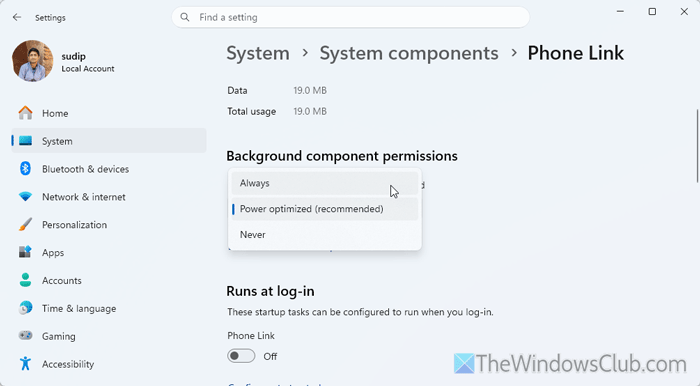
If you use a laptop that runs on the battery, you must check this setting. There is an option in Windows Settings that lets you allow or prevent the Phone Link app from running in the background.
If this service is not running in the background all the time, it won’t be able to fetch new SMS automatically. That is why go through these steps to allow Phone Link to run in the background:
- Press Win+I to open the Windows Settings panel.
- Go to System > System components > Phone Link.
- Click the three-dotted icon and select Advanced options.
- Expand the Background component permissions and choose the Always or Power optimized option.
After that, restart the Phone Link app on your computer.
3] Ensure you have a valid Bluetooth and internet connection
In order to use the Phone Link app to receive SMS notifications, you must have two things: Bluetooth and an internet connection. They should be turned ON at all times to ensure everything processes smoothly.
If you have any Bluetooth problems, find the solutions here. On the other hand, if you have any internet connection issues, fix it by following this guide.
4] Allow Phone Link to access SMS
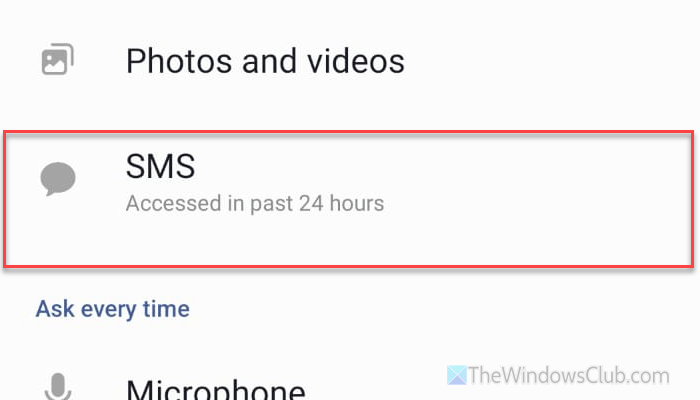
If you want to see received messages, you must allow the Link to Windows to access your SMS. Otherwise, it won’t fetch new data and show them on your computer.
To allow Link to Windows or Phone Link app to access SMS of your mobile, open the Settings panel first. Here you can find an option called Apps or Applications. Select this option and find the Link to Windows app.
Next, tap on the Permissions menu and check whether SMS is listed on the Allowed list or not. If not, find it and choose the Allow option.
Finally, restart the connection process to connect your phone and computer.
5] Restart Phone Service
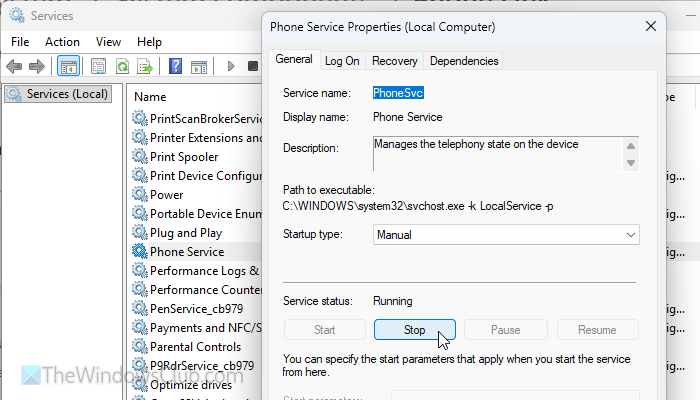
The Phone Service in the Services menu helps you connect your phone to your computer via the Link to Windows or Phone Link app. If this service is not running in the background, you won’t be able to use the Phone Link app properly.
Therefore, follow these steps on your Windows 11 computer to restart the Phone Service:
Press Win+R to open the Run prompt. Then, type services.msc and hit the Enter button. Double-click on the Phone Service menu and find the status.
If it is running, click the Stop button, choose the Manual option from the Startup type menu, and click the Start button.
Once done, click the OK button to save the change.
Read: How to open and use Windows Services Manager
6] Repair and Reset Phone Link app
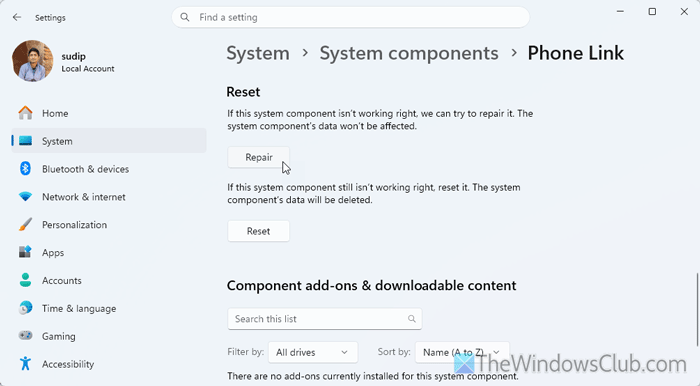
To repair and reset the Phone app, follow these steps:
- Open the Windows Settings panel on your computer.
- Navigate to System > System components > Phone Link.
- Click on the three-dotted icon and select Advanced options.
- Click the Repair button to start the repair process.
- If it doesn’t solve the problem, click the Reset button twice.
7] Disable and enable Link to Windows Service
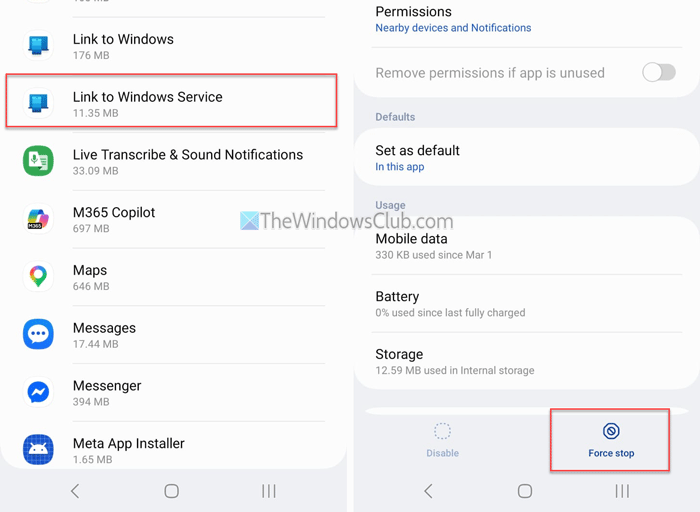
At times, this problem might appear due to a glitch. If so, you might be able to fix it by restarting the Link to Windows Service on your mobile.
For that, open the Apps or Applications panel and find the Link to Windows Service option. Select it and tap on the Disable option.
Then, select the Enable option.
Once done, disconnect your mobile and reconnect it to your computer.
Read: How to set up and use Calls in Phone Link app on Windows PC
Phone Link messages not syncing or updating in Windows 11
If Phone messages are not syncing or updating in Windows 11, follow these solutions:
- Check if you have proper permissions or not.
- You must ensure that the Bluetooth and internet connections are working properly.
- The Phone Service must run in the background at all times.
Why does my phone link not show my messages?
The most common reason is the lack of permission. If the Link to Windows app doesn’t have permission to access your SMS, you won’t be able to see them on your computer.
How to get Phone Link to show all messages?
To view all messages in the Phone Link app, visit the Messages tab after connecting your phone to your computer. However, if you cannot find them, make sure that you have allowed Link to Windows to access your SMS on your mobile.
Read: Troubleshoot Phone Link app problems & issues on Windows PC
