
If you encounter the PCI LAN error after turning on your computer, the solutions provided in this article will help you. According to the affected users, their computers keep booting to this screen, and they cannot enter Windows. Usually, this error occurs due to corrupt boot files or faulty hardware.
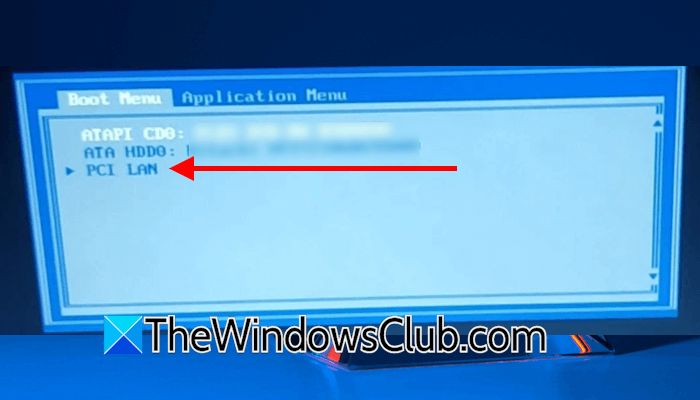
Fix PCI LAN error on a Windows PC
If you encounter the PCI LAN error during system startup and are unable to boot into your Windows computer, use the following fixes to resolve the issue.
- Perform a hard reset
- Change the boot order
- Reset BIOS to the default
- Reseat your SSD or HDD
- Rebuild Boot files
- Run Automatic Startup Repair
- Reset your PC
- Perform the Clean Installation of Windows
- Replace your HDD or SSD
All these fixes are explained in detail below:
1] Perform a hard reset
This is the first step to try. Perform a hard reset and see if it works. The following steps will guide you on this:

- Turn off your computer.
- Disconnect all the peripherals and the power cord. If you are a laptop user, disconnect its charger and remove the battery,
- Press and hold the power button for 30 seconds.
- Connect the power cord or charger and turn on your computer.
2] Change the boot order
This screen also appears when the boot order of a computer is changed, and the system is trying to boot from the wrong hard drive. Several factors can cause the boot order to change unexpectedly, such as a weak CMOS battery, a newly installed hard drive, a temporarily undetected SSD or HDD, etc.
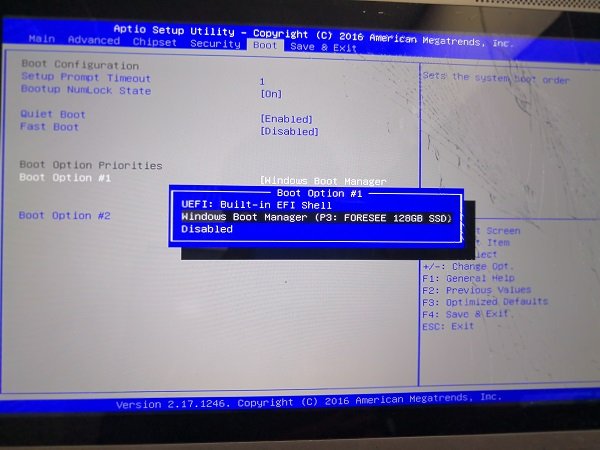
Turn off your computer, wait for a few minutes, and turn it on. Now, press the required key to enter the BIOS. Now, check the boot order. If the wrong hard drive is selected, change the boot order, save the BIOS settings, and restart your computer.
If this works, but the same issue reappears the next time you turn on your computer, it likely indicates the CMOS battery is weak. Replace your CMOS battery.
3] Reset BIOS to the default
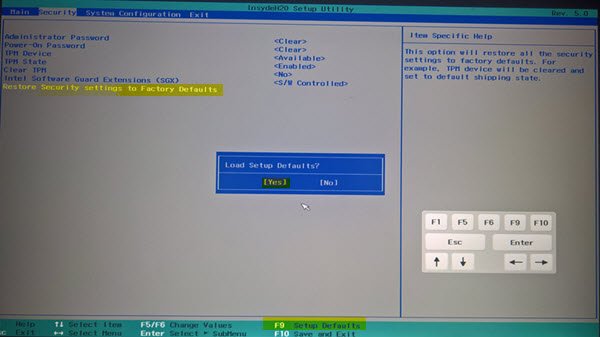
Misconfigured BIOS settings can also cause boot issues. You can try resetting your BIOS to the factory default settings.
4] Reseat your SSD or HDD
This error occurs when your system does not detect your hard drive on which the operating system is installed. The following are some of the reasons why your system cannot detect your SSD or HDD:
- Your SSD or HDD is not connected or seated properly in the slot.
- The SATA cable or M.2 slot is faulty or damaged.
- The SSD or HDD cannot make proper contact with the motherboard due to dust buildup.
- The SSD or HDD is damaged.
In your case, one or more of the above-listed factors may be causing the PCI LAN error every time you turn on your computer. For further troubleshooting, turn off your computer and open its case. If you have a laptop, open it from the back. If you are not good at this, take professional help.
Now, remove your SSD or HDD and clean the slot. Check the SATA cable for any physical damage. If you have an NVMe SSD, check the M.2 slot. If another slot is available, connect your SSD or HDD to that slot and turn on your computer.
5] Rebuild Boot files
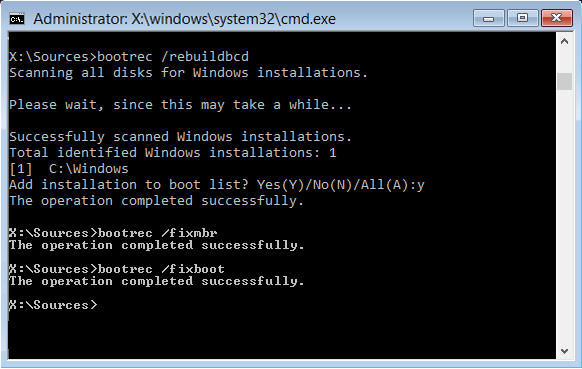
Boot errors also occur due to a corrupt BCD (Boot Configuration Data) file. If this is the case with you, rebuilding BCD will fix this error.
6] Run Automatic Startup Repair
You can also try running Automatic Startup Repair. For this, you have to enter the Windows Recovery Environment. Since your PC is unbootable, you can enter WinRE by interrupting the normal boot process. Follow these steps:
- Turn off your computer and wait for a few minutes.
- Press the power button to turn on your computer.
- When you see the manufacturer’s or Windows logo, immediately press and hold the power button to force shut down your computer.
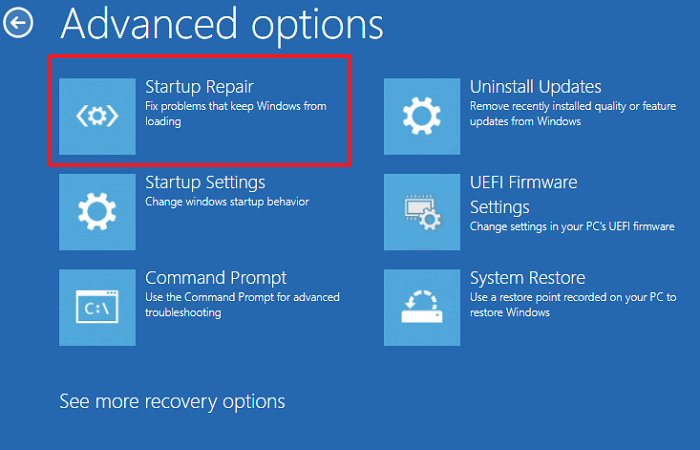
Repeat the above steps until you see the Preparing automatic repair screen. Now, you are in Windows Recovery Environment. Select Advanced Options > Troubleshoot > Advanced Options > Startup Repair. The Startup Repair will take time. After completion, restart your system and see if you can boot into Windows.
7] Reset your PC
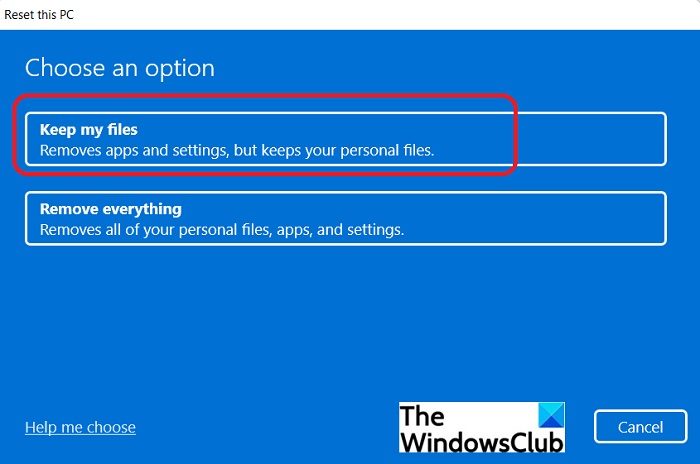
If Startup Repair does not work, you can try resetting your PC to the factory default settings. Enter Windows Recovery Environment as explained earlier in this article. In WinRE, click Advanced Options > Troubleshoot > Reset this PC. Now, select the Keep my files option, as this option will not delete your data. However, all the installed programs will be uninstalled.
8] Perform the Clean Installation of Windows
The last resort is to perform a clean installation of Windows. This step will completely delete your data on the C drive. However, data on other hard drive partitions will remain safe. But before proceeding, I recommend backing up all your important files. Use the Windows Recovery Environment to back up your data from an unbootable PC.
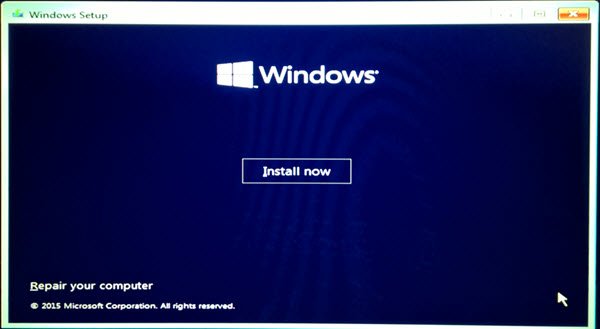
After backing up all your important files, perform the clean installation of Windows. On a working computer, create a bootable USB flash drive with Windows installation media. Then, use that bootable USB flash drive to perform the clean installation of Windows. When you plug the USB flash drive into one of the USB ports, your system will automatically detect it. If not, select the bootable USB drive in boot order.
9] Replace your HDD or SSD
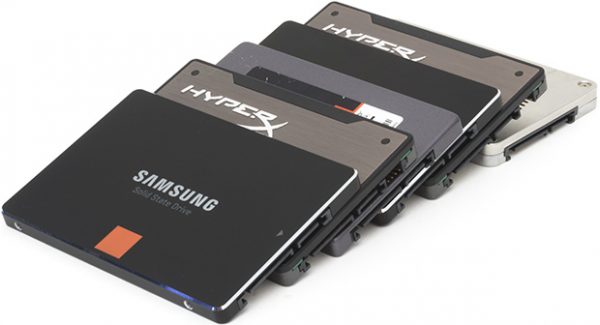
If you have reconnected or reseated your HDD or SSD, but your system is not detecting it in Windows Recovery Environment, the problem may be with the HDD or SSD. It may be damaged. Take your system to a professional computer repair technician for further assistance.
That’s it. I hope this helps.
What is a PCI error?
A PCI error is associated with the PCI, a high-speed bus that connects hardware components to your motherboard, such as graphics cards, network cards, HDDs, SSDs, etc. In simple terms, it is a communication error between your computer’s motherboard and hardware devices connected through the PCI bus. This error can also occur due to dust buildup.
How to fix a corrupted BIOS?
A BIOS corruption results in an unbootable computer. The POST will fail, and you will see a black screen. To fix a corrupted BIOS, you need to recover it. Every computer manufacturer provides a BIOS recovery file. Use that file to create a BIOS recovery USB flash drive. During BIOS recovery, provide a continuous power supply to your PC or laptop. If the power supply is interrupted, your motherboard will be damaged.
Read next: How to downgrade BIOS on a Windows computer.
