
The error message This PC doesn’t support entering a BitLocker recovery password during startup can be frustrating, as it prevents you from accessing your files. The error typically occurs because of an issue with how BitLocker is configured to interact with your computer’s pre-boot environment or with the Windows Recovery Environment (WinRE).
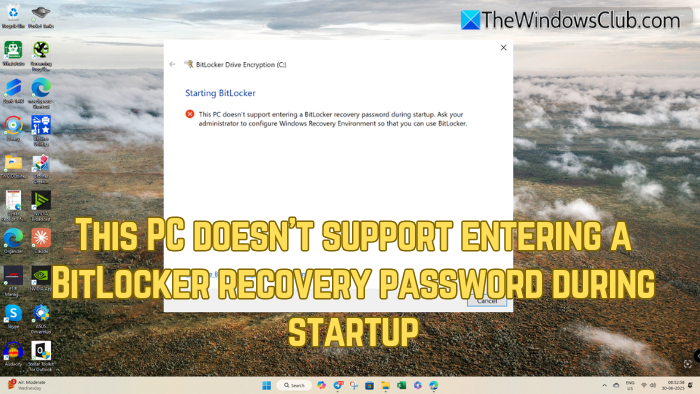
Fix This PC doesn’t support entering a BitLocker recovery password during startup error in Windows 11/10
Since BitLocker heavily relies on WinRE to handle pre-boot authentication, including the recovery password prompt, if WinRE is disabled, corrupted, or not properly configured, you will encounter the error message.
- Enable Windows Recovery Environment (WinRE)
- Configure Group Policy Settings
- Check TPM settings
- Locate or recreate the Recovery (WinRE) partition
1] Enable Windows Recovery Environment (WinRE)
On the screen where the error message is being displayed, you should see recovery options, or you can press ESC to access it. (The fix can also be used if you are already logged into your PC.)
From the recovery options, select Command Prompt and then run the following command:
reagentc.exe /enable

reagentc /info
This will restore the recovery environment, and after that, you will be able to proceed without seeing the error.
Read: How to increase WinRE partition size in Windows 11
2] Configure Group Policy Settings
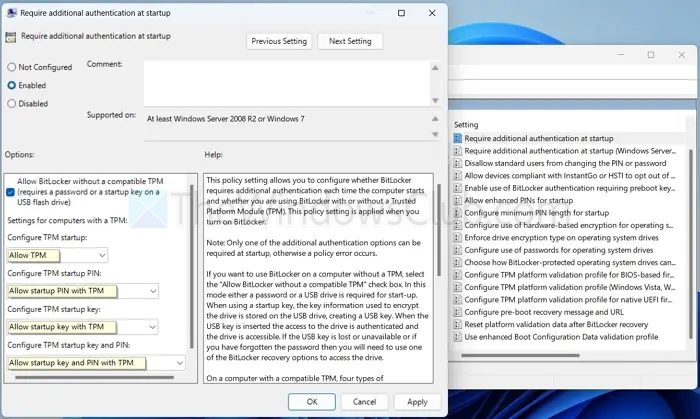
Group Policy settings can also cause the issue, especially on those PCs that use TPM for BitLocker.
- First, go to Windows search and type gpedit.msc and open it.
- Navigate to the following path: Computer Configuration > Administrative Templates > Windows Components > BitLocker Drive Encryption > Operating System Drives.
- Over here, look for Require Additional Authentication at Startup option and set it to Enabled.
3] Check TPM settings
You should also verify your TPM settings by accessing the BIOS or UEFI settings during boot-up and ensuring that the TPM is enabled and correctly configured.
If you have recently updated your UEFI or TPM firmware, it might require resetting the TPM settings to their defaults.
Read: How to disallow Standard Users from Changing BitLocker PIN/Password
4] Locate or recreate the Recovery (WinRE) partition
If the earlier methods didn’t fix the issue, you need to try advanced options like recreating the Recovery (WinRE partition). Here’s how:
- First, in Terminal run this command to list disks: DISKPART
- Select a volume and assign a temporary drive letter to it. E.g.: Q.
- Next, format it and copy WinRE files by running the following commands:
FORMAT FS=NTFS LABEL="Recovery" QUICK

robocopy C:\Windows\System32\Recovery\ Q:\Recovery\WindowsRE\ /copyall /dcopy:t cmatskas.com
- Next, register the WinRE image and enable WinRE by running the commands below.
reagentc /setreimage /path Q:\Recovery\WindowsRE

reagentc /enable

reagentc /info → ensure WinRE shows as enabled
- Finally, remove the temporary drive letter using the command below.
re-enter DISKPART → SELECT VOLUME # → REMOVE LETTER=Q
- Once WinRE is enabled, BitLocker can prompt for the recovery password during startup.
5] Registry tweak
- First, right-click on the Windows button and select Terminal (Admin).
- Copy and paste the below command and press Enter.
powershell.exe -command "New-Item -Path HKLM:\SOFTWARE\Policies\Microsoft -Name FVE; Set-ItemProperty -Path HKLM:\SOFTWARE\Policies\Microsoft\FVE -Name OSEnablePrebootInputProtectorsOnSlates -Value 1 -Type DWord -Force"
- Restart your PC.
So, those were a few ways to resolve the error: This PC doesn’t support entering a BitLocker recovery password during startup. The issue most likely appears due to misconfiguration of WinRE, so enabling it should fix the issue.
What if I have lost the BitLocker recovery key?
If no copy of the 48-digit key exists anywhere (Microsoft account, printout, admin portal, etc.), the drive can’t be unlocked; the only realistic fix is to wipe and reinstall Windows. Next time, store backups in at least two separate places.
How do I keep the error from coming back after BIOS or Windows updates?
Before any firmware or feature upgrade, suspend BitLocker, confirm that WinRE is enabled and the TPM is healthy. Run the update, then resume BitLocker—this quick suspend-update-resume cycle prevents the startup error from reappearing.
