
If Outlook shows The server you are connected to is using a security certificate that cannot be verified error, here is how you can troubleshoot the issue in Windows 11. Whether you use a custom domain’s email address or @outlook.com/@gmail.com email address, you can use these solutions to get rid of this problem.
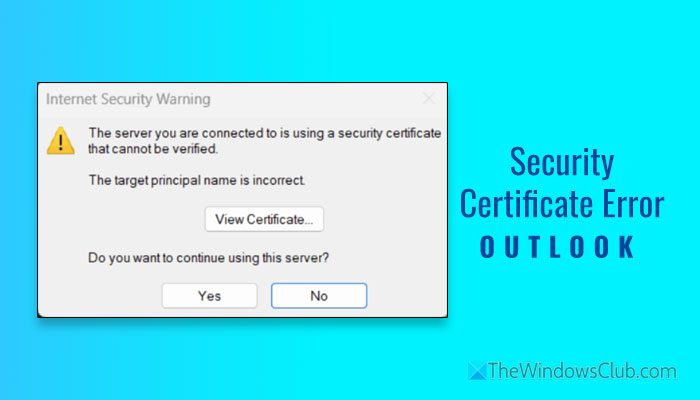
The entire error message says something like this:
The server you are connected to is using a security certificate that cannot be verified.
The target principal name is incorrect.
What does The server you are connected to is using a security certificate that cannot be verified mean?
It implies that your security certificate and port number are different or incorrect. It also indicates that the SSL certificate has expired, the hostnames are incorrect, and the IMAP/SMTP settings are incorrect.
The server you are connected to is using a security certificate that cannot be verified
To fix The server you are connected to is using a security certificate that cannot be verified error in Outlook, follow these solutions:
- Verify certificate
- Set correct date and time
- Check hostname
- Check IMAP/POP settings
- Clear Outlook cache
To learn more about these solutions, continue reading.
1] Verify certificate
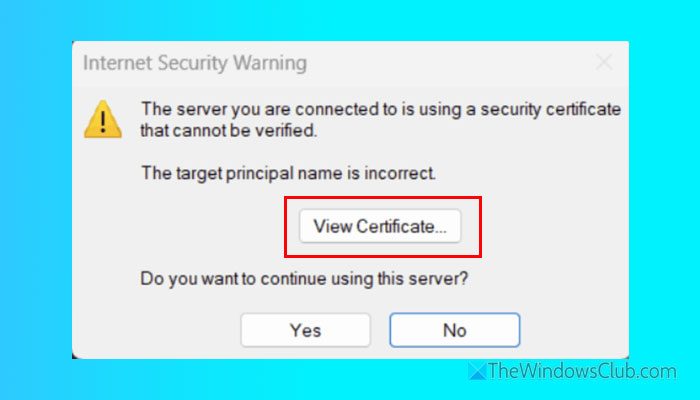
It is the very first thing you must do. If Outlook fetches an incorrect certificate, you will keep seeing this error. Therefore, click on the View Certificate button when the error appears to check the certificate.
After that, you can find details of your SSL certificate. You must head to the Issued to name where it displays the name of the mail server. If it is not correct, remove your account and re-add it.
Read: How to view and check Security Certificates in Chrome browser
2] Set correct date and time
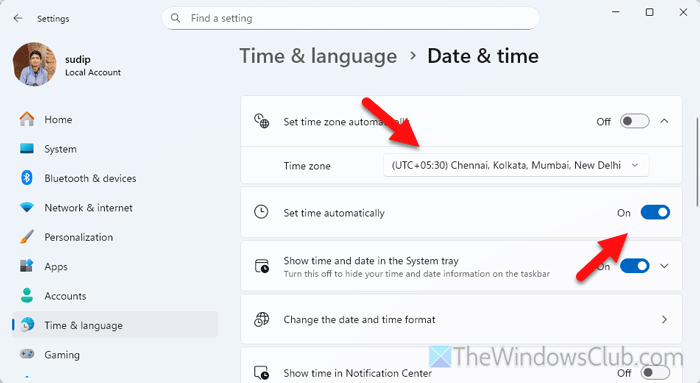
It is very important to set the correct date and time on your computer if you find the aforementioned error. To do that, follow these steps:
- Press Win+I to open the Windows Settings panel.
- Go to Time & language > Date & time.
- Toggle the Set time automatically button.
- Expand the Time zone drop-down menu and select the time zone that matches your current location.
Alternatively, you can enable the Set time zone automatically option as well.
3] Check hostname
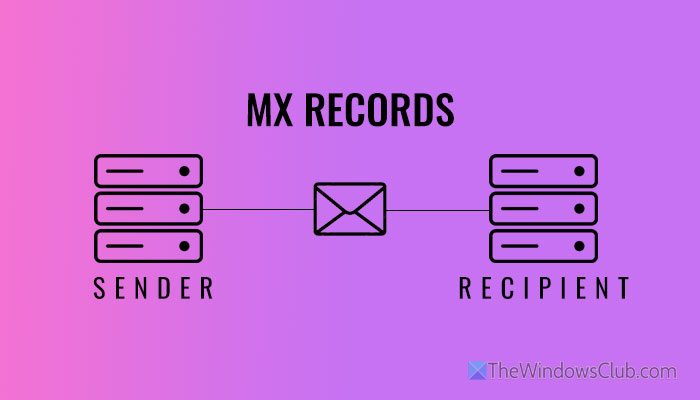
If you use an email address with a custom domain, a few things need to be set correctly. The main and most important thing is the MX records. If you use the wrong one, there is no way to rectify it from Outlook. That is why it is recommended to check your domain control panel and verify each detail.
If you cannot find the email server setup wizard, contact hosting support.
Read: Create custom Email ID with domain name with Zoho Mail, free
4] Check IMAP/POP settings
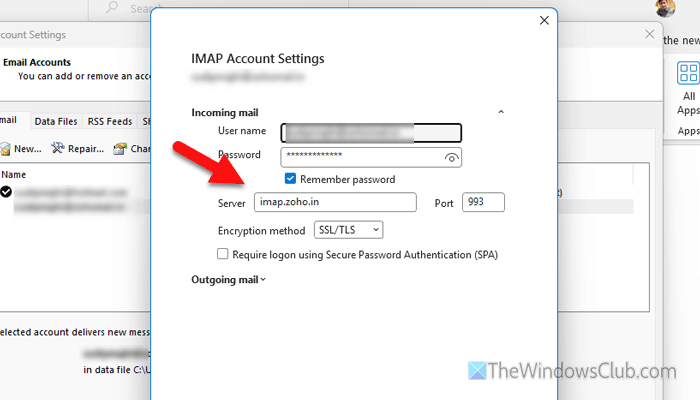
Different email service providers use different IMAP, POP, or SMTP settings. If you use Google, Zoho, or any other third-party email account and you set things up manually, you must know and enter the correct details.
To check the IMAP/POP/SMTP details, follow the instructions:
First, open Outlook and click on File > Account Settings.
Choose the Account Settings option from the list and select the email address. Click on the Repair button.
Expand the Advanced options and tick the Let me repair my account manually checkbox.
Click the Repair button. Find the Server details, Port, etc. Next, expand the Outgoing mail option and check the outgoing mail server as well.
Finally, click the Next button.
Read: We couldn’t log on to the incoming (POP/IMAP) server
5] Clear Outlook cache
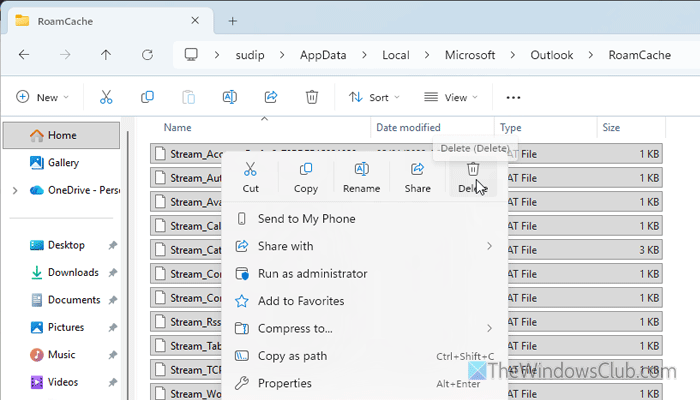
To clear Outlook cache in Windows 11, do the following:
Open the File Explorer and navigate to this path:
C:\Users\username\AppData\Local\Microsoft\Outlook
You must show hidden files to get the AppData folder.
Alternatively, you can press Win+R to open the Run prompt, type %localappdata%\Microsoft\Outlook, and hit the Enter button.
Double-click on the RoamCache folder and delete the contents.
Alternatively, you can rename the RoamCache folder.
Once done, reopen Outlook on your computer.
Read: The operation cannot be performed because the message has been changed Outlook error
How to fix Security Certificate error?
To fix the security certificate error in Outlook, verify the certificate name and check the IMAP/POP settings. Then, check the hostname and find the SSL expiry information. If everything is correct, clear the Outlook cache.
How do I fix a Security Certificate error in Outlook 365?
To resolve the security certificate error in Outlook 365, first update your SSL certificate. If it is updated, check the IMAP/POP settings, clear the Outlook cache, re-add your account, etc.
Read: There is a problem with the proxy server’s security certificate Outlook error
