
If Outlook is opening links or emails in the browser instead of the app, then there’s no need to worry. This is a common issue and can be easily solved. It’s usually because of the incorrect default settings or a protocol mix-up. In this article, we will quickly adjust a few settings to make Outlook launch properly.
Outlook opening in browser instead of app
If Outlook opens in a browser instead of the app, execute the solutions given below.
- Change the default app in Windows settings
- Set Outlook as the default client for all extensions
- Change the default within Outlook
- Repair the Office installation
- Re-register Outlook
Let’s get started with the troubleshooting guide.
1] Change the default app in Windows settings
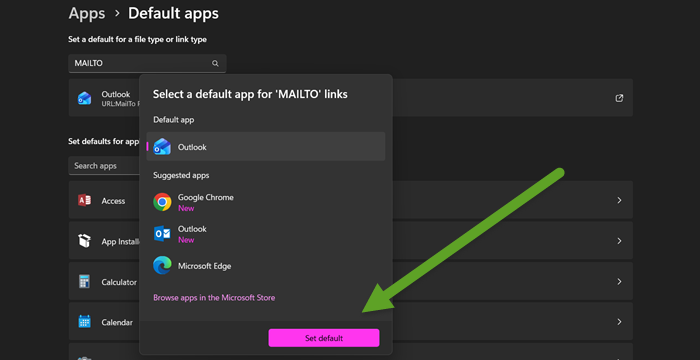
The Windows settings menu has a master switch for the default email app. If this is set to a web-based client, any system-wide request to send an email will be sent there. Therefore, it’s necessary to ensure that the Outlook app is the primary handler. To change this, follow the steps mentioned below.
- Press Win + I to open Settings, and go to Default apps.
- Scroll down until you see the MAILTO entry or search for MAILTO.
- Once you see the entry appear, click on it, select Outlook, and click on Set default.
After applying this, Windows should now route all basic emails to the Outlook desktop client. Verify whether the email opens on the website or the app. If the issue persists, try the next solution.
2] Set Outlook as the default client for all extensions
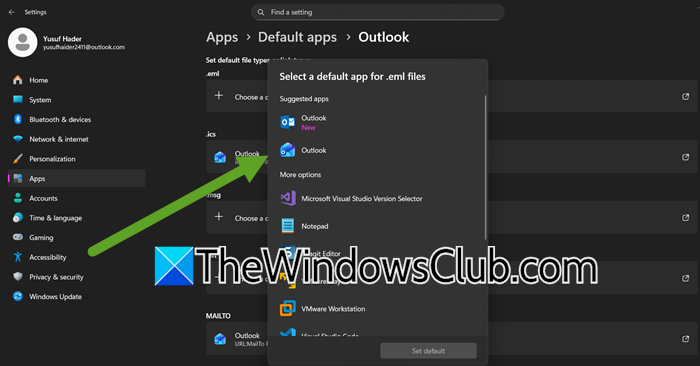
If changing the setting didn’t work, setting Outlook as the default MAPI client is the next solution. The MAPI protocol is an interface that software uses to integrate with email. Doing so reconfirms Outlook as the default for all email, calendar, and contact functions at a system level.
- Open Settings by Win + I.
- Go to Apps > Default apps.
- Look for Outlook (New) or Outlook Classic.
- You will see various extensions; make Outlook the default there.
Once done, check whether Outlook opens in the app. Move to the next solution in case the situation remains the same.
3] Change the default within Outlook
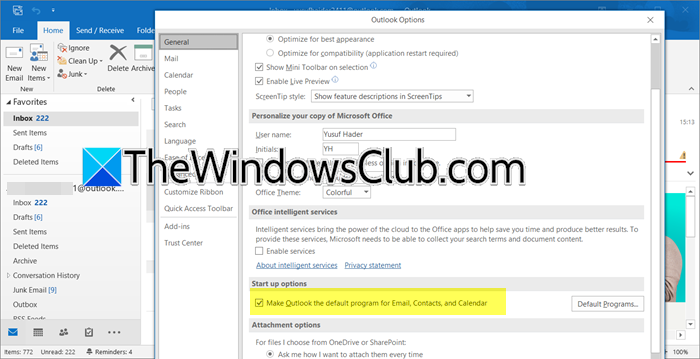
Outlook has its own internet settings that set it as the default email app. However, if this internal flag is off, Outlook will not claim its default status even if other settings are correct. In this solution, we will force Outlook to re-register with Windows.
- Launch the app, go to the File section, and select Options.
- Navigate to the General tab, and scroll to Start up options.
- Locate and check the box for Make Outlook the default program for Emails, contacts, and calendars.
- Select OK, and relaunch the app for changes to take place.
If the situation remains the same, slide to the next solution.
4] Repair the Office installation
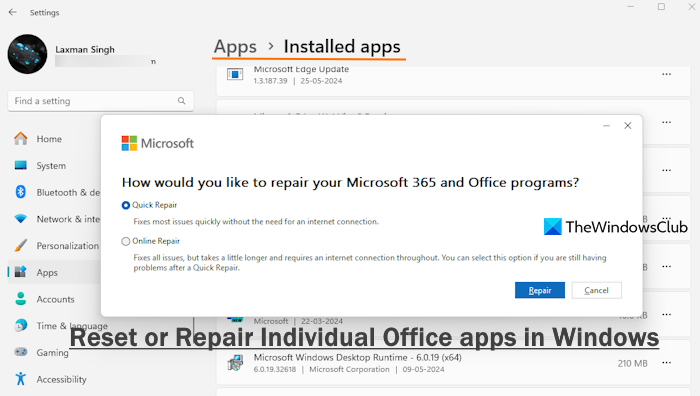
Corrupted program files or registry entries within the Office installation can be contributing factors. To address this, we’ll use the built-in repair tool. Here’s how you can do the same.
- Open Settings.
- Go to Apps > Installed apps.
- Search for “Office”, click on the three dots associated with the Office installation, and click on Modify.
- Now, click on Quick Repair.
If the Quick Repair doesn’t work, you need to click on Online Repair.
After it completes, reboot the PC, and the persistent issue should be resolved. However, if this didn’t work out, proceed to the next solution.
Read: How to switch from Outlook (new) to Outlook (classic)
6] Re-register Outlook
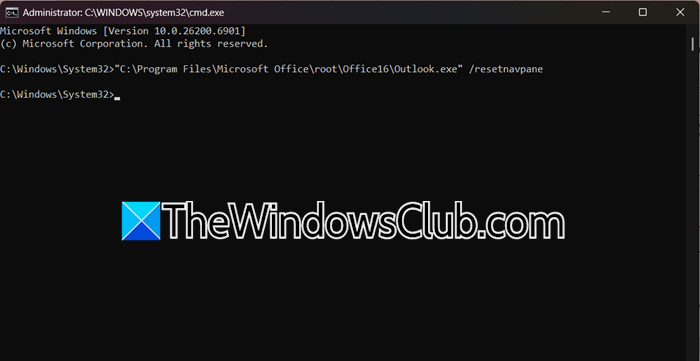
If the built-in repair tool doesn’t work, we’ll use a command-line tool to rebuild its critical navigation pane and re-register it with the Windows shell. For that, open the Run dialogue box, type cmd, and click Ctrl + Shift + Enter. In the administrator Command Prompt window, type the following command and hit Enter.
"C:\Program Files\Microsoft Office\root\Office16\Outlook.exe" /resetnavpane
Once done, open the web browser, and click the email us link on any website. It should now open up a new email window in the Outlook desktop app.
Hopefully, with these solutions, your issue will be resolved.
Read: Outlook view changed? Reset Outlook view to default on Windows
How to fix the default browser in Outlook?
To fix the default browser in Outlook, go to Settings, click on Apps, and select Default Apps. There, please scroll down to find the preferred browser, and click Set default to make it the system-wide choice. Outlook will, from now onwards, use that browser to open links instead of the one previously set by Windows.
Read: How to set Outlook as the default Email Reader on Mac
How do I stop Microsoft Office from opening in the browser?
Users can change the default settings to open Office in the desktop version. To do so, open any Office app, go to File > Options > Advanced. Now, under the Link Handling or Open Documents section, choose Desktop App instead of browser. Save the changes and restart the app to use Office in the desktop version.
Also Read: Change these default Outlook settings to boost productivity.
