
If you’re trying to move or copy folders in Outlook and encounter the following error message, Cannot move or copy folders, Cannot copy folder, A top-level folder cannot be copied to one of its subfolders, then this post will help you. This is a common issue with Outlook and often occurs due to incorrect folder placement or permission restrictions.
![Outlook cannot move or copy folders [Fix]](https://www.thewindowsclub.com/wp-content/uploads/2025/06/Outlook-cannot-move-or-copy-folders-Fix.jpg "Outlook cannot move or copy folders [Fix]")
Outlook cannot move or copy folders
If you see Cannot move or copy folders, Cannot copy folder, A top-level folder cannot be copied to one of its subfolders error message, follow these suggestions to fix the issue:
- Avoid recursive folder placement
- Check folder permissions
- Try moving via Outlook Web.

1] Avoid recursive folder placement
Outlook doesn’t allow a folder to be moved or copied into itself or any of its subfolders. If you do so, you will encounter an error. Instead, ensure you maintain a proper folder hierarchy by following the steps below:
- First, locate the folder you are trying to move.
- Check the destination folder. Ensure you are not trying to move your main folder to a location like Mains > Sub-main folder.
- Instead, move the folder to some other destination. You can use Folder List view to find the correct location.
2] Check folder permissions

There is also a good chance that the folder you are trying to copy or move is part of a shared mailbox or Exchange account, and you don’t have the necessary permissions. To check this, follow these steps:
- Right-click on the folder you are trying to move.
- Click Properties and select the Permissions tab. (If you don’t see the tab, you are probably using an Exchange account or it’s a personal folder.)
- Under Permission Level, check if you have Owner or Editor access. If you only have Reviewer or None, you won’t be able to make changes.
Read: Outlook Advanced Diagnostics Troubleshooter will fix configuration problems
3] Try moving via Outlook Web
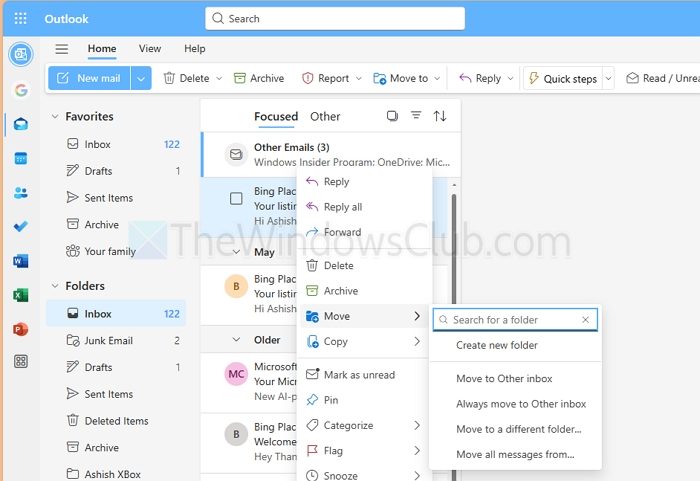
If you have the necessary permissions and are not moving the folder within the same folder hierarchy, you can try moving the folder using Outlook Web.
- Go to outlook.office.com and sign in.
- Locate the folder in the sidebar.
- Right-click on the folder you want to move and select Move or Copy.
- Next, choose a destination folder and see if you are able to move or copy the folder. If it worked, wait for some time to see the same changes reflected on your desktop Outlook app.
The “Cannot move or copy folders” error in Outlook can be frustrating. However, the issue mostly occurs due to incorrect permissions or trying to move the folder within the same folder hierarchy. If these two are correct, then consider starting Outlook in Safe Mode, disabling all the add-ins, and trying to move or copy the folder to see if it works.
Read: How to open Outlook in Safe Mode
Can corrupted Outlook data files cause the “Cannot move or copy folders” error?
Corrupted Outlook data files (.PST or .OST) can sometimes lead to unexpected behavior, including errors when moving or copying folders. If Outlook’s folder structure is damaged or if the data file has inconsistencies, you might face limitations even with proper permissions and hierarchy. To resolve this, you can run the built-in Inbox Repair Tool.
Does Outlook’s Cached Exchange Mode affect folder movement?
Cached Exchange Mode can occasionally cause syncing issues, especially if the local cache is out of sync with the server. This may result in errors, such as being unable to move or copy folders, even when everything appears to be correct.
