
If your OneDrive Personal Vault is suddenly empty, here is what you can do to get it back. There could be numerous reasons, and here we have gathered all the possible reasons and solutions to troubleshoot this issue.
Why is my OneDrive Personal vault suddenly empty?
- There are some synchronization issues with OneDrive.
- You have changed your OneDrive password and haven’t updated it.
- You have accidentally deleted your Personal Vault files.
- Your subscription has expired.
- There are some issues with OneDrive. It could be a bug or a glitch.
OneDrive Personal Vault suddenly empty
If OneDrive Personal Vault has suddenly become empty, follow these instructions to resolve the issue:
- Verify synchronization
- Check from other devices
- Check deleted files in the Recycle Bin
- Reset OneDrive
- Verify your subscription
- Sign out and re-sign in
- Contact support
To learn more about these solutions, continue reading.
1] Verify synchronization
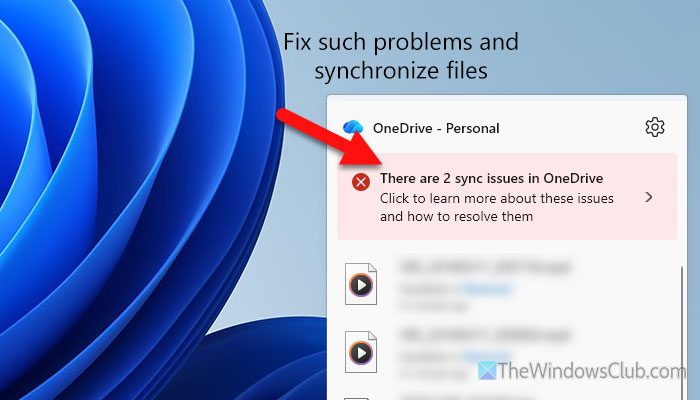
Whether it is a regular OneDrive file or a Personal Vault file, it must be synchronized when you install OneDrive on a new device. Without synchronization, you cannot see or access your OneDrive files, whether it’s a Personal Vault file.
What you can do is:
- Wait for a few moments until all your files are synchronized.
- Check your internet connection. Run the Ping test.
Read: How to perform Internet Speed Test from Taskbar in Windows 11 natively
2] Check from other devices
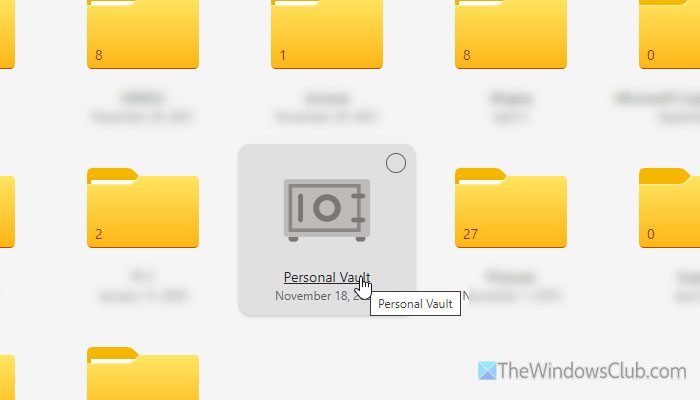
Before going through any other subsequent solutions, it is suggested to check the same files from other devices as well. If the files are intact on the second device, you must wait for some time till it synchronizes them. However, if you cannot find them on the second device as well, it is time to check the Recycle Bin.
Read: How to recover OneDrive files that are missing from a folder?
3] Check deleted files in the Recycle Bin
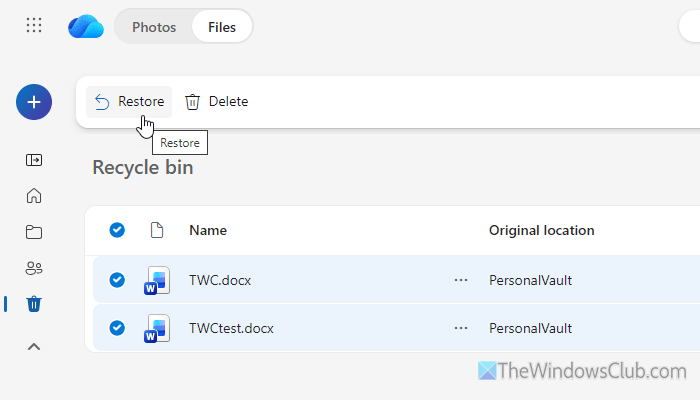
OneDrive stores all the deleted files in the Recycle Bin for 30 days for personal accounts. You can open the Recycle Bin and check if your missing files are there or not. For that, you can open OneDrive, expand the left side panel, and click on the Recycle Bin icon.
If the files are there, select them and click on the Restore button.
Read: How to recover deleted OneDrive files in Windows 11
4] Reset OneDrive
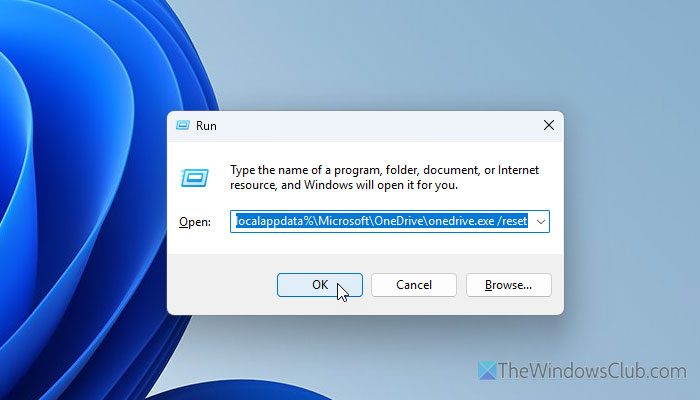
To reset OneDrive in Windows 11, follow these steps:
- Press Win+R to open the Run prompt.
- Paste the following path: %localappdata%\Microsoft\OneDrive\onedrive.exe /reset
- Click the OK button.
Although it is not mandatory, it is recommended to restart your computer before you re-enter your credentials.
5] Verify your subscription
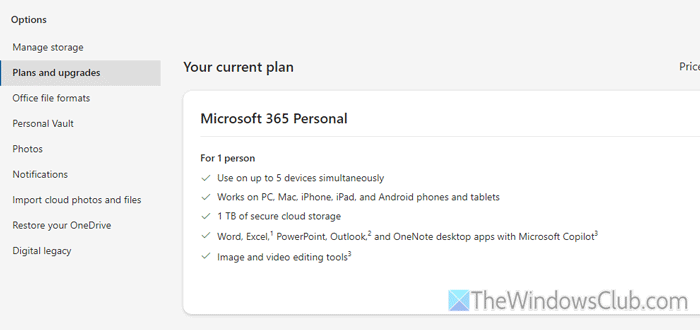
Although you do not need a paid subscription to access Personal Vault, it is necessary to have one if you used to be a subscriber and uploaded a lot of files. In that case, there is nothing you can do except opt for a paid OneDrive subscription.
6] Sign out and re-sign in
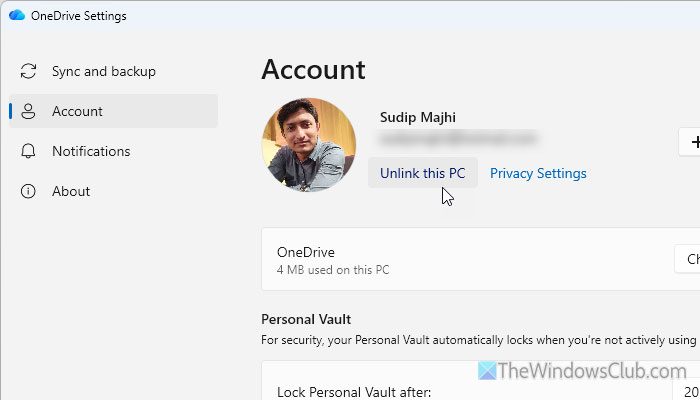
At times, a simple password change could cause this issue. As Personal Vault carries an additional layer of security, your password always needs to be updated. That is why you can follow these steps to sign out and re-sign into your OneDrive account:
- Click on the OneDrive icon in the system tray.
- Click on the settings gear icon and select Settings.
- Go to Account and click on the Unlink this PC.
After that, OneDrive will prompt you to a screen where you can enter your updated credentials.
However, you can click on your profile picture to find the Sign out option if you use the Web or Online version of OneDrive.
Read: Cannot sign into and access OneDrive online
7] Contact support
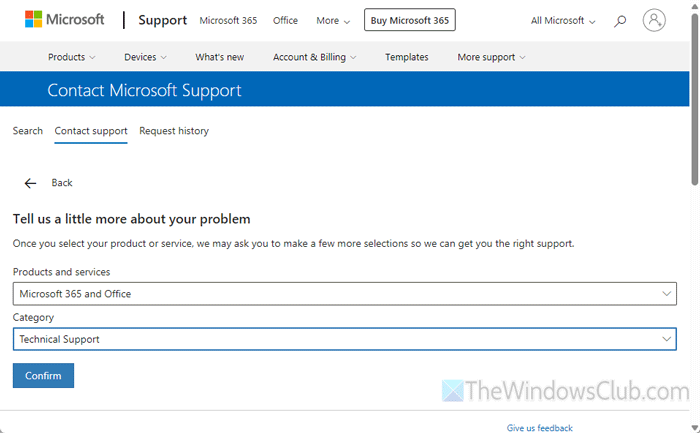
To contact support for further assistance, open the OneDrive Settings panel and click on the Get help option.
Then, click on the Contact support option and describe your problem.
Finally, click the Submit button.
If you want to use a browser, open support.microsoft.com first and click on the Sign in to contact Support button.
Then, choose Microsoft 365 and Office and Technical Support as the Category.
Click on the OneDrive app support button, write down your problem, and click the Send button.
Read: Microsoft Support: Phone Number, Live Chat, Email ID, Useful Links
How do I restore my OneDrive Personal Vault?
If the entire Personal Vault icon is missing, you must contact Support. However, if files are missing, these are the things you can do to restore them:
- Check the Recycle Bin.
- Reset the OneDrive app.
- Check your internet connection.
- Sign out and re-sign in to your account.
Read: OneDrive Personal Vault not showing in Windows 11
Why did my Personal Vault disappear?
The most common reason why your Personal Vault disappeared is that you have some synchronization issues. Also, you might have deleted your files accidentally, or your OneDrive files are not fully synchronized yet.
