
If Firewall settings or Browser plugins are blocking OneDrive from opening files on the web browser, you can find solutions here to get rid of this problem. If it appears, you won’t be able to open any file uploaded to OneDrive or access OneDrive storage in any way. There could be various reasons OneDrive displays this message, and we have discussed almost every possible scenario here.
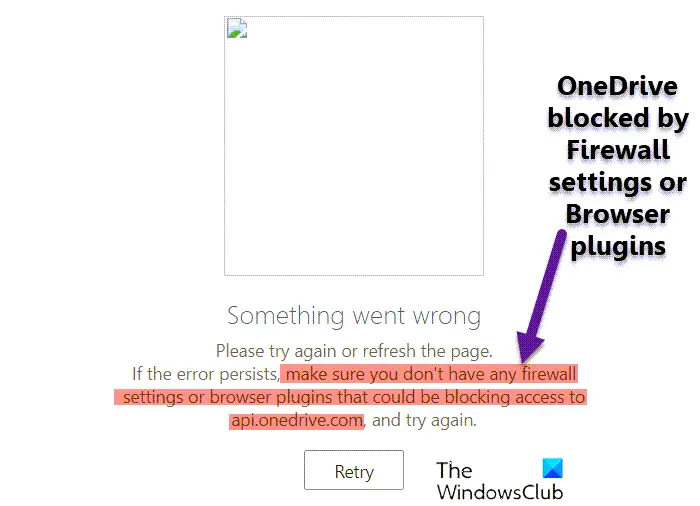
The entire message says:
Something went wrong
Please try again or refresh the page. If the error persists, make sure you don’t have any firewall settings or browser plugins that could be blocking access to api.onedrive.com, and try again.
OneDrive blocked by Firewall settings or Browser plugins
If Firewall settings or browser plugins or extensions are blocking OneDrive, follow these steps:
- Refresh OneDrive page
- Disable Adblocker extension
- Check in incognito mode
- Check if browser is blocked by Firewall
- Disable third-party firewall
- Disable all browser plugins
- Clear browser cache and cookies
To learn more about these steps, continue reading.
1] Refresh OneDrive page
If you are encountering the aforementioned error when accessing OneDrive, you must try this solution first. At times, a simple refresh could fix the issue within moments. Before following other solutions mentioned below, it is recommended to refresh the web page first. To do that, you can simply click the Retry button. You may also press CTRL+F5 to hard reload the webpage.
2] Disable AdBlocker extension
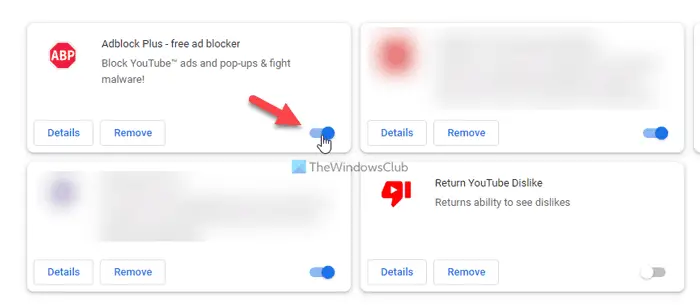
If you are using an ad blocker extension in your browser to block advertisements, you need to disable it before refreshing the page. There may be times when OneDrive content is blocked by your ad blocker extension. No matter which extension you use in your browser, you can disable it temporarily. Therefore, do that and check whether the issue remains.
3] Check in Incognito mode
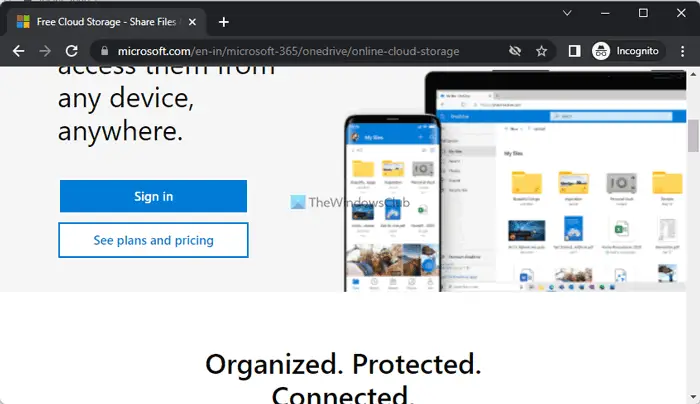
At times, your browser’s standard settings may be responsible for this issue. If you set something incorrectly in your browser, it could cause issues when accessing OneDrive or other websites. In such situations, it is wise to check the web page in incognito or private mode. For your information, you can find the Incognito or private mode in almost all the browsers, including Google Chrome, Mozilla Firefox, Microsoft Edge, etc.
4] Check if the browser is blocked by the Firewall
If your browser is blocked by Windows Firewall, you won’t be able to resolve it using the other solutions mentioned above. In some situations, you need to check whether Windows Firewall is blocking your browser. For that, you need to verify all the Inbound Rules and Outbound Rules one after one that is related to your browser. To do that, you need to open the Windows Defender Firewall app, click on the Advanced settings and choose the Inbound Rules and Outbound Rules one after the other.
5] Disable third-party firewall
There are countless third-party firewall tools available on the market. Users often install them to get a better or more convenient interface than Windows Firewall. Some of those tools allow users to set things up automatically. If the problem started post-installation, it is recommended to temporarily disable the third-party firewall or security app. Then check whether you can access the same OneDrive page in your browser. If so, you need to check each setting every minute before turning it on again.
Read: Best Free Firewall software for Windows
6] Disable all browser extensions
If you have installed tons of extensions in your browser and the problem started after that, the wisest solution is to disable them all. At times, multiple security plugins can cause the issue described above. On the other hand, if you have installed multiple VPN or proxy apps, it is recommended to disable them all. Then try enabling one extension at a time to find the culprit.
7] Clear browser cache and cookies
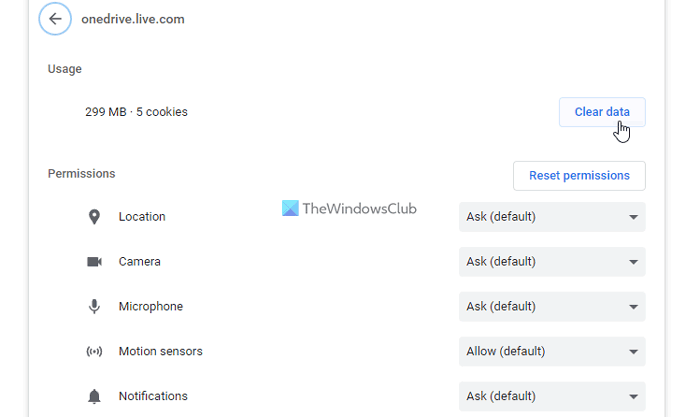
At times, old cookies and cache can cause this error. If your PC was attacked by adware recently, it is recommended to clear your browser cache and cookies. In case you do not want to remove them for the entire browser, you can delete cookies and cache for a specific site as well. In this case, you need to follow those steps for OneDrive’s official website.
What ports need to be open for OneDrive?
If you are talking about the OneDrive desktop app, it requires you to open TCP ports 80 and 443. There are several destination hosts that need these two ports to be opened on your computer. For example, *.onedrive.com, onedrive.live.com, login.live.com, etc., require TCP port 80, whereas other destination hosts require TCP port 443.
How do I stop Firewall from blocking everything?
To stop the firewall from blocking everything, you need to configure Windows Firewall carefully. However, if you have installed a third-party firewall software, it is recommended to check if there is a conflict between the Windows Firewall or the third-party security shield. On the other hand, you can also check each setting in the firewall software to ensure the correct options.
Read: Your PC isn’t connected to the internet, OneDrive Error Code 0x800c0005.
