
If OBS is not closed properly, you may encounter the message “OBS did not shut down properly” when you launch it the next time. When this message appears, you have two options: Launch it in Safe Mode or in Normal Mode. It becomes annoying when this message pops up every time you launch OBS Studio. This is happening with some users. If you encounter such an issue with OBS Studio, this article will help.
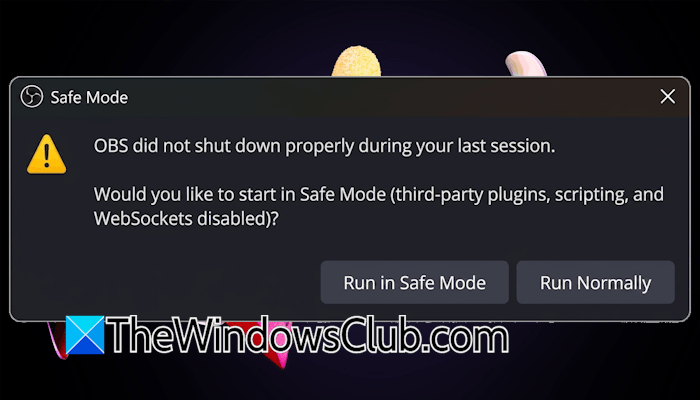
The complete message is:
OBS did not shut down properly during your last session.
Would you like to start in Safe Mode (third-party plugins, scripting, and WebSockets disabled)?
OBS did not shut down properly on Windows PC
Use the following fixes if you encounter the “OBS did not shut down properly” message every time you launch OBS Studio.
- Close OBS Studio properly
- Update OBS Studio
- Disable shutdown check
- Disable all plugins
- Disable Replay Buffer
- Roll back OBS to the previous version
- Reinstall OBS
All these fixes are explained in detail below.
1] Close OBS Studio properly
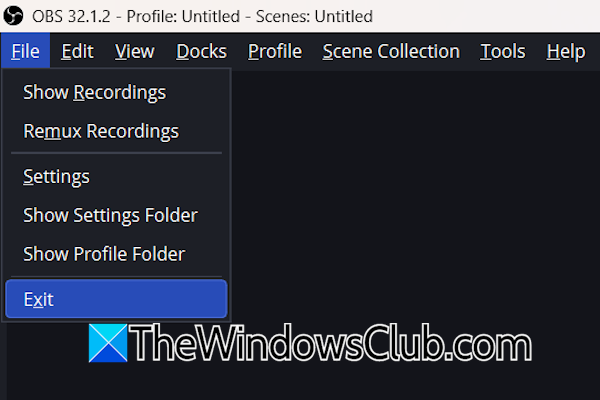
OBS displays this message at launch if it was not properly closed the last time. Therefore, to stop this message, it is better to close OBS Studio properly. Click the File tab and then select Exit.
2] Update OBS Studio
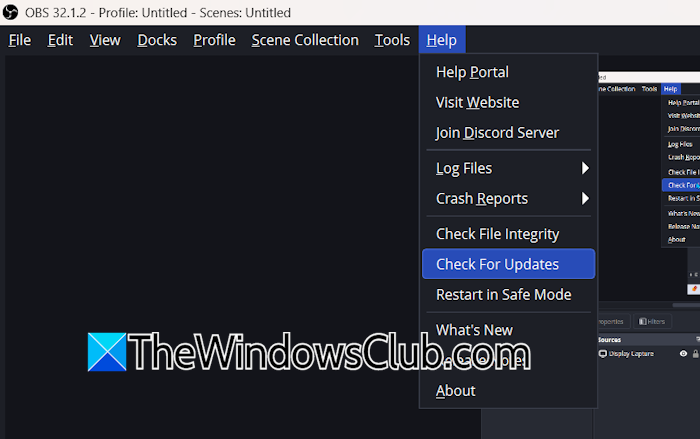
This issue might be a result of a bug in the software. To confirm this, check for updates manually. In OBS Studio, navigate to Help > Check for Updates. If an update is available, the software will download and install it automatically.
3] Disable shutdown check
Shutdown check is a feature in OBS Studio that detects if the software is closed properly during the last session. If OBS was closed unexpectedly in the last session, the Safe Mode is triggered, and you will see the “OBS did not shut down properly” message the next time you launch OBS.
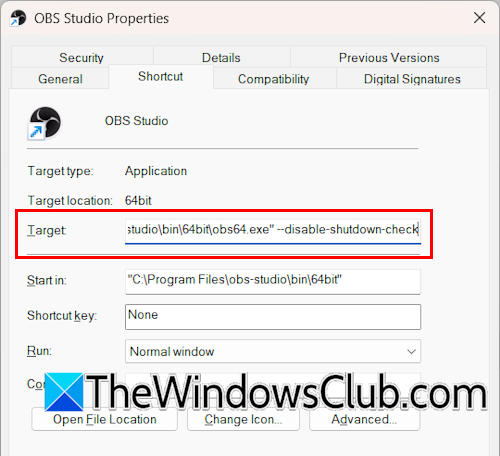
If you encounter this message every time you launch OBS, despite closing it properly, you can disable this feature. Copy the following script:
--disable-shutdown-check
Go to your desktop, right-click on the OBS Studio shortcut, and select Properties. Select the Shortcut tab. Now, click inside the Target box and move the cursor to the very end, press Spacebar at once, and then paste the above script. Click Apply and OK to save changes. Make sure that OBS is closed properly before adding this script.
4] Disable all plugins
This problem might be occurring due to an installed plugin. To confirm this, disable all the installed plugins. Follow these steps:
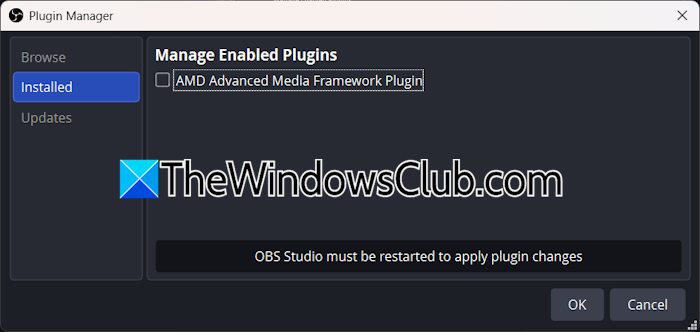
- Select Tools > Plugin Manager.
- OBS will show you all the installed plugins. Uncheck all the checkboxes and click OK.
- Restart OBS.
If the message disappears after disabling the plugins, it indicates that one of the plugins is triggering this issue. To identify that plugin, enable any one of the disabled Plugins and restart the software. Repeat this process until you get the same message. When the message reappears, the plugin you have just enabled is the culprit. Now, you can check for updates for that plugin or contact its support. If nothing helps, you remove it and look for its alternative.
5] Disable Replay Buffer
Replay Buffer is a useful feature in OBS Studio that continuously records your screen in the background, but saves only the last few seconds or minutes of the video when you press the required hotkey. It helps capture important moments without recording the entire session.
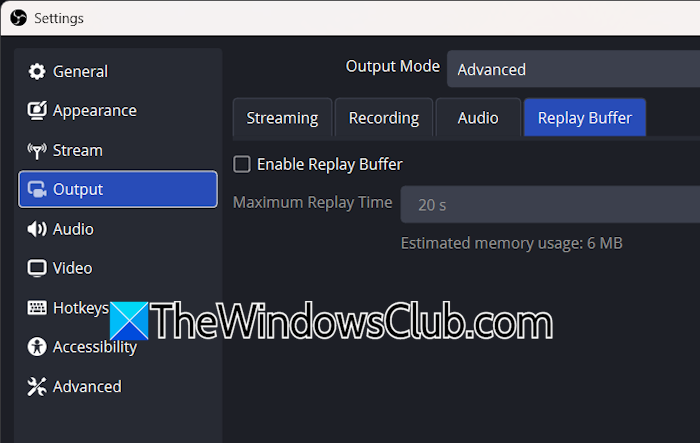
Replay Buffer might be causing this issue. If it is enabled, disable it. Follow these steps:
- Open OBS settings.
- Navigate to the Output tab.
- Set the Output Mode to Advanced.
- Under the Replay Buffer tab, uncheck the Enable Replay Buffer checkbox.
- Click Apply and then OK to save changes.
6] Roll back OBS to the previous version
If the issue persists, you can roll back OBS to the previous version. The entire update history of OBS is available on the official GitHub page. First, check the current version of OBS installed on your system. For this, go to Help > About. Now, visit the official GitHub page and download the earlier version of OBS.
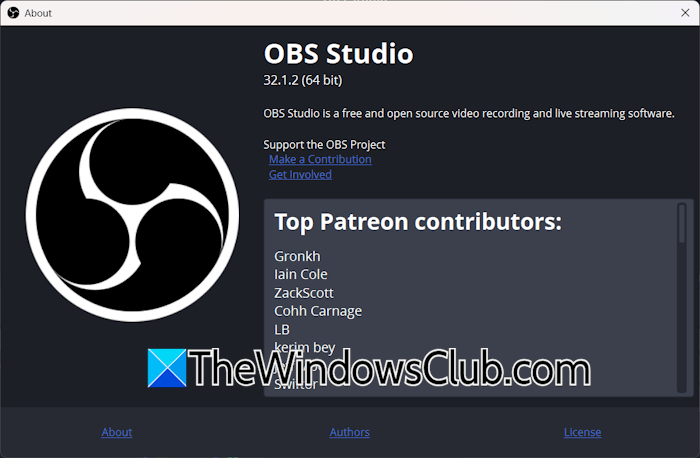
Uninstall the current version of OBS, restart your system, and install the earlier version. Once you install the previous version, do not update it if prompted. Wait till OBS releases the next update. After that, you can update the software to the latest version.
7] Reinstall OBS
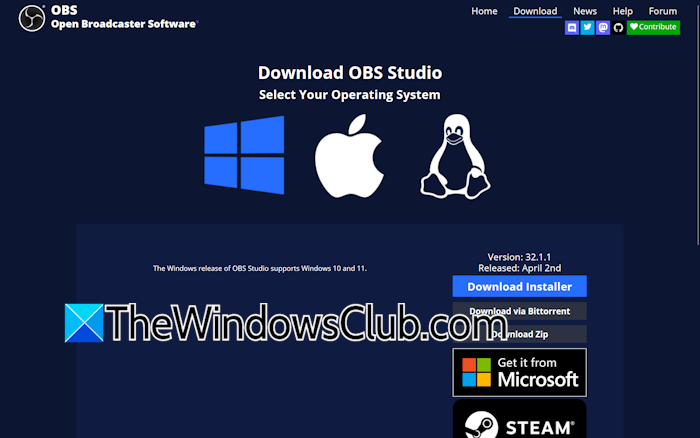
If nothing helps, reinstalling OBS is the last option. Completely remove OBS Studio from your system using a third-party tool, such as Revo Uninstaller. Restart your system after that. Now, download its latest version and install it.
That’s it. I hope this helps.
How to shut down OBS Studio properly?
Closing OBS Studio by clicking the red cross icon on the top right side shuts it down properly. However, if this does not work, navigate to File > Exit. After closing OBS, open the Task Manager and check for the running instances of OBS. If you find any running instances, terminate them.
What to do if Ctrl + Alt + Delete doesn’t work?
If the Ctrl + Alt + Delete shortcut is not working, connect another keyboard to check if the issue is associated with your keyboard. You can also reset your keyboard. If this does not work, perform System Restore.
Read next: OBS not capturing Game Audio on Windows.
