
Ctrl+Alt+Del is a popular key sequence that we all hinge on either to escape from an issue or end a function or simply get away with the irksome programs. Ctrl+Alt+Del is the keyboard sequence that, when pressed, sends a command to the CPU to open a window with a menu to access tasks like signing out, locking the system, switching users, opening a task manager or even shutting down the system. That is, each time your system freezes or is wrecked for any reason, you have to give it the three-finger salute: Ctrl+Alt+Del to reboot the entire system.
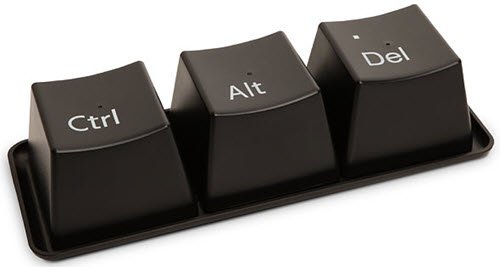
Fix Ctrl+Alt+Del not working in Windows 11
In scenarios where programs crash, Windows users generally open Task Manager by pressing Ctrl+Alt+Del.In the Task Manager, users are allowed to repair, make a change, test, end the process and start the program all over again. But sometimes you may encounter a weird problem where the key sequence Ctrl+Alt+Del doesn’t work on your system. The problem usually occurs if you have updated the system with unofficial firmware or have installed some third-party apps. What actually happens when you install a third-party app is that it modifies the Registry and its default values. In this case, it is required to identify the problematic application and uninstall it.
In this article, we discuss some solutions to fix this problem. But before trying out our solution, physically clean the keyboard keys and check if you have any missed Windows updates; many a time, installing the latest updates can solve the problem. Also, make sure your system is not infected with malware; it is highly recommended to scan your PC before using any computer.
1] Run System Restore
In order to restore Windows Settings back to the original, run the system restore and check if this resolves the problem.
2] Check if it is a hardware problem
Make sure you are not using a defective keyboard. If so, replace it with a different one and check if the problem persists. Or maybe you could try this keyboard on another computer system.
3] Reset the Keyboard
Some software can change the keyboard’s default settings and result in the computer keys malfunctioning. Resetting the keyboard to the default settings may help in fixing the problem with Ctrl +Alt+Del sequence.
4] Perform a Clean Boot
Placing the computer in Clean Boot State assists in identifying which startup programs or third-party applications are causing the problem. Once you have found the application causing the problem during a clean boot, you can either keep it disabled or remove it from the system.
Hope something here helps you!
How do I enable Ctrl Alt Del?
To enable or disable CTRL+ALT+DEL Secure Logon, open the Advanced tab, and in the Secure logon section, click to clear the Require users to press Ctrl+Alt+Delete check box if you want to disable the CTRL+ALT+DELETE sequence. Click Apply/OK > Exit.
