
The NVIDIA icon appears in the Windows notification area (system tray), allowing you to quickly access NVIDIA settings and related options. However, some users have reported that the icon is missing even though the NVIDIA software continues to function normally. This issue commonly occurs after updating the graphics driver, installing the new NVIDIA App, or when the NVIDIA tray icon settings or related services are affected. In this guide, we’ll explain why the NVIDIA icon is missing from the system tray and how to restore it on a Windows 11/10 PC.
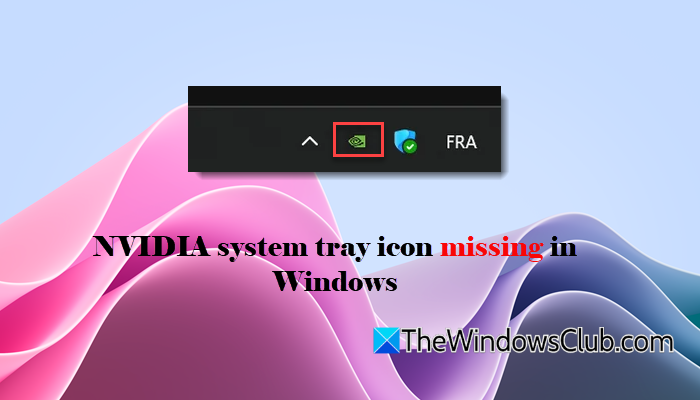
NVIDIA system tray icon missing in Windows 11 [Fix]
If the NVIDIA system tray icon is missing on your Windows 11 PC, use these solutions:
- Enable the Show Notification Tray Icon option
- Restart the NVIDIA Display Container LS service
- Perform a clean installation of the NVIDIA graphics driver
- Modify registry
- Reinstall the NVIDIA App
Let us now see these solutions in detail.
1] Enable the Show Notification Tray Icon option
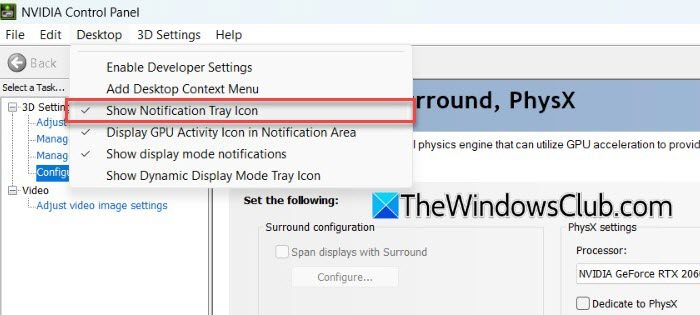
The NVIDIA tray icon may not appear if the Show Notification Tray Icon option is disabled in the NVIDIA Control Panel. Many users found that the option became unchecked after updating the graphics driver or installing the new NVIDIA App. To enable it:
- Right-click on the desktop and select NVIDIA Control Panel.
- Click the Desktop menu (or View, depending on your driver version).
- Select Show Notification Tray Icon.
- If the option is already checked, uncheck it, click Apply, check it again, and then restart your computer.
2] Restart the NVIDIA Display Container LS service
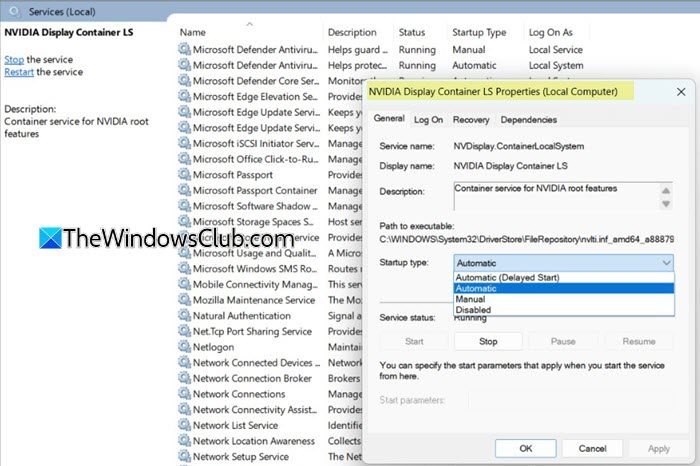
NVIDIA tray icon is managed by the NVIDIA Display Container LS service. If this service is stopped or fails to start with Windows, the icon may not appear in the notification area. Several users have reported that restarting the service immediately restored the NVIDIA tray icon.
- Press Win + R, type services.msc, and press Enter.
- Locate NVIDIA Display Container LS.
- Right-click it and select Properties.
- In the ‘NVIDIA Display Container LS Properties’ dialogue box, set the Startup type to Automatic.
- If the service is not running, click Start. If it is already running, click Stop, wait a few seconds, and then click Start.
- Click Apply, then OK.
- Restart your PC and check if the NVIDIA icon appears in the notification area.
3] Perform a clean installation of the NVIDIA graphics driver
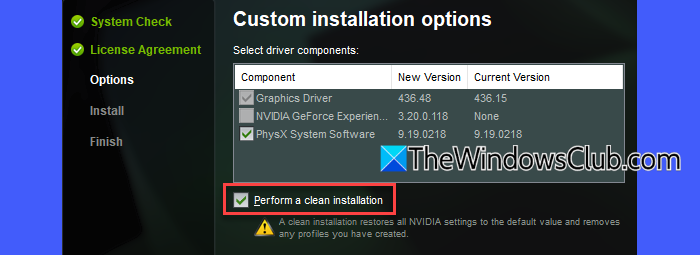
The NVIDIA tray icon may also disappear due to corrupted driver files or incorrect driver settings. Performing a clean installation of the latest NVIDIA graphics driver replaces the existing driver components with fresh copies, which may restore the missing tray icon. Follow these steps:
- Download the latest graphics driver for your NVIDIA GPU from the official NVIDIA website.
- Run the downloaded installer.
- When prompted, select Custom (Advanced) as the installation type and click Next.
- Select the Perform a clean installation checkbox.
- Complete the installation by following the on-screen instructions.
- Restart your PC after the installation is complete and check whether the NVIDIA icon appears in the notification area.
4] Modify registry
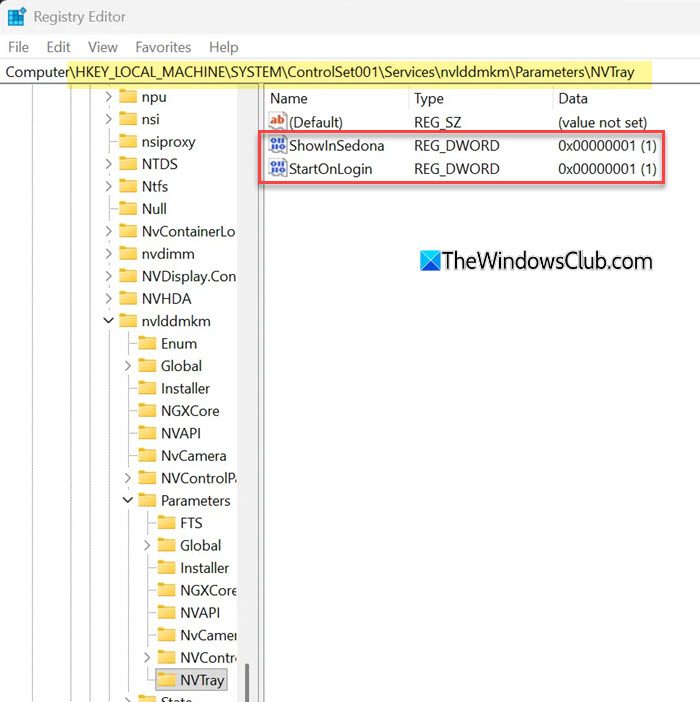
The NVIDIA tray icon may disappear after a driver update if the NVTray registry settings were changed or removed. Checking these settings may help resolve the issue.
Note: Create a System Restore point or back up the registry before making any changes.
Press Win + R, type regedit, and press Enter. Navigate to one of the following registry paths:
Computer\HKEY_LOCAL_MACHINE\SYSTEM\ControlSet001\Services\nvlddmkm\Parameters\NVTray
In the right pane, locate the ShowInSedona and StartOnLogin DWORD values. If either value is set to 0, double-click it and change its Value data to 1.
Click OK, close the Registry Editor, and restart your computer.
5] Reinstall the NVIDIA App
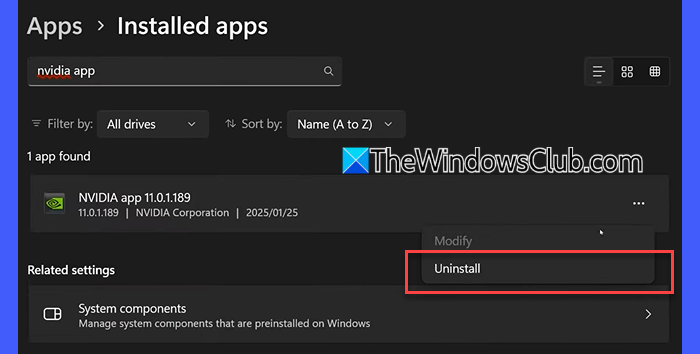
If the NVIDIA tray icon is still missing, reinstalling the NVIDIA App may help. Follow these steps:
- Press Win + I to open the Settings app.
- Go to Apps > Installed apps.
- Locate the NVIDIA app, click the three-dot menu next to it, and select Uninstall.
- Follow the on-screen instructions to remove the app.
- Download the latest version of the NVIDIA App from the official NVIDIA website and install it.
- Restart your computer and check whether the NVIDIA icon appears in the notification area.
You may also use Revo Uninstaller to completely uninstall the NVIDIA app and remove all its components.
I hope this helps.
Read: How to Show or Hide Notifications Area in Windows.
How to enable NVIDIA tray icon?
The NVIDIA tray icon is usually enabled by default. If it is missing on your Windows 11 PC, open the NVIDIA Control Panel and enable the Show Notification Tray Icon option from the Desktop menu. If the issue persists, restart the NVIDIA Display Container LS service or perform a clean installation of the NVIDIA graphics driver.
Why are my system tray icons missing?
System tray icons may disappear if the associated application is not running, its background service has stopped, or Windows Explorer has failed to refresh the notification area. Corrupted system files, driver updates, or incorrect notification area settings can also cause tray icons to go missing.
Read Next: NVIDIA GeForce Experience, Something went wrong error on Windows.
