
While installing the NVIDIA graphics driver or opening the GeForce Experience, if you see an error code 0xE6000000 with an error message saying NVIDIA Installer cannot continue or NVIDIA App requires an NVIDIA GPU, here is how you can fix the problem in a Windows 11 or Windows 10 computer.
This error code may appear with more than one error message, and two of the most common error messages are:
Your system configuration is not supported by this installer. A list of supported hardware and OS can be found here.

NVIDIA App requires an NVIDIA GPU.
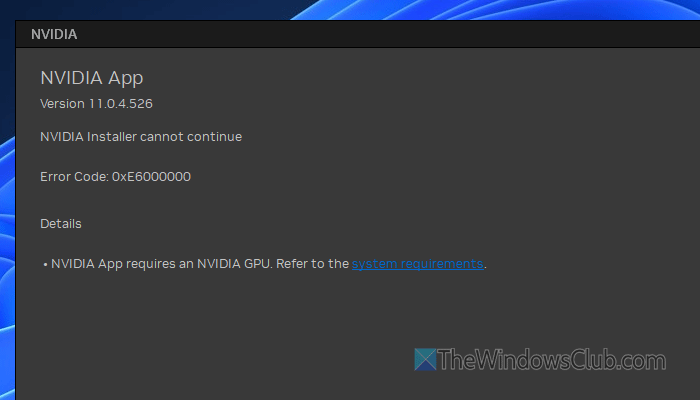
No matter which one you have, the solutions are the same for both.
NVIDIA installer cannot continue, error code 0xE6000000
To fix the NVIDIA installer cannot continue error 0xE6000000 in Windows 11/10, follow these instructions:
- Confirm the compatible hardware
- Reinstall the graphics card driver
- Uninstall any other graphics driver in case you used another card
- Enable GPU using Device Manager
- Restart NVIDIA service
- Hardware related solutions
To learn more about these solutions, continue reading.
1] Confirm the compatible hardware
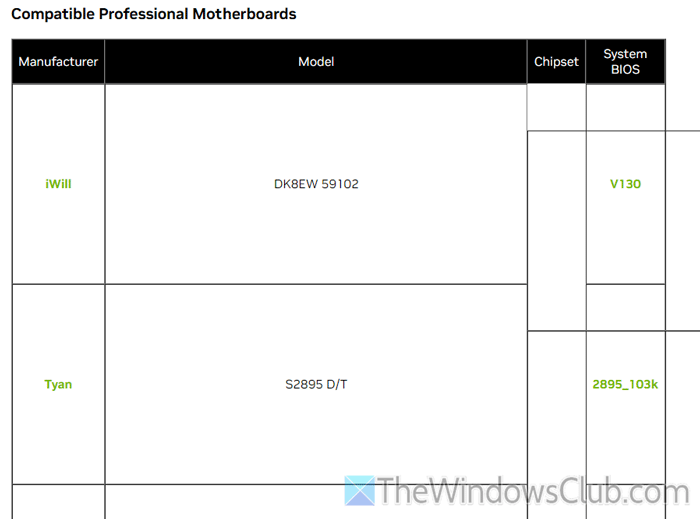
To install the NVIDIA graphics driver, you must first install the graphics card. You cannot reverse that process. On the other hand, if you have installed a graphics card, your motherboard must fully support it. Otherwise, you may see the aforementioned error message.
You can visit the nvidia.com website to check which motherboard is supported by which graphics card.
Read: GPU Not Supported Photoshop error
2] Reinstall the graphics card driver

At times, the existing graphics card driver installation can cause this issue. In that case, you need to uninstall the older version and reinstall the latest version separately.
We recommend using the Display Driver Uninstaller, which helps you uninstall the driver and all associated files and leftovers completely. It detects the driver automatically. Following that, you can use the Clean and restart option to get the job done.
Once it is uninstalled, you need to download the latest version of the graphics driver. It is highly recommended to download the driver from nvidia.com.
3] Uninstall any other graphics driver in case you used another card
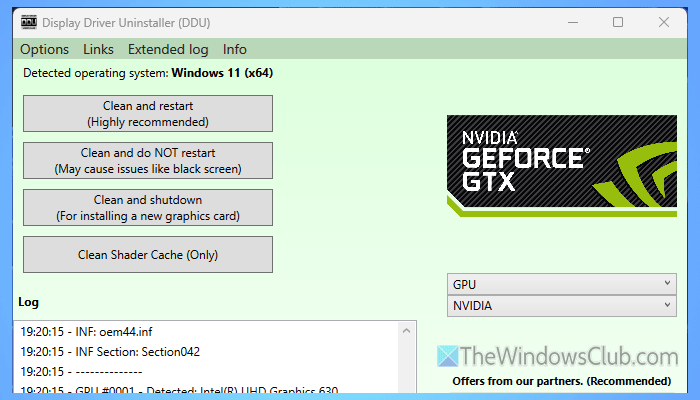
If you have installed a different graphics card and a new driver, you must uninstall the old driver before installing the new one. No matter whether they belong to the same manufacturer or not.
Read: NVIDIA Graphics driver automatically uninstalls after reboot
4] Enable GPU using Device Manager
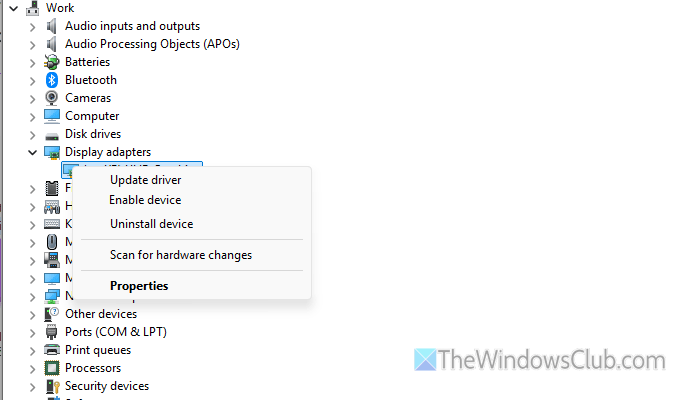
Even if you use a graphics card, it must be enabled in the Device Manager to be used. If it is disabled, there is no way you can install the driver and you can end up getting the error above.
To check whether the GPU is enabled or not, follow these steps:
First, you need to open the Device Manager. For that, press Win+X and select Device Manager from the menu.
Next, expand the Display adapters section and right-click on the GPU you have installed. Then, select the Enable device option.
5] Restart NVIDIA service
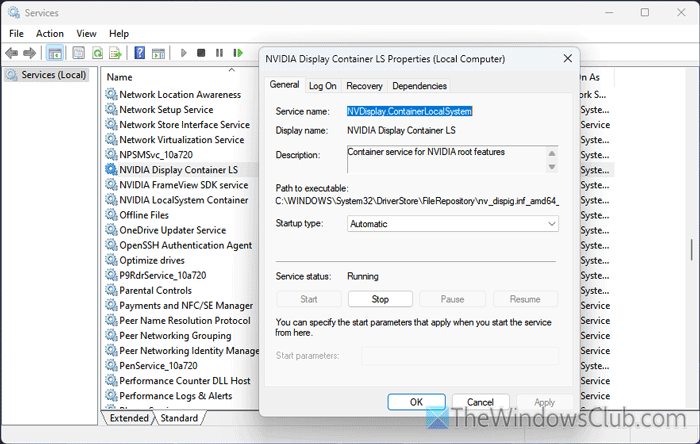
To restart the NVIDIA service, follow these steps:
First, you need to open the Services panel. For that, press Win+S, search for Services, and click on the individual search result.
Then, double-click on each of the following NVIDIA services one after one:
- NVIDIA FrameView SDK service
- NVIDIA Display Container LS
- NVIDIA LocalSystem Container
If these services are already running, click the Stop button. Then, click on the Start button.
Click the OK button to save the change.
6] Hardware related solutions
Follow these hardware-related solutions ONLY IF you have enough knowledge about computer hardware:
- You need to check the graphics card installation. If there are issues with the connection between the graphics card and the motherboard, you will be unable to use the graphics card.
- If there is dust on the graphics card, you need to clean it. Do it only if you know how to clean those parts.
- Unplug your RAM, clean it, and reinstall the stick.
- Do check the HDMI or DVI-D cable. Change it if needed.
Read: NVIDIA GeForce Experience overlay not working
How to fix Installation cannot continue on NVIDIA?
To resolve the ‘Installation cannot continue’ error on NVIDIA, check the hardware first. If your computer doesn’t support the installed graphics card, you cannot go through the installation process.
How to fix NVIDIA GeForce Experience error?
Some of the common solutions to fix any NVIDIA GeForce Experience error are:
- Terminate all NVIDIA processes using Task Manager.
- Update the graphics driver.
- Uninstall the graphics driver entirely and reinstall it.
- Clear GeForce Experience cache.
Read: NVIDIA GeForce Experience, Something went wrong.
