
If you encounter the “No device drivers were found” error when installing Windows 11 or Windows 10, here is how to fix it. It occurs when you try to clean install Windows 11 or 10 on your computer. Although it doesn’t occur often, you can troubleshoot the issue if youare encountering it.
No new devices drivers were found. Make sure that the installation media contact the correct drivers, and then click OK.
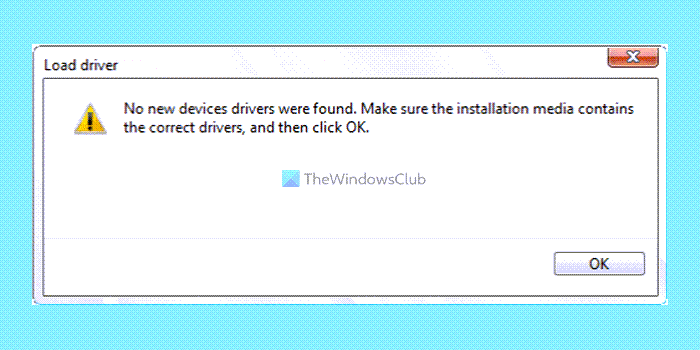
The error indicates Windows couldn’t find the correct drivers to proceed with the installation, which can happen for many reasons. For instance, your installation driver might be corrupted or not signed, you are trying to install unsupported drivers, or Windows is having trouble verifying the drivers. The error occurs during Windows installation when the user tries to install drivers along with Windows setup.
If this problem occurs, you cannot fix it by clicking the corresponding OK button. If your selected hard drive becomes inactive, you may encounter this error. On the other hand, a corrupted ISO file can also cause this issue. Therefore, follow this article to resolve the issue you are encountering while installing Windows 11 or Windows 10.
No device drivers were found error during Windows Setup
The Windows installation window allows you to select the correct device drivers. Alternatively you can try using a fresh copy of the driver to complete your Windows Installation. To fix the No device drivers were found error, during Windows installation, you can use one of these suggestions:
- Make Partition active
- Format Hard drive
- Browse to Add Device Driver
- Create fresh bootable USB
To learn more about these steps, continue reading.
1] Make Partition active
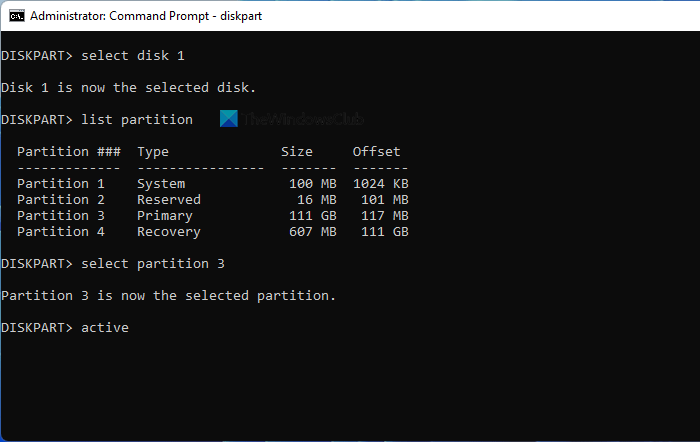
This is the first step to resolving the issue. To do that, you must continue using the bootable USB drive you created earlier to perform a clean install of Windows. Then, follow these steps:
- Make sure you are in the boot manage and the installation wizard is opened.
- Choose the language and click the Next button.
- Click on the Repair your computer option.
- Go to the Advanced options and select Command Prompt.
- Enter the password and click the Continue button.
- Enter these commands:
diskpart
list disk
select disk [disk number]
list partition
select partition [drive-letter]
active
After that, restart the installation process.
Hopefully, you won’t have any problems. However, if it doesn’t help, you can follow the next solution.
2] Format Hard drive
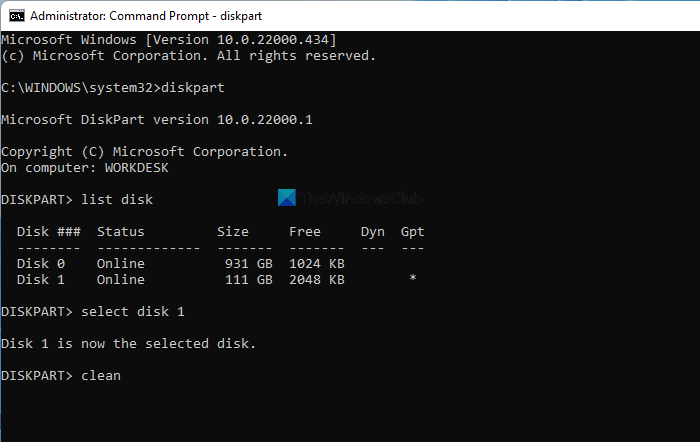
If there is some problem with the hard drive, you might have the same problem while installing Windows 11 or Windows 10. Whether it is an SSD or HDD, the problem will remain the same. To fix that issue, you need to format your hard drive. For that, do the following:
- Open the install wizard > choose the language > click the Next button.
- Click on the Repair your computer option.
- Navigate to Advanced options > Command Prompt.
- Enter the password and click the Continue button.
- Enter these commands:
diskpart
list disk
select disk [disk-number]
clean
create partition primary
format fs=ntfs quick
Then close all windows and restart the installation.
3] Browse to Add Device Driver
The error indicates that your drivers are unreadable, unsigned, or corrupted. Hence, manually downloading the driver files and adding them to your bootable USB drive would be a good idea. You can manually select the driver files during Windows installation at a later stage.
Here is a step-by-step guide:
- First, you must download the chipset or storage drivers from your computer manufacturer’s website. For laptops and pre-built PCs, the manufacturer would be the company. For a custom PC, the manufacturer would be the motherboard company.
- To download the drivers go to the OEM’s website and search for the drivers using the model number.
- Once downloaded, extract them to your bootable USB Drive.
- After that, boot your PC using the USB Driver, as you normally would.
- Once you reach the screen where you received the error, choose the browse button.
- Now, select the inf files and click Ok.
- Finally, Windows will verify the driver files and let you complete the installation.
Once the setup is complete, open Device Manager and verify that the driver was installed on the PC. We still believe that installing a driver post-installation is the better choice. However, if you are testing a setup disk, then it’s worth doing it.
4] Create fresh bootable USB
If none of the above solutions worked for you, you may need to create a new bootable USB drive with Windows 11 or Windows 10. You have multiple options in your hands. For example, you can create a bootable Windows 11 installation media by downloading the Windows 11 ISO, using Media Creation Tool, etc. Either way, you need to create a clean installation media and perform a fresh installation.
That’s all! Hope this guide helped.
Related: A media driver your computer needs is missing.
How do you fix No drivers are installed for this device?
If you see the “No drivers are installed for this device” error in Device Manager, install the corresponding driver. For example, if you receive this error with the graphics card, you need to install the graphics driver. Similarly, you need to perform the same thing for the audio driver, Wi-Fi driver, or any other.
What is a Signed Device Driver?
A signed device driver is a driver digitally signed by the manufacturer or developer to confirm it works with the Windows version. This is important because it ensures that the driver is not corrupted or altered. If not, then it can cause problems with the PC. To use a signed device driver in Windows, the driver must be signed with a digital certificate recognized by Microsoft. This certificate verifies the driver developer’s identity and confirms the driver has not been tampered with. That said, if you try to install a driver from a non-verified website, Windows will warn you about its legitimacy. It is advised never to install a driver from unknown sources.
How do you tell if a Driver is Signed?
If you have downloaded a driver, and want to check if the driver is signed, then you can use the sigverif tool in Windows. When you launch the Sigverif tool, go to the Advanced options, then use the browser button to select the driver package you need to verify. Sigverif will scan the driver package and verify the signatures of all drivers included. If any driver is not signed, Sigverif will display a message indicating that the driver is not signed and may not work correctly with your system.
How do I fix No device drivers found during Windows 11 installation?
To resolve the “No device drivers found during Windows 11/10 installation” error, follow the solutions above. First, you need to make the partition active so it can be used to install Windows 11/10. Secondly, you can format the hard drive. Last but not least, you can create a fresh Windows 11/10 installation media.
Read: No audio input device found on Windows.
