
In this article, we will see how to deal with the problem where the mouse pointer keeps changing to an arrow with a vertical scroll bar. Usually, the arrow with a vertical scroll bar appears on the screen when you press the mouse scroll wheel or the middle mouse button. It lets users scroll the page by moving their mouse up and down without using the scroll wheel. You can easily reset this arrow icon by clicking anywhere on the screen. But for some users, the mouse pointer changes into the arrow with a vertical scroll bar frequently, and they have to open their mouse properties in order to reset it. After a few minutes of resetting it, the problem appears again. Other users have reported that the problem occurs only while typing.
Mouse pointer keeps changing to an arrow with a vertical scroll bar
As described earlier, a middle-click changes the mouse pointer to an arrow with a vertical scroll bar. Before trying the following suggestions, click anywhere on your screen to see if the problem disappears. Also, check whether the problem happens again on its own. If yes, try the following solutions.
- Run Hardware and Devices Troubleshooter
- Scan your computer with an antivirus
- Change Trackpoint setting (solutions for Lenovo Thinkpad users)
- Disable the Hide pointer while typing option
- Update or reinstall your mouse driver
- Disable the middle mouse button by using Mouse & Keyboard Center app
Let’s see all these solutions in detail.
1] Run Hardware and Devices Troubleshooter
If you are experiencing issues with hardware devices connected to your computer, running the Hardware and Devices Troubleshooter can fix the problem. It is an automated tool that detects the issues with your hardware and fixes them (if possible).
If you open Windows 11/10 Settings, you will not find this tool there. So, run the following command in Command Prompt to open this tool.
msdt.exe -id DeviceDiagnostic
2] Scan your computer with antivirus
Your computer may be infected with a virus. So, run a full system scan with your antivirus to see if that fixes the problem.
3] Change Trackpoint setting (solutions for Lenovo Thinkpad users)
According to user feedback, the problem occurs mostly on Lenovo laptops. If you are using a Lenovo laptop, try this solution.
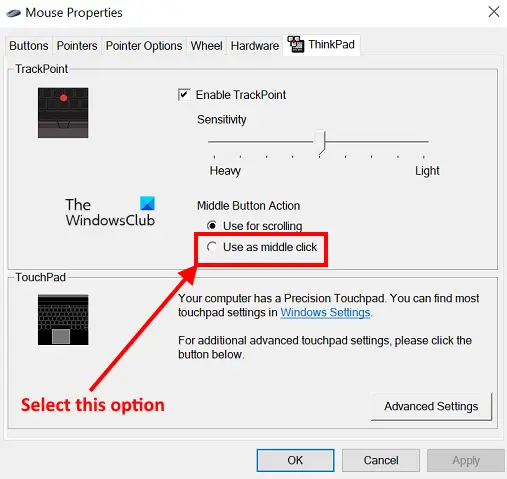
- Open the Control Panel.
- Change the View by mode to Large icons.
- Click Mouse. This will open the Mouse Properties.
- In the Mouse Properties window, select the ThinkPad tab.
- If the Middle Button Action under the Trackpoint section is set to Use for scrolling, change it to Use as middle click.
- Click Apply and then click OK to save the changes.
If this does not work, disable the Trackpoint by unchecking the Enable Trackpoint option.
4] Disable the Hide pointer while typing option
If your mouse pointer changes to an arrow with a vertical scroll bar while typing, disabling the Hide pointer while typing option can fix the problem. The steps for the same are written below:
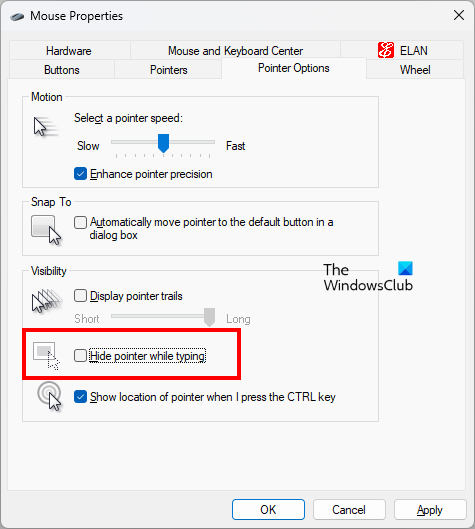
- Open the Control Panel.
- Change the View by mode to Large icons.
- Click Mouse to open Mouse Properties.
- In the Mouse Properties window, select the Pointer Options tab.
- Uncheck the Hide pointer while typing option.
- Click Apply and then click OK to save the changes.
5] Update or reinstall your mouse driver
If the problem still persists, your mouse driver might be corrupted or outdated. You can fix problems caused by corrupted or outdated device drivers by updating them. Update your mouse driver via Windows Optional Updates. After that, restart your computer and see if the problem appears again. If yes, uninstall and reinstall the mouse driver by following the steps below:
- Visit your mouse manufacturer’s official website.
- Search for the driver of your mouse model.
- Download the latest version of your mouse driver.
- Open the Device Manager and uninstall your mouse driver.
- Run the installer file that you have downloaded from the manufacturer’s website.
- Follow the on-screen wizard to install the mouse driver manually.
- Restart your computer.
6] Disable the middle mouse button by using Mouse & Keyboard Center app
This solution is for Microsoft mouse users. If you have a Microsoft mouse, you can disable the middle mouse click by using the Mouse & Keyboard Center app. You can download the app from microsoft.com. After downloading the app, install it on your system and open it. Now, follow the steps listed below to disable the middle mouse click:
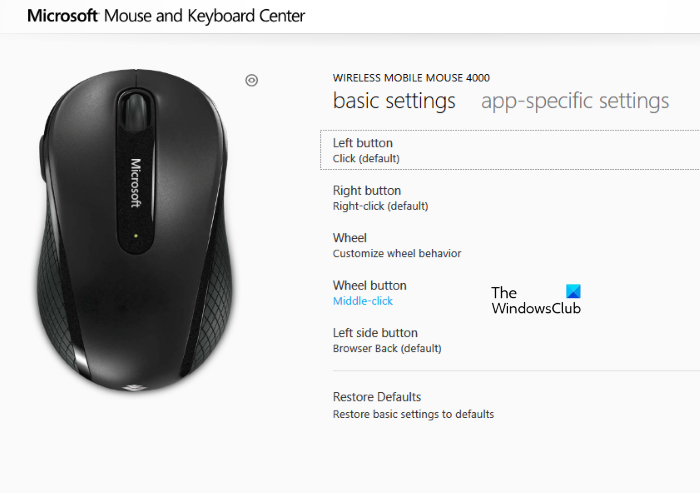
- Select the basic settings tab.
- Click on the Wheel button option and select Disable this button.
Hope this helps.
Read: Mouse cursor jumps or moves randomly while typing.
Why does my mouse pointer change to a scroll bar?
When you click the scroll wheel on your mouse, it will convert your mouse cursor into a scroll bar. Now, you can scroll vertically by moving your mouse without using the scroll wheel. If this happens on your computer frequently, the reason might be different, such as a hardware issue, a virus infection, incorrect mouse settings, etc. You can check your mouse settings in the Mouse Properties window.
Read: Mouse scrolling automatically up or down.
How do I get rid of the arrow on my cursor?
If your cursor changes to an arrow, you may have accidentally pressed the middle button or scroll wheel on your mouse. This isn’t a problem unless it happens often. If this happens often, scan your system with antivirus software and update or reinstall your mouse driver.
