
You may have noticed a peculiar issue where after a password reset, when trying to sign in using the Microsoft Store app, you don’t get the verification code. This issue stems from the Microsoft Store app failing to recognize updated security information (your alternate email) and persistently defaulting to an outdated Hotmail alias for verification codes. If your Microsoft Store App is not sending verification codes, this post is for you.
Fix Microsoft Store App not sending Verification Codes
If the Microsoft Store App is not sending verification codes, follow the solutions mentioned below.
- Update Security Information
- Switch to Microsoft Authenticator
- Wait 24–72 Hours for Block Clearance
- Reinstall the Microsoft Store App
- Contact Microsoft Support
Let’s discuss them in detail.
1] Update Security Information
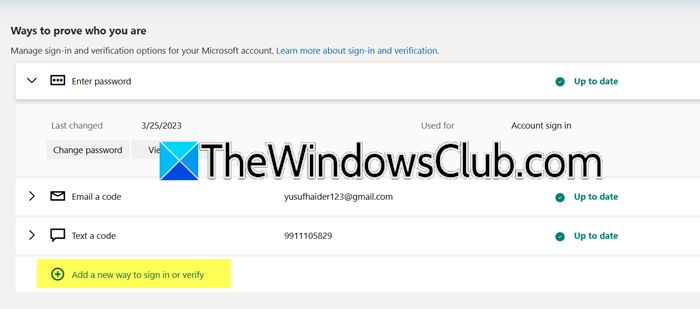
If we are not receiving the verification code, let us first check and update the security information for your Microsoft account. Sometimes, Microsoft sends the verification code to an unknown email or phone number instead of your actual contact due to some discrepancy in your contact details. To do so, follow the steps outlined below.
- First of all, go to account.microsoft.com.
- Click on Manage how I sign in.
- Now, click on Add a new way to sign in or verify.
- Click on Get an Email code.
- Enter your email address and click on Next.
- Now, you need to enter the code that you received in your email and then verify it.
Finally, try signing in to your Microsoft Store Apps and check if the issue is resolved.
2] Switch to Microsoft Authenticator

This is not a solution, but rather a workaround that you can try instead of receiving a verification code every time you want to sign in. Go to account.microsoft.com (hyperlinked earlier) and then go to Manage how I sign in > Add a new way to sign in or verify > Use an app.
Now, click on Get it now. Download Microsoft Authenticatoron your Phone and click on Next. Open the Authenticator app on your phone, click on the QR icon, and then scan the QR code that’s shown on the screen. Your phone will connect to your Microsoft account, and it’s something you can use every time you want to connect.
3] Wait 24–72 Hours for Block Clearance
Microsoft’s security systems automatically temporarily block verification code delivery if they detect the following activities.
- Unusual activity – Repeated sign-in attempts (even legitimate ones) after a password reset.
- Suspected automation – Rapid-fire requests from apps (like the Store) triggering fraud prevention.
- Geographical or IP Conflicts – If you change location, use a VPN, or use shared IPs.
- Server-side throttling – Microsoft limits code delivery frequency to prevent abuse.
Waiting 24–72 hours automatically clears Microsoft’s temporary security blocks triggered by repeated sign-in attempts or suspicious activity, lifting restrictions after a period of zero login attempts (with longer blocks for multiple triggers). Simultaneously, this downtime allows Microsoft’s backend services to sync your updated aliases and verification methods, overriding the Store app’s outdated authentication cache, while crucially preventing escalating restrictions since each failed attempt resets the block timer.
4] Reinstall the Microsoft Store App
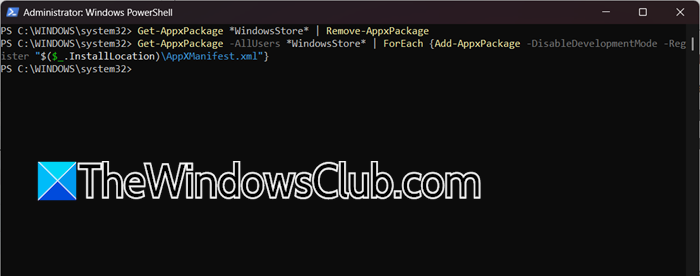
The authentication loops can be caused by corrupted app files, outdated caches, or broken registry links that prevent the delivery of verification codes. To resolve this issue, we need to remove the corrupted store app and reinstall it.
To do so, open PowerShell as an administrator and then run the command mentioned below.
Get-AppxPackage *WindowsStore* | Remove-AppxPackage
- Get-AppxPackage *WindowsStore*: Finds the installed Microsoft Store app package (actual name: Microsoft.WindowsStore).
- Remove-AppxPackage: Uninstalls the app only for your user profile, preserving system-wide files.
Get-AppxPackage -AllUsers *WindowsStore* | ForEach {Add-AppxPackage -DisableDevelopmentMode -Register "$($_.InstallLocation)\AppXManifest.xml"}
- AllUsers: Accesses the original Store app files provisioned for all users during Windows installation.
- Add-AppxPackage -Register: Reinstalls the app by re-registering its manifest file from the system’s backup location (C:\Program Files\WindowsApps\Microsoft.WindowsStore_*).
- DisableDevelopmentMode: Ensures the app runs in standard mode (not dev/test mode).
Finally, check if the issue is resolved.
5] Contact Microsoft Support
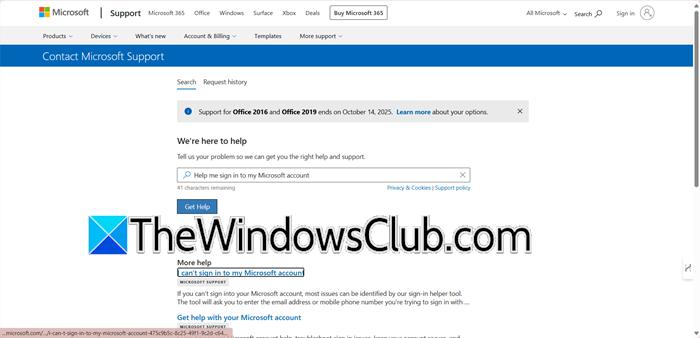
If nothing works, our last resort should be to contact Microsoft Support. Make sure to attach screenshots of updated security info (Settings > Security), timestamps of failed Store sign-in attempts, and other details.
Alternatively, you can use the Microsoft Account Sign-in Helper by going here, or use the Microsoft account recovery form by going here.
You can follow the steps there to submit the form and wait for their response.
Hopefully, with the help of these solutions, your issue will be resolved.
Also Read: Account verification system is having trouble
Why won’t Microsoft let me verify my account?
Microsoft may block verification due to automated security flags, such as repeated sign-in attempts that trigger “unusual activity” protections, outdated app caches (like the Store app failing to sync your updated security methods), or server-side restrictions (including geographic or IP blocks). If browser verification works but the Store app fails, the issue is often app-specific corruption or Microsoft’s systems prioritizing outdated aliases. Avoid repeated attempts and wait 24-48 hours. Then, retry or contact Support with evidence.
Read: That verification method isn’t working right now
Why is my Microsoft Store app not verified?
Your Microsoft Store app isn’t verified because Microsoft’s security system flags repeated sign-in attempts as suspicious, blocking code delivery to prevent fraud, or because the app’s cached authentication data is outdated and fails to sync with your updated security settings (e.g., new aliases or verification methods). This often occurs when the Store app prioritizes old credentials stored locally, while browser verification works seamlessly with real-time server checks.
Also Read: Microsoft not sending verification code SMS text.
