
If you are facing Microsoft Photos or Photos.exe Microsoft.Photos.exe high Memory usage issue in Windows 11/10, here is how you can fix the problem. As it may happen due to various reasons, we have listed some of the most common causes along with solutions to address this issue.
Microsoft.Photos.exe high Memory usage in Windows 11/10
To fix the Microsoft.Photos.exe high memory usage in Windows 11/10, follow these solutions:
- Terminate and re-open
- Show icons instead of thumbnails
- Stop running in background
- Repair and reset the Photos app
- Uninstall unnecessary add-ons
- Uninstall and reinstall Photos
To learn more about these solutions, continue reading.
1] Terminate and re-open
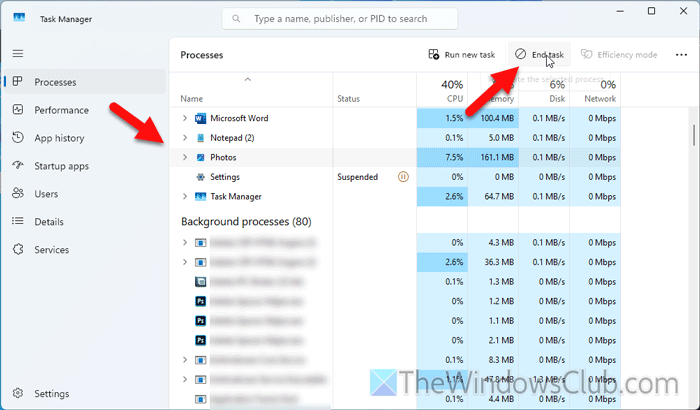
If this problem occurs due to a glitch, terminating and then re-opening the app can resolve the issue. To do that, open the Task Manager and locate Photos. Then, click the End task button.
Read: How to close running Apps on Windows 11
2] Show icons instead of thumbnails
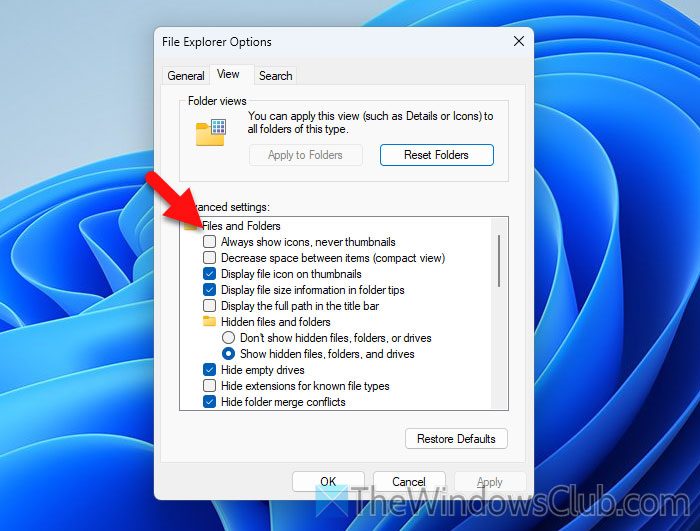
By default, Windows 11 displays image thumbnails instead of icons. You need to change this setting since the Photos app runs in the background to generate thumbnails at times. To do this, open the File Explorer Options using the Taskbar search box and navigate to the View tab.
Then, tick the Always show icons, never thumbnails checkbox and click the OK button.
Read: Enable or Disable Thumbnails in Explorer in Windows 11
3] Stop running in background
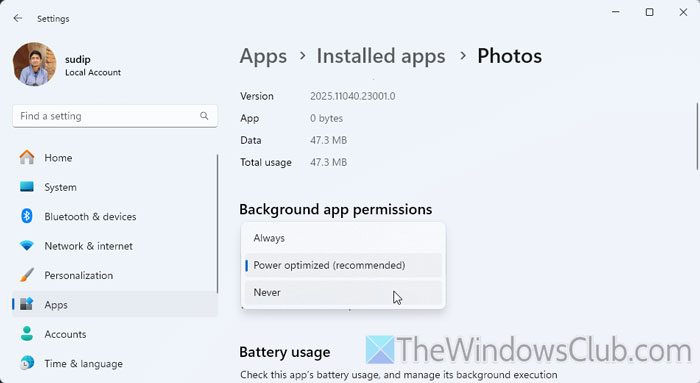
To stop the Photos app from running in the background, follow these steps:
- Press Win+I to open Windows Settings.
- Search for installed apps and click on the search result.
- Select Photos and click the three-dotted icon > Advanced options.
- Head to the Background app permissions.
- Select Never.
4] Repair and reset the Photos app
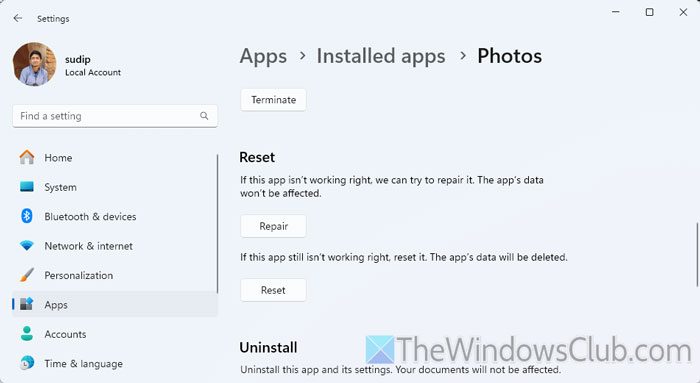
To repair and reset the Photos app using Windows Settings, follow these steps:
- Open the Windows Settings panel.
- Go to Apps > Installed apps > Photos.
- Click the Repair button first.
- Click on the Reset button.
Restart your computer and open the Photos app.
5] Uninstall unnecessary add-ons
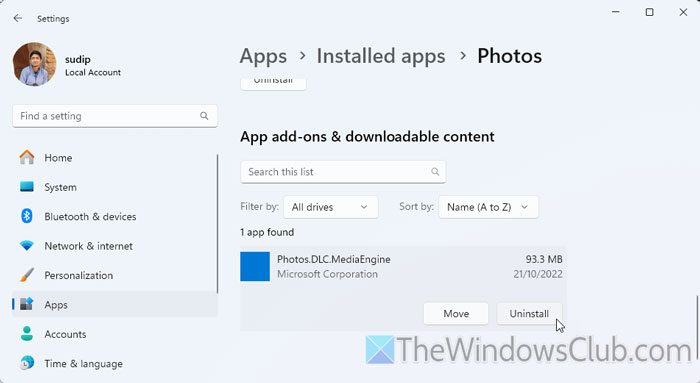
To uninstall unnecessary add-ons of the Photos app, you need to open the same Windows Settings wizard as above. Then, scroll down to the bottom and find the App add-ons & downloadable content. Here you can find all the installed add-ons. You need to click on an add-on and click the Uninstall button.
6] Uninstall and reinstall Photos
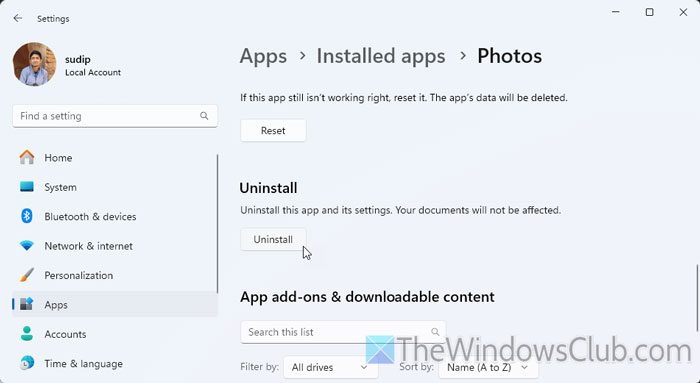
You can uninstall the Photos app from the Windows Settings panel. For that, you need to open the same panel as above. Open the Windows Settings and go to Apps > Installed apps. Then, click on the Advanced options of the Photos app and click on the Uninstall button.
Next, you can open the Microsoft Store and download the Photos app.
Read: Why is my RAM usage so high when nothing is running?
How do I fix 90% memory usage?
To fix the 90% memory usage issues in Windows 11/10, you need to close all the unnecessary apps first. Then, you can prevent some apps from starting at the logon, run Windows Memory Diagnostic, close unnecessary apps, avoid running multiple high-end apps simultaneously, etc.
Read: Fix 100% Disk, High CPU, Memory or Power usage in Windows.
How to clear Microsoft memory?
The first thing you can do is to close all the unwanted apps and browser tabs. Then, you can check which app is using more RAM and close it accordingly. Try disabling some add-ons, visual effects, background apps, etc.
