
Administrators and IT professionals often encounter issues when the Microsoft 365 Office Deployment Tool (ODT) fails to function as expected. This can prevent the installation of critical productivity software within an organization. Problems usually show up as confusing error messages like We couldn’t find the specified configuration file, Download failed, or a general installation error. These issues can leave systems without the needed Office applications and disrupt business workflows. In this post, we will see what you can do if the Microsoft 365 deployment tool is not working properly.
Fix Microsoft 365 Deployment Tool not working properly
ODT (Office Deployment Tool) failures often happen for a few key reasons. The most common issue is a mistake in the XML file. A single typo or wrong setting can break the whole process. Other common causes include not having enough system permissions, like not running the tool as an administrator. Conflicts with leftover files from a previous Office uninstall can also cause problems. Lastly, network or proxy issues can stop the tool from downloading necessary files from Microsoft’s servers.
If the Microsoft 365 deployment tool is not working properly, follow the solutions below.
- Validate and correct your configuration XML File
- Run the tool with Administrator Privileges
- Perform a Clean Office Removal
- Download the Source Files for an Offline Install
Let us talk about them in detail.
We couldn’t find the specified configuration file, Download failed ODT error
1] Validate and correct your configuration XML File
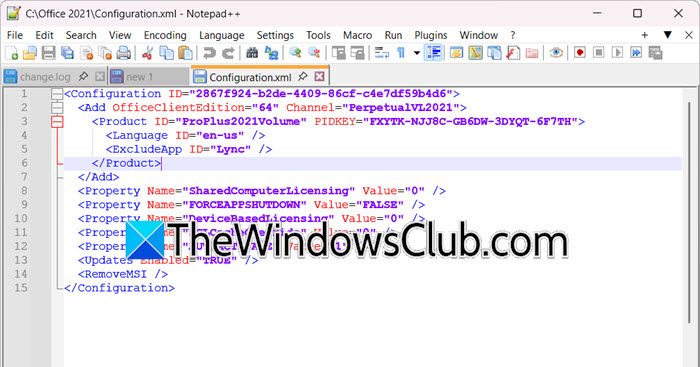
The ODT relies entirely on instructions from an XML configuration file. A single syntax error, incorrect product ID, or wrong file path in this XML will cause the setup to fail. Ensuring this file is perfectly structured and calls the correct resources is the most critical step.
- Double-Check Product ID: Verify the <Product ID> in your XML matches the exact Microsoft 365 plan you are licensed for (e.g., O365ProPlusRetail).
- Use the Office Customization Tool: Instead of writing XML manually, visit the Office Customization Tool webpage. Use this guided interface to generate a guaranteed-valid configuration file.
- Inspect File Paths: If your XML references a local source file, ensure the SourcePath is correct, and the folder contains the necessary Office installation files.
- Check XML Syntax: Use a basic text editor or XML validator to ensure all tags are properly closed, and there are no unusual characters.
After making these changes, save your file and try deploying again. Hopefully, it will work this time.
2] Run the Tool with Administrator Privileges
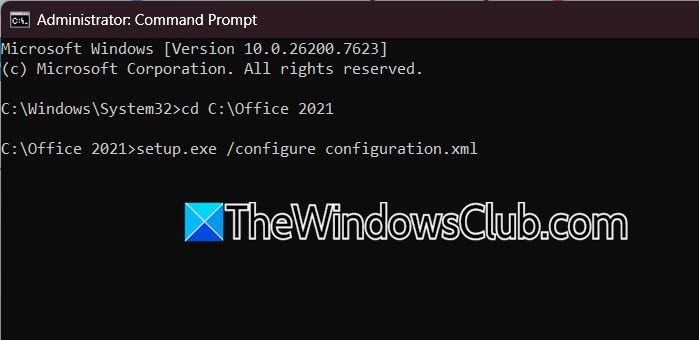
The deployment tool needs elevated permissions to create directories in system folders, write to the registry, and install software for all users. Running it from a standard command prompt will result in access denied errors or a silent failure.
To run the deployment tool with the necessary permissions, close all existing Command Prompt windows to prevent conflicts. Then, open the Windows Start menu and type cmd into the search bar.
From the list of results, carefully right-click on the Command Prompt application and select the vital Run as administrator option from the context menu that appears.
This action opens a new elevated terminal window. First, use the cd command to navigate to the directory containing your setup.exe file and configuration XML.
Finally, with the correct path established, you can run the crucial deployment command itself, such as setup.exe /configure configuration.xml, initiating the installation process with full system privileges.
3] Perform a Clean Office Removal

Leftover files and registry entries from a past Office installation are a primary source of conflicts. The standard uninstall process often fails to remove all of these components, preventing a clean new install.
Use the official SaRA CMD Tool or the Microsoft 365 Uninstall Support Tool from Microsoft.
Restart your computer when the process is complete.
Attempt your deployment again with the ODT.
4] Download the Source Files for an Offline Install
Network problems, strict proxy settings, and limited bandwidth can interrupt downloads from Microsoft’s servers. To avoid this, use the Office Deployment Tool (ODT) to download all files to a stable location on your local network first.
To ensure a reliable deployment without network issues, start by creating a local installation source. Use a computer with a reliable internet connection and create a folder, such as C:\ODTInstall, to store your files. Next, prepare a download-config.xml file that specifies the Microsoft 365 products and language you need.
Open an administrator Command Prompt, go to the folder where the Office Deployment Tool’s setup.exe is located, and run the command setup.exe /download download-config.xml. This will download the necessary installation package to your local folder.
Once the download is complete, edit your main installation configuration file. Change the SourcePath attribute to point to your local folder (e.g., SourcePath=”C:\ODTInstall”).
Once this setup is complete, you can install Office on other machines on your network from this local source. This will provide a faster, more stable installation process and avoid internet download issues.
That’s it!
Read: Fix 30029-4, 30029-1011, 30094-1011, 30183-39, 30088-4 Office errors
How do I repair Office 365 tools?
To repair Microsoft 365 applications, start with an Online Repair, which reinstalls the entire Office suite to fix corrupted files. Access this through Installed apps by selecting your Microsoft 365 product and choosing Modify or Change. For less severe issues, you can try the quicker Quick Repair, which offers basic file replacement. If problems persist, consider resetting the application to clear its data, or uninstall and reinstall Office from your Microsoft account as a last resort.
Read: Office Click-to-Run Installer and MSI problem on Windows 11
Is Microsoft Deployment Toolkit deprecated?
The Microsoft Deployment Toolkit (MDT) has been officially retired and will no longer receive updates, security fixes, or support. While current deployments may still work, Microsoft advises transitioning to modern alternatives, such as Windows Autopilot for automated cloud-based provisioning or Configuration Manager Operating System Deployment (OSD) for on-premises management. Note that there is no direct upgrade path from MDT, and workflows must be migrated.
Also Read: Following products cannot be installed at the same time Office error.
