
We have noticed that, for some users, the microphone is not working in the VMware Workstation VM. The issue is usually because of conflicting audio drivers or misconfigured audio settings. In this post, we will discuss this issue in detail and see how to resolve it.
Fix Microphone not working in VMware Workstation
Your microphone might not be working because VMware Workstation uses virtual audio drivers to pass through the host microphone input to the guest operating system. Issues arise when the host system’s default audio device settings are incorrect, the VMware audio driver is not functioning properly, or the guest OS lacks the necessary virtual hardware recognition. The virtualization layer can sometimes fail to correctly bridge the physical microphone to the virtual machine.
If the microphone is not working in the VMware Workstation VM, follow the solutions below.
- Set the Microphone as the default Device on the host
- Reinstall/Update VMware Tools in the Guest OS
- Change the Virtual Machine’s Audio Settings
- Verify Guest OS Microphone Privacy & Settings
- Update Host Audio Drivers and VMware Workstation
Let us talk about them in detail.
1] Set the Microphone as the default Device on the host
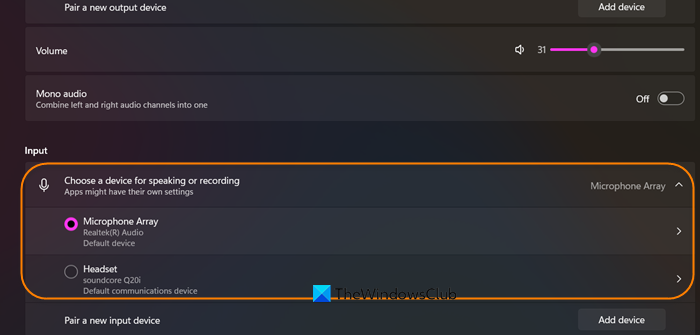
VMware Workstation does not typically allow you to select a specific microphone from the host. Instead, it automatically passes through the host system’s default communication or input device to the virtual machine. By explicitly setting your desired microphone as the default on the host, you directly control which device is channeled into the VM’s virtual sound card.
You can follow the steps mentioned below to do the same.
- On the host PC, right-click the speaker icon in the taskbar and select Sound settings.
- In the Input section, click the dropdown menu next to Choose a device for speaking or recording.
- Select your correct physical microphone from the list.
Fully shut down your guest virtual machine (power off, not suspend), then restart it.
2] Reinstall/Update VMware Tools in the Guest OS
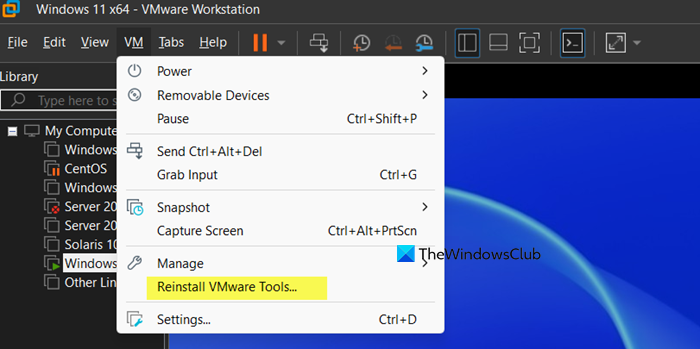
VMware Tools contains the specialized drivers that allow the guest operating system to properly recognize and utilize the virtual hardware, including the sound card and microphone pass-through from the host. Reinstalling it replaces any corrupted or outdated drivers, establishing a clean communication channel for audio input.
Follow the steps mentioned below.
- Ensure your guest operating system is powered on.
- From the VMware Workstation menu at the top, click VM > Reinstall VMware Tools.
- Follow the installation prompts inside the guest OS (e.g., run the installer if it auto-runs, or navigate to the virtual CD drive).
- After installation completes, restart the guest operating system as prompted.
Finally, check if the issue persists.
3] Change the Virtual Machine’s Audio Settings
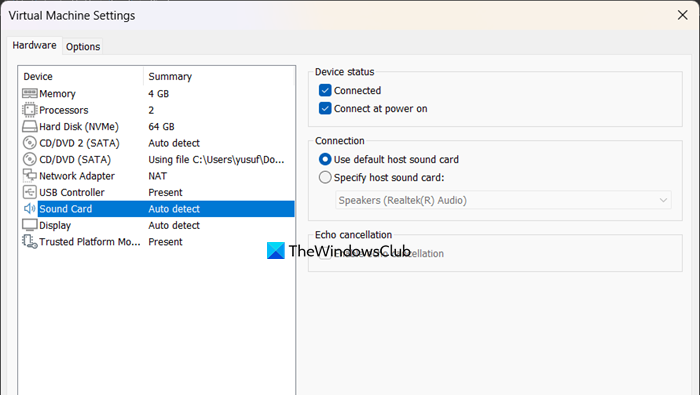
The Auto detect setting can sometimes fail or select an incorrect audio endpoint on the host. Manually changing the connection setting in the VM’s configuration overrides this automatic process, forcing the virtual sound card to bind directly to a specific, stable host audio adapter, which often resolves the passthrough issue.
Now, follow the steps mentioned below.
- Power off the virtual machine completely (select Power > Shut Down Guest).
- Go to the VM’s Settings (right-click the VM in the library or use VM > Settings).
- Select Hardware > Sound Card. In the Connection section, change the setting from Auto detect to Use default host sound adapter.
- Click OK.
If the issue persists, repeat the process and try any other available host-specific adapter listed. Power the VM back on.
4] Verify Guest OS Microphone Privacy & Settings
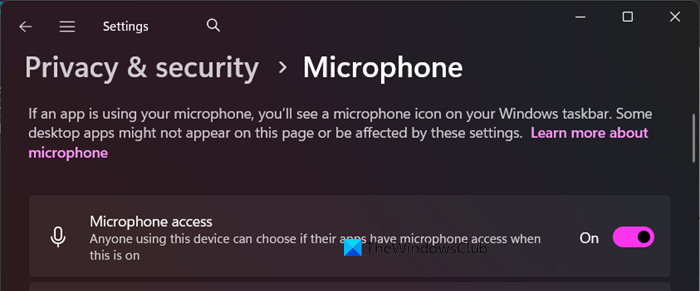
Modern operating systems like Windows 11 have strict privacy controls that can block microphone access at the system level. Even with proper hardware passthrough from the host, these permissions prevent applications in the guest environment from receiving audio input.
- Inside the running guest OS, open Settings (Windows key + I).
- Navigate to Privacy & security > Microphone.
- Ensure the main Microphone access toggle is On.
- Scroll down and also ensure the toggle for the specific application you are using (e.g., Web Browser, Zoom) is enabled under Let apps access your microphone.
Finally, check if the issue is resolved.
5] Update Host Audio Drivers and VMware Workstation
Audio pass-through depends on stable communication between your host’s physical audio hardware and VMware’s virtualization software. Outdated or buggy host drivers or VMware Workstation versions can break this link, causing the microphone to fail.
- Download the Drivers from the manufacturer’s website.
- Get a Driver Updater Software.
- Install Driver and Optional Updates.
Launch VMware Workstation on your host system. Navigate to Help > Software Updates and follow the prompts to download and install the latest version. Alternatively, you can download the most recent installer directly from the VMware website.
Read: VMware Workstation Insufficient permission to access the file [Fix]
How to enable microphone in virtual machine?
To enable the microphone in your virtual machine, follow this two-step process:
- Ensure that the virtual sound card is configured correctly in the virtual machine’s settings. For instance, set the connection to “Use default host sound adapter.”
- Once the guest operating system is powered on, install VMware Tools to ensure the proper drivers are installed. After installation, check that the microphone is selected and enabled in the sound and privacy settings of the guest operating system.
Read: Fix VMware Workstation Unrecoverable Error (vcpu-0)
Why is my mic not working even though it’s connected?
Your microphone may not be functioning properly, even though it is connected, due to several common virtualization issues. These issues could include the host computer’s default microphone settings not being configured correctly, the VMware Tools software being missing or outdated in the guest operating system, misconfigured audio settings in the virtual machine, or disabled microphone privacy permissions in a modern guest OS like Windows 11. These factors can block access to the microphone even when it is physically connected.
Also Read: Fix VMware Internal Error while powering on.
