
Are you unable to view messages on Discord? Here is a complete guide on how to fix the “Messages Failed To Load” error on Discord. Discord is one of the most widely used free voice, video, and text chat apps, specially designed for gamers to communicate with one another. However, it has its own share of bugs, errors, and issues. We have previously addressed the issue where users Failed to send a message on Discord. Now, a lot of users have complained that messages are not loading on their Discord and getting an error message that says Messages Failed To Load.
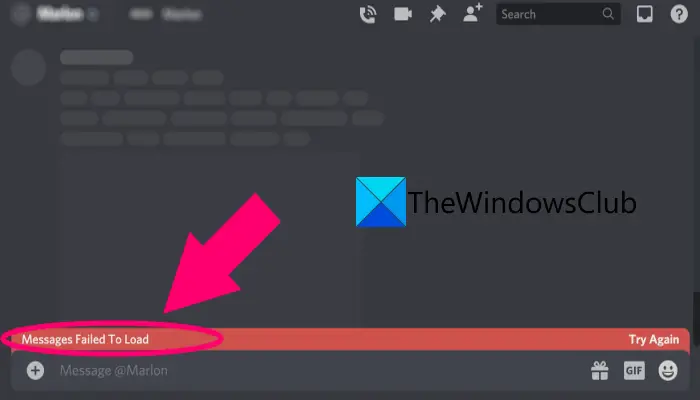
This error can be caused due to various reasons, such as temporary glitches, internet problems, etc. In any case, you can follow the fixes mentioned in this guide to resolve the error.
Why am I getting Messages Failed To Load error on Discord?
There can be various reasons why individuals receive the “Messages Failed To Load” error on Discord. Here are some of the potential causes of the error:
- It can occur due to a temporary issue or glitch with your Discord app. Hence, restarting the app should help fix the problem.
- The error can also be caused if Discord’s current server status is down. If the scenario is applicable, you will have to wait until the servers are up and running again.
- It might also be triggered by a weak or unstable internet connection. So, make sure you are using a stable, reliable, and optimized internet connection to fix the error.
- If your Discord app is not updated, you might encounter the error in question. In that case, update your Discord app and then check your messages.
- You might be facing this error on a specific text channel. Hence, you can try switching to a different text channel and see if the error is gone.
- In case you are banned on Discord from typing or viewing messages, you will get this error. So, make sure you are not banned and if you are, wait for the ban to lift.
- It can also be caused by a corrupted or incomplete Discord app installation. If the scenario is applicable, you can try reinstalling the app to resolve the error.
Based on the above scenarios, you can try a suitable fix to get rid of the “Messages Failed To Load” error on Discord.
Fix Messages Failed To Load error on Discord
Here are the methods you can try if you get the “Messages Failed To Load” error on Discord:
- Restart Discord.
- Check Discord’s server status.
- Check your internet connection.
- Update Discord.
- Switch text channel.
- Try checking messages on a different platform.
- Make sure you are not banned.
- Try a VPN.
- Reinstall Discord.
1] Restart Discord
The simplest fix that we can suggest before you try advanced methods is to restart your Discord app. In many cases, the issue at hand is due to a temporary glitch or minor issues with the application. Hence, if the scenario is applicable, a simple restart of the app should fix the problem.
First, close the Discord app by opening Task Manager and ending all processes related to Discord. After that, relaunch the app and check your messages. Hopefully, your messages will load now. If not, you can try the next potential fix to resolve the issue.
2] Check Discord’s server status
Your messages might not be showing up due to some ongoing server issue. If Discord’s servers are having an outage issue or are down under maintenance or some other technical issue, you might face the problem at hand. Hence, if the scenario applies, you should check Discord’s server status and make sure it is up and running.
To check the current status of Discord servers, you can use one of these free server-status detector websites. You can also find the related news and information on the official social media accounts of Discord. In case you find out that the Discord servers are down at the moment, you will have to wait for the problem to be fixed on the server side.
However, if there is no problem with Discord’s servers, the problem that you are unable to view messages on Discord might be caused by some other reasons. So, try the next method to resolve the issue.
3] Check your internet connection
Another reason you may be unable to view messages on Discord is your internet connection. If you are using unstable or low-bandwidth internet, you are likely to face the “Discord messages not loading” issue. So, do check and optimize your internet connection. For that, you can try the following tips and tricks:
- If there is some internet issue on your PC, try troubleshooting network and internet problems.
- Try upgrading your internet connection if you are using low-bandwidth internet.
- You can use a wired connection instead of wireless as it is more stable and reliable.
- Disconnect all other devices connected to the same internet to avoid bandwidth throttling.
- Perform a power cycle on your networking device to clear the router cache.
If you are sure your internet connection is not the culprit, you can move on to the next potential fix.
4] Update Discord
If there is some bug in the current version of your Discord app that is causing the issue at hand, update Discord to fix the issue. New updates in Discord address and fix bugs and errors. So, update your app to the latest version and then check whether the issue is resolved.
To update Discord, press the Ctrl + R hotkey to refresh the app, then let it download and install the updates. After that, relaunch Discord and check whether your messages are loading.
If you still get the same Messages Failed To Load error on Discord, you can try the next method to fix it.
Read: Fix Discord Notifications not working on Windows.
5] Switch text channel
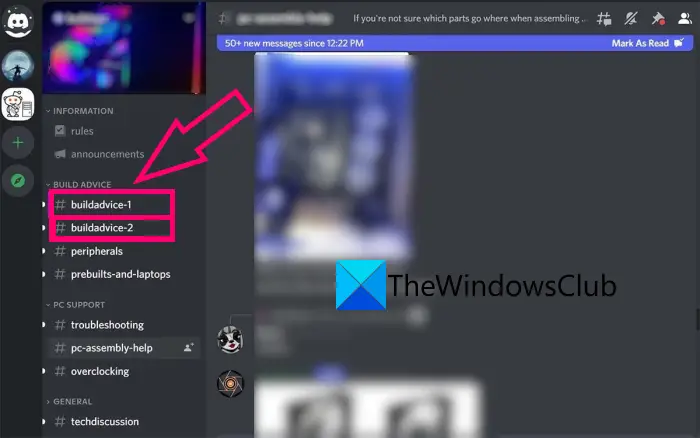
There are different text channels on Discord servers such as voice channels. You can try moving from one text channel to another. There are distinct text channels for different topics depending upon the main focus of the server. So, if there are issues with a specific text channel, switching to another might fix the problem.
See if switching the text channel helps you view messages on Discord. If not, move down to the next potential fix.
6] Try checking messages on a different platform
Discord is available on different platforms including Windows, macOS, Linux, iOS, iPad, Android, and Web browsers. So, you can try checking your messages on Discord on a different platform. For example, if you are experiencing this issue on Windows PC, you can open a web browser, navigate to the Discord website, log in to your profile, and then check your messages. Or, you can try using Discord on your smartphone via the Discord Android app. If you are able to view Discord messages on a different platform, well and good.
However, if you are still unable to see your messages on Discord, you can try the following fixes.
See: Fix Discord Console Log errors on computer.
7] Make sure you are not banned
There is also a chance that the Discord messages are not loading for you because you are banned. Discord has its own set of rules that users have to follow to continue using the platform. So, make sure you are not banned from viewing your message or joining voice chat.
In many cases, the bans are temporary and you might not be notified of the same. So, you can try contacting the Discord support team to query regarding the ban. If you find out that your account is temporarily banned, wait for the ban to lift.
Additionally, you also have to make sure you have the required permission on that specific server to view messages.
8] Try a VPN
If you are facing restrictions on using Discord in your country that are causing the issue at hand, try using a VPN. Discord is banned in many countries and if your country falls on that list, VPN can help you bypass the restrictions.
There are many free VPN clients available for Windows PC. See if this fixes the problem for you.
9] Reinstall Discord
If none of the abo solutions fixes the issue for you, the last resort is to reinstall the Discord application. There might be some issues with the installation of the application due to which you are unable to view messages. If there are corrupted installation files or the installation is incomplete, a fresh installation of the app should fix the problem.
First, completely uninstall Discord from your PC. After that, reboot your PC and download the Discord app from its official website. Now, run the app installer and complete the installation by following the on-screen installation guide. Next, start the Discord app and check your messages. Hopefully, the Discord messages will now load properly.
Why does Discord keep saying failed to send message?
Discord may fail to send messages during a server outage or downtime. A problem with your internet connection can also be the reason for it. So, if you want to fix Discord failed to send message issue on a Windows 11/10 computer, then first restart Discord and check the server status. You should also change your internet connection, power cycle your network device, and use the Google DNS server to see if it fixes your problem.
How do I clear my cache on Discord?
If you want to clear the Discord cache on your Android smartphone, go to Settings> Apps> App management, select the Discord app, then go to Storage usage or Storage & cache, and finally tap Clear cache. And, if you want to clear the Discord cache on Windows PC, then type %appdata% in the Search box, and press the Enter key. A Roaming folder will open. There open the discord folder and delete Code Cache, Cache, and GPUCache folders.
Now read:
