
Are you unable to stream anything on Discord from your Opera GX browser? Opera GX is a web browser specially designed and released for the gaming community. Many users use it, especially gaming enthusiasts. It has some really useful features, including RAM Limiter, Network Limiter, CPU Limiter, GX Cleaner, Tabs Killer, and more. However, like any other service or app, it has its own share of issues. Some users have recently reported that they can’t stream on Discord in the Opera GX browser.
This issue could be a result of different reasons. In this post, we are going to discuss the potential causes why you are unable to stream on Discord from Opera GX. And how you can resolve this issue. So, let us check out.
Why can’t I stream anything from Opera GX to Discord?
Here are the potential causes why you can’t stream on Discord from Opera FX:
- The problem might be caused by a lack of admin rights to run the web browser. So, if the scenario is applicable, try launching Opera GX as an administrator to fix the issue.
- If you are using hardware acceleration in your browser, you might run into this issue. Hence, try disabling hardware acceleration and see if the issue is fixed or not.
- Some web extensions that you have installed in Opera GX can cause the issue at hand. So, disable suspicious web extensions and see if the problem is resolved.
- It might also be caused by using an outdated version of Opera GX. Hence, try downloading and installing all the pending updates to fix the issue.
Based on the above scenarios, you can try a suitable fix from this guide to resolve the issue. But, before trying these methods, try streaming on Discord from a different web browser and see if it works or not. If the problem remains the same on other platforms, make sure Discord servers are up and running. You can use a free server-status detector to check that. If the issue occurs only in Opera GX, try the below-listed fixes to resolve the problem.
Can’t stream anything from Opera GX to Discord
Here are the fixes you can try if you are unable to stream on Discord from Opera GX:
- Restart Opera GX several times.
- Run Opera GX as administrator.
- Modify ANGLE graphics backend.
- Turn off hardware acceleration.
- Disable web extensions.
- Update Opera GX.
- Try the Discord app instead of the web version.
Let us discuss the above fixes in detail now.
1] Restart Opera GX several times
The first step is to restart your browser and see if the problem is fixed. In most cases, some temporary glitches cause such issues. Relaunching the browser should help resolve the issue. You can also try rebooting your computer and then check whether the problem is gone.
If restarting doesn’t help, go ahead and try the next potential fix.
Read: Discord streaming not working in Chrome or Edge browser.
2] Run Opera GX as administrator
You may run into this issue if you are not running Opera GX with admin privileges. Hence, relaunch Opera GX as an administrator to fix the problem. To do so, right-click the Opera GX desktop icon. After that, select the Run as administrator option to launch it with admin rights. Now, open Discord and check whether you can use the live streaming feature. If not, try the next solution to resolve the issue.
3] Modify ANGLE graphics backend
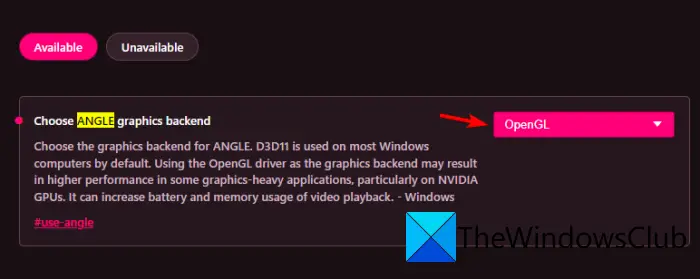
You can also try changing the ANGLE graphics backend setting in your Opera GX browser to fix the issue. Try setting it to either D3D9 or OpenGL and check if the problem is fixed or not. Here’s how to change the ANGLE graphics backend in Opera GX:
- Firstly, open Opera GX, type opera://flags in the address bar, and press Enter.
- Now, type and search for “angle” in the search box.
- From the search results, select the Choose ANGLE graphics backend option and set it to either D3D9 or OpenGL.
- Once done, restart your web browser to apply changes.
- Finally, reopen Discord and check whether you are unable to stream properly or not.
If this method doesn’t work for you, move on to the next potential solution to fix the issue.
See: Black Screen appears during Screen Share in Discord
4] Turn off hardware acceleration
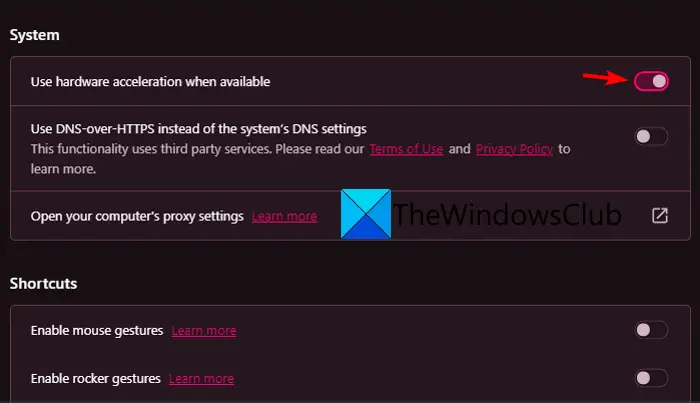
If you have enabled hardware acceleration in Opera GX, try disabling it and then check if the problem is resolved. Hardware acceleration is a good feature. But, it can cause several issues like crashing, freezing, etc., in your browser. So, turn it off and then try streaming on Discord. Here’s how to turn off hardware acceleration in Opera GX:
- First, open Opera GX and click the Opera icon in the top-left corner of the browser window.
- Now, from the appeared options, select the Settings option.
- On the Settings page, scroll down to the bottom of the page and press the Advanced option.
- Next, go to the System section and locate the Use hardware acceleration when available option.
- After that, simply disable the toggle associated with the Use hardware acceleration when available option.
- Finally, relaunch Opera GX and open Discord to check if the problem is resolved or not.
If disabling hardware acceleration doesn’t help you, try the next potential fix.
Read: Discord Screen Share Audio not working
5] Disable web extensions
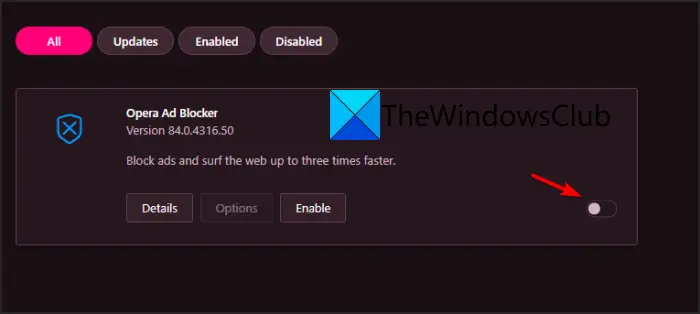
In case you have installed web extensions like ad blockers in your Opera GX browser, you can try disabling them and see if the issue is fixed or not. Faulty and problematic web extensions can cause issues like making it difficult to stream on Discord. Hence, turn them off and check if that helps.
Here’s how to disable web extensions in Opera GX:
- First, open Opera GX and click the Opera icon.
- Next, click Extensions > Extensions from the menu.
- Now, from the All tab, check for suspicious web extensions and disable toggles for each of them one by one.
- After disabling all web extensions, relaunch the browser and check whether the problem is resolved.
If disabling extensions doesn’t help, try the next potential fix.
See: Fix Discord keeps disconnecting and reconnecting
6] Update Opera GX
Next, update the Opera GX browser. In some cases, you might encounter such issues if you are using an older version of the browser. If that applies, update the browser to the latest version and check whether the issue is resolved. Here’s how to update Opera GX:
- Firstly, open Opera GX and click on the Opera icon.
- Now, from the listed options, tap on the Update & Recovery… option.
- Next, under the Update section, click on the Check for update button and it will start checking for available updates.
- After that, the available updates will be installed automatically.
- Once done, restart your web browser and check if the issue is resolved or not.
If the problem persists, try the next potential fix to resolve the issue.
Read: Opera GX not opening on Windows
7] Try the Discord app instead of the web version
If none of the above solutions worked for you, try using Discord’s desktop app instead of using the web app. Windows users generally prefer the Discord desktop app. Both versions of Discord have the same set of features. So, give it a try and stream. Go to the official Discord website and download the latest version. After that, run the installer and follow the prompted instructions to complete the installation. Once done, launch the application and use it the way you want.
Hope this article helps!
Why can’t I share my stream on Discord?
If the screen share option isn’t working on Discord, the game may be running in fullscreen mode. The problem might also be caused by unnecessary background applications, a corrupted Discord cache or a lack of admin rights to run the app. Try closing background apps, running the app as an administrator, or deleting the Discord cache.
How do I fix Netflix black screen on Discord?
To fix the black screen issues while streaming Netflix on Discord, try disabling hardware acceleration in your browser. You can also try deleting the Discord cache folder, as a corrupted cache may trigger the issue. You can also try updating your graphics drivers to fix the problem.
Now read:
