
Discord is an excellent VoIP app. It is packed with features such as chatting with friends, Discord Overlay and streaming. However, according to many users, Discord Stream gets stuck loading every time they try to use the feature. In this article, we will discuss this in detail and show you how to resolve the problem.
Why is my screen share on Discord not loading?
The most reasonable explanation is a bad Internet connection. If your system is not connected to a network, or if bandwidth is low, streaming might not work. It can be resolved easily by switching off the device and then restarting it. Sometimes, granting admin access to Discord can also resolve issues with launching or software glitches.
Hardware acceleration is good for your PC; however, it may put too much load on the hardware, which it can’t handle, which is one reason Discord Stream gets stuck on loading. Corrupted or missing files, as well as an outdated Graphics Driver, are some other reasons. We are going to discuss all of this in detail and show you how to troubleshoot the problem.
Discord Stream Stuck on loading or Not loading on Windows 11
If Discord Stream is stuck loading or not loading, try the following solutions to resolve the issue.
- Restart your device
- Check your Internet connection
- Run Discord as an administrator
- Turn off Hardware acceleration
- Update your Graphics and Network Drivers
- Clear Discord file cache
- Reinstall Discord
Let’s start with the first solution.
1] Restart your device
Don’t start with complicated fixes, start with something simple. First of all, try restarting Discord, you should not only click on the close button but also, go to the Task Manager and end the process. If that doesn’t work, restart your computer. Restarting your device can clear out the issue. This can resolve software glitches as well as network issues. After restarting, see if the issues persist.
2] Check your Internet connection
Next up, we need to check the Internet connection as Discord Steam can stuck on the loading screen simply due to a bad Internet connection. Open a free Internet speed checker, to know your bandwidth. If it is low, restart your Router and see if that works. If not, contact your ISP and ask them to fix the problem. In case, the issue is exclusive to your device only, check our guide on how to fix slow Internet.
However, if there is no issue with your internet connection, then see the next fix.
3] Run Discord as Administrator
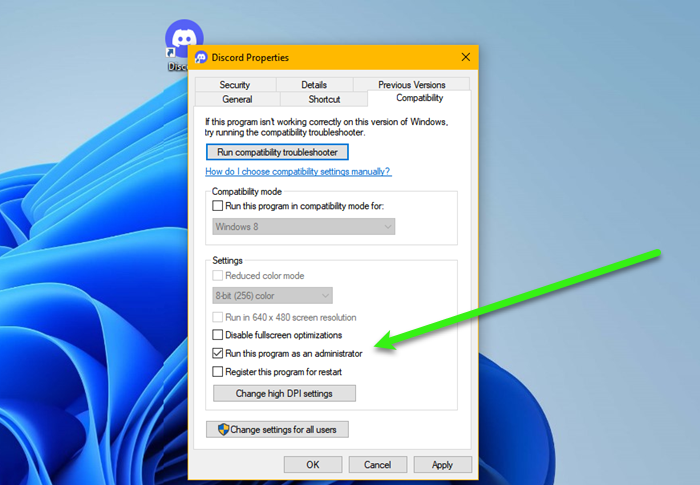
Running Discord as an administrator can work well for you, as sometimes, it may need extra permissions to stream. It’s not necessary to always run Discord as an administrator but doing this can help you to remove most of the issues. So, just right-click on the Discord shortcut and run it as administrator. Alternatively, you can also follow the prescribed steps.
- Click Ctrl+Shift+Esc to open Task Manager.
- Right-click on Discord.
- Now click on the End Task option.
- Right-click on the Discord > Properties.
- Go to the Compatibility tab, tick the box next to Run this program as an administrator.
- Click on the OK button to save the changes.
Hopefully, this has resolved the issue for you.
4] Turn off Hardware Acceleration
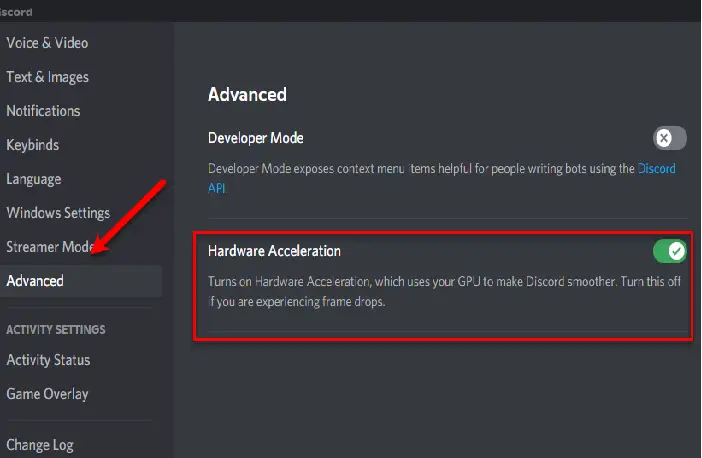
Hardware Acceleration allows Discord to use components of your PC in order to Stream. However, it can also cause problems for inferior machines. But you can simply turn off the feature using the steps provided and see if that works.
- Launch Discord and go to the Settings.
- Select the Voice and Video tab and then disable Hardware Acceleration.
- Relaunch Discord.
Hopefully, this fix will resolve the issue; if not, there are still other fixes.
5] Update your Graphics and Network Drivers
An outdated graphics driver is most likely to cause streaming issues, among other problems. Therefore, it is recommended to keep the drivers up to date. So if you haven’t updated your Graphics or Network Driver in a while, then update it by following any of the methods mentioned below.
- Update your Driver by installing Windows Optional updates.
- Use free Driver update software.
- Go to the manufacturer’s website and download the driver.
After updating, restart your device, and fingers crossed, you won’t have the issue.
6] Clear Discord file cache
Discord Cache files can be corrupted if you are facing the issue in question. We can easily remove them without having any repercussions. Follow the steps to delete Discord Cache files.
- Quit Discord (from the Task Manager as well)
- Hit Win+R to open the Run Dialog box.
- Execute the following command and click on the Enter button.
%APPDATA%/Discord/Cache
- Click Ctrl+A to highlight all the files.
- Delete all the files.
Now open Discord to check whether the issue is still present.
7] Reinstall Discord
If none of the above fixes worked for you, then the last resort is to delete Discord and then install it again. In this way, all the corrupted or missing files of Discord will be restored.
That’s it!
Is Discord broken on mobile?
Discord on mobile is not broken. It works perfectly on mobile phones. However, if you experience problems with Discord mobile app, first of all, check your internet connection. Your internet connection should be working fine. Another thing that you can check is the Discord status online.
Also Check:
- Black Screen appears during Screen Share in Discord on Windows
- Discord Screen Share Audio not working on Windows.
