
Does Discord keep disconnecting and then reconnecting every now and then on your Windows 11 or Windows 10 PC? Here is the guide to fix the disconnecting and reconnecting issue on Discord. Some users have reported being disconnected from calls on Discord every so often. This can be really annoying as it puts a halt to your communication. Therefore, it is essential to know how to resolve this issue. In this post, we will discuss several solutions to help you resolve the disconnecting issues on Discord.
Why does my Discord keep disconnecting??
There can be several reasons that trigger disconnecting issues on Discord. Here are some of the possible causes for that:
- Insufficient admin privilege to run Discord can also cause the problem. Try running the Discord client with administrator access to resolve the issue.
- If you have enabled the High Priority Audio Packets feature on Discord, it may misbehave with certain network connections, causing the issue at hand. You try disabling this feature to fix the problem.
- It can also be caused due to the call server region you are currently connected to. If the scenario is applicable, you can switch the call server region to resolve the issue.
- Network issues may cause the problem on your PC. Ensure you are connected to a stable internet connection to resolve the issue. Additionally, ensure that your network updater is up to date.
- A faulty router cache or incorrect DNS settings can also cause this issue. So, restart your router or flush the DNS cache to tackle the issue.
- Your firewall can also block Discord and related processes from connecting to its servers, which may cause disconnection issues. If the scenario is applicable, consider whitelisting Discord through your firewall to resolve the issue.
- If you are using a proxy server or VPN, it may interfere with Discord. Hence, disable proxy settings and see if it fixes the issue for you.
- A corrupted or damaged installation of the Discord app can also be a reason for the issue. In that case, reinstalling the app should fix the issue.
Now that you know the scenarios that trigger the problem, you can try applying the below fixes to resolve the problem.
How do I stop Discord from disconnecting?
To stop Discord from disconnecting, check your internet connection, make sure Discord services are not down, restart your router, disable your VPN, or turn off the firewall. If that doesn’t work, you can try changing the call server region to get the issue fixed. We have shared all these methods in detail, so check out below.
Discord keeps disconnecting and reconnecting on PC
Here are the methods to try if Discord keeps disconnecting and reconnecting on your Windows 11 or Windows 10 PC:
- Try some general tricks.
- Change Call Server Region.
- Disable High Priority Audio Packets.
- Update your network driver.
- Check your internet connection.
- Power cycle your router.
- Flush DNS cache.
- Whitelist Discord in your firewall.
- Disable your proxy server or VPN.
- Uninstall, then Reinstall Discord.
1] Try some general tricks
Initially, there are some general steps you should follow to resolve the problem. Here are those tricks:
- Restart your PC and launch Discord to see whether or not the problem is fixed. The issue might be facilitated due to some technical glitch on your PC and a simple reboot should fix it up.
- Try relaunching the Discord app as an administrator and see if resolves the issue.
- In rare cases, you might experience the same problem if there are some service outages or technical issues at the end of Discord. So, make sure Discord is not down at the moment.
- You can also try using Discord’s web app and see if you encounter the same problem with it.
- If you have too many background applications running, try clearing them as they can cause performance issues with Discord.
If the above fixes did not work, proceed to the next potential solution to resolve the issue.
Read: Failed to connect your YouTube account to Discord in Windows.
2] Change Call Server Region
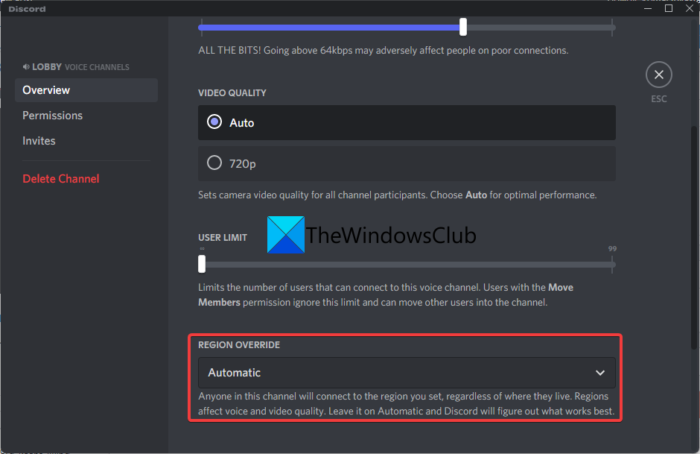
If the above solutions didn’t work, you can try changing the server region you are connected to for fixing the problem. You can easily do that by going to the Voice Channel settings. Here are the steps to do that:
- Firstly, in the Discord app, hover your mouse cursor on the voice channel that you are connected to and then click on the gear-shaped icon associated with it. You will be navigated to the voice channel settings now.
- Next, in the Overview tab, scroll down and click on the drop-down button associated with the REGION OVERRIDE option.
- Now, choose a distinct server region from the drop-down menu and then click on the Save Changes button.
Try changing the call server region to see if it resolves the issue. If not, move on to the next potential fix.
3] Disable High Priority Audio Packets
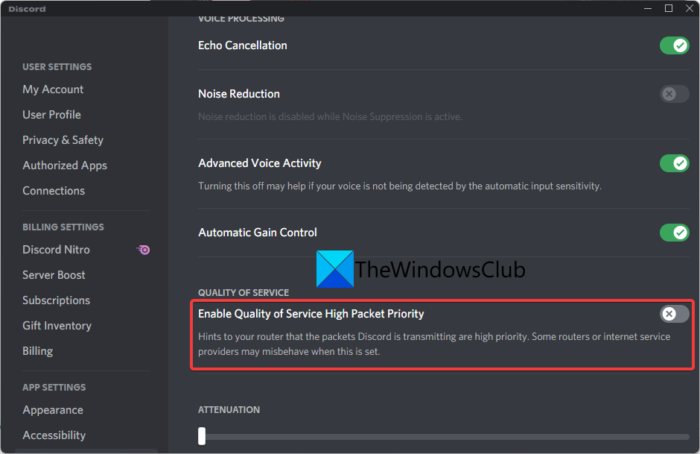
There is a feature in Discord that makes your audio packets a high priority. What this feature does is hint your router to prioritize packets transmitted through Discord. If enabled, it can result in disconnecting and other issues with certain internet service providers. If the scenario is applicable, you should be able to fix it up by disabling this feature, and here is how you can do that:
- First, go to Discord and click on the User Settings button present at the bottom of the screen.
- Now, move to the Voice and Video tab, and from the right-side panel, scroll down to the Quality do Service section.
- Next, disable the toggle associated with the Enable Quality of Service High Packet Priority option.
- After that, continue using the Discord app and see if the disconnecting and reconnecting issue is fixed now.
See: Can’t install Discord, Installation has failed on Windows PC.
4] Update your network driver
There are chances that the problem is caused at your end. If you have outdated network drivers, it will affect network connection and you are likely to experience performance issues with voice and video calls. So, update your network drivers and then see if the problem is fixed. If not, no worries we have some more solutions to fix the issue.
5] Check your internet connection
If you are on a slow internet connection, it can lead to disconnecting issues on Discord as well as on other apps. So, make sure you are connected to a good speed and stable internet connection. Try checking your internet speed and see if it is good enough. In case the speed of your network connection is too low, try upgrading your network plan.
Read: Fix Discord Voice Connection errors on Windows.
6] Power cycle your router
A faulty cache on your router may cause the issue. In that case, power cycling your networking device should fix the disconnecting issues. Simply unplug your router and wait for about a minute. Then, plug in the device back and restart it. After that, connect to the internet and see if the disconnecting issue on Discord is gone.
7] Flush DNS cache
If the above solutions didn’t work, you can try flushing the DNS cache. The problem could be facilitated by a faulty DNS cache. Hence, clearing the DNS cache should help you fix the disconnecting issue on Discord. Here are the steps to do that:
- Firstly, run the Command Prompt as an administrator.
- Now, type and enter the below command in CMD:
ipconfig /flushdns
- Let the command execute completely and then restart your PC and launch Discord and check if the problem.
See: Discord won’t open or Stuck on Connecting screen in Windows PC.
8] Whitelist Discord in your firewall
Your firewall or third-party security suite can also block Discord from connecting to its server on and off. If that is the case, disable your firewall and then observe if the disconnecting issue on Discord is fixed. If yes, you can be sure that your firewall was the main culprit. You can then try whitelisting the Discord app through your firewall to resolve the problem.
Read: Discord streaming not working in Chrome or Edge browser.
9] Disable your proxy server or VPN
If you are using a VPN on your system, try turning it off as proxy servers or VPNs can sometimes cause connection issues with Discord. You can simply disable VPN by right-clicking on it from your system tray and then disabling it. In case you are using proxy settings, disable the proxy server and see if it fixes the issue for you.
See: Fix Discord Console Log errors on Windows computer.
10] Uninstall, then Reinstall Discord
If all the methods fail to resolve the problem, there may be an issue with the Discord installation. As a last resort, the solution is to start with a fresh installation of Discord. For that, firstly, completely uninstall the Discord app by going to Settings > Apps > Apps & features. After that, make sure you delete the Discord folders.
That’s it!
Now read: Fix Discord RTC Connecting No Route error on Windows 11.
