
Is it bad to have many tabs open in your browser? While working on the internet, we usually open websites in separate tabs without closing the previously opened ones in our web browser. Every program or software that we open on our computer uses some of our system resources, including the memory (RAM) and the CPU. Similarly, a web browser also consumes some percentage of our system’s RAM and CPU. The RAM and CPU usage by a web browser increase as we start opening multiple tabs.
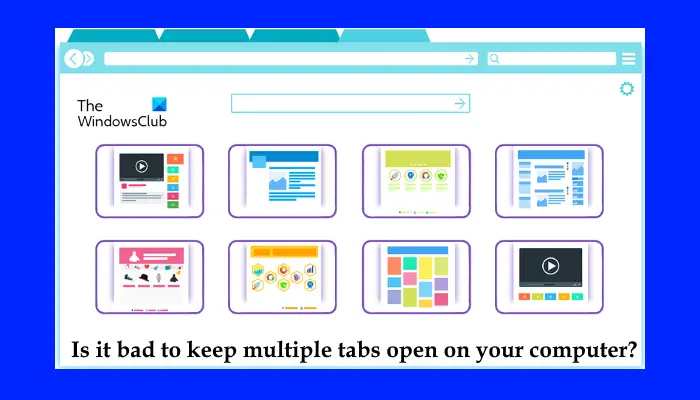
You might have noticed that after opening a certain amount of tabs in a web browser, the performance of your system decreases slightly, and the web browser becomes slow. The number of tabs a user can open in a browser actually depends on his system’s hardware. That’s why it varies from user to user.
What happens if you open too many tabs?
Opening too many tabs puts a strain on your computer’s CPU. Every tab you open in your web browser consumes some memory on your system. Hence, the more tabs you open in a web browser, the more RAM your browser will consume. That’s why opening too many tabs can cause performance issues and may cause your system to freeze or crash.
Is it bad to keep multiple tabs open on your computer?
As explained above, opening multiple tabs in a web browser impacts the browser’s and the system’s performance. You can view the percentage of your system’s RAM and CPU a web browser is using by opening the Task Manager. The number of tabs that you can leave open on your computer depends on different factors.
- Your computer’s hardware: Undoubtedly, a computer with 4 GB of RAM has a lower performance as compared to a computer with more RAM, say 8 GB or 16 GB. However, there are other factors too responsible for a system’s performance. Computers with more RAM can provide web browsers with more resources than computers with less RAM. If your computer has less RAM, say 4 GB, you will experience performance issues after opening multiple tabs.
- The graphics of a web page: Some websites have heavy graphics. Due to this, such websites require more resources from a system. Opening such websites will put more strain on your system, resulting in performance issues. Google Maps and Google Earth are some of the websites that use heavy graphics.
Does having multiple tabs open slow down computer?
Every tab that you leave open in your web browser consumes some percentage of your system’s resources. To address this problem, some web browsers have a built-in tab-sleeping feature. If you are a Google Chrome or Microsoft Edge user, you might have noticed that when you switch to another tab after spending some time on a particular tab, Chrome or Edge reloads that tab. This is the tab-sleeping feature in Chrome and Edge. The tab sleeping feature suspends tabs that remain inactive for a specified period. When a user returns to inactive tabs, the web browser reloads them. By doing this, Chrome and Edge manage the memory of the user’s computer.
Hence, if your web browser has a sleeping tab feature, leaving multiple tabs open will not affect your system’s performance. On the other hand, if your web browser does not have the sleeping tabs feature, you can open only a limited number of tabs, after which you will start facing performance issues with your system. In order to manage this problem, you have to close some of the open tabs.
The number of browser addons & extensions you have installed also takes its toll!
How many tabs open is too much?
Modern browsers and computers can handle dozens of open tabs, but once you cross 20–25, memory usage starts to spike. If you’re doing research, 40-50 tabs might make sense. If you’re casually browsing, 8-10 open tabs is a good number to keep in mind.
Use built-in Task Manager to manage tabs in a web browser
Popular web browsers, like Chrome, Edge and Firefox come with a built-in Task Manager that lets users know which tabs are consuming high resources of their system. While working with multiple tabs in a web browser, you can use the built-in Task Manager to close those tabs that are consuming high RAM and putting more load on your CPU.
Here, we will show you how to use the built-in Task Manager to manage tabs in:
- Edge
- Chrome
- Firefox
How to use the built-in Task Manager in Edge to manage tabs
Follow the below steps to open the Task Manager in Edge:
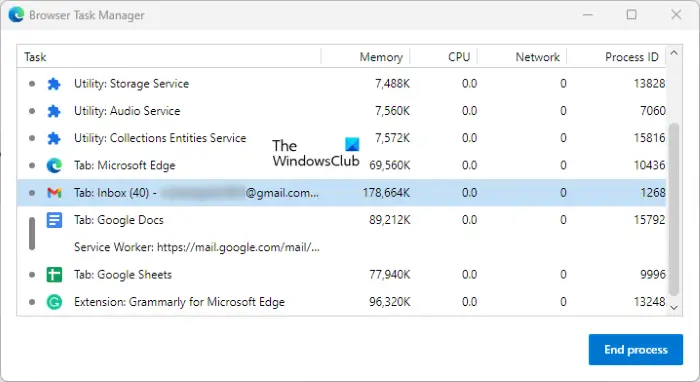
- Open Microsoft Edge.
- Click on the three horizontal dots on the top right side and go to “More Settings > Browser task manager.” Or simply press the Shift + Esc keys.
- When the Task Manager appears, you can view which tabs are using the most RAM. To close a particular tab, select that tab in the Task Manager and select End Process.
How to use the built-in Task Manager in Chrome to manage tabs
The following steps will help you open the Task Manager in Chrome:
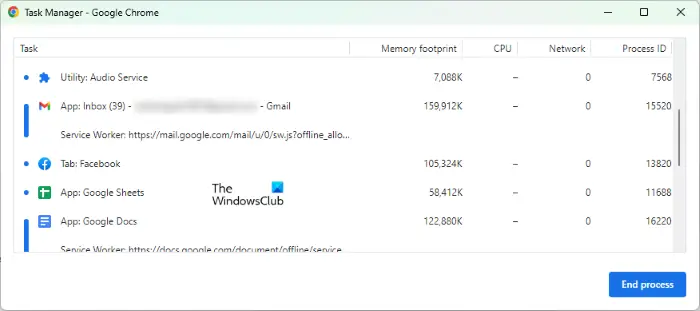
- Open Google Chrome.
- Click on the three vertical dots on the top right side and go to “More Settings > Task Manager.” Alternatively, you can also press the Shift + Esc keys to open the Task Manager in Chrome.
- Now, select the tab which is consuming the highest RAM or one that you want to close and click on the End Process button.
How to use built-in Task Manager in Firefox to manage tabs
Follow the steps written below to open the built-in Task Manager in Firefox:
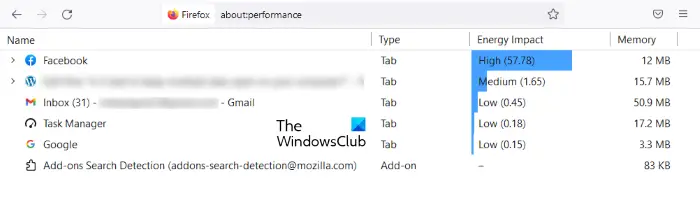
- Open Firefox.
- Press Ctrl + T to open a new tab.
- Type about:performance in the address bar of Firefox.
This will open the Task Manager in Firefox, where you can see which tabs are taking the highest resources from your system. Now you can close those tabs to free up your system’s RAM.
This is how to manage tabs across different web browsers so that opening multiple tabs does not impact your system’s performance.
Closing Words
How many tabs we can open in our web browser depends on our system’s hardware. If you have a high-end PC, this number is comparatively larger than that of those who have a PC with less RAM. However, every machine has a limit. After a certain point, you will start experiencing performance issues with your system. Therefore, it is better to close the tabs that are not in use.
We’d love to know how many browser tabs you normally have open at any given time!
Read: How to best secure web browsers for Windows PC.
Does having multiple tabs open slow down the computer?
Leaving multiple tabs open in a web browser slows down your computer. This is because every tab uses some percentage of your system’s RAM. Therefore, if you open multiple tabs in your web browser, most of your computer’s RAM will be used by the browser, leaving your system with less free RAM to manage other tasks.
Does having multiple tabs open drain battery?
Generally speaking, it is logical to expect that the more tabs you have open, the greater the resource consumption and, consequently, the power consumption. But the actual battery drain is negligible, and studies have shown that the more tabs you have open, the less each new tab affects battery life.
Read next: Best Privacy browsers for Windows PC.
