
Replicating an OS or Hyper-V saves a lot of time. However, Replication of Hyper-V also called “Hyper-V Replica,” is different. The replication process allows you to replicate from one virtual machine to another virtual machine environment. In simple words, it creates a copy of a live virtual machine to an offline virtual machine. It is typically useful for a disaster recovery strategy. In this post, we will share fixes for some of the common Hyper-V replication errors.
Fix Hyper-V Replication errors
There can be multiple reasons why Hyper-V Replication may fail. It can be network issues, an outdated host, a lack of integrity, or anything else. Below are some of the common problems and resolutions:
- Hyper-V suspended replication for virtual machine <VMName> due to a non-recoverable failure. (Virtual Machine ID <VMId>).
- Hyper-V prevented starting the virtual machine because it is prepared for failover
- Hyper-V Failed to resolve the Replica Server name
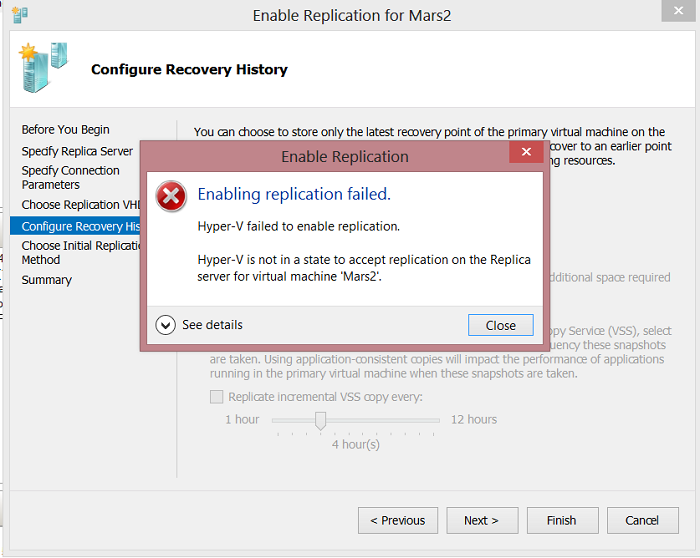
- Hyper-V is not in a state to accept replication on Replica Server for virtual machine <VM Name>
- Failed to perform the operation. Hyper-V is not in a valid replication state to perform the operation
It is interesting to note that most Hyper-V errors occur due to a sync issue between them. Either the host is in maintenance, or the replica server is offline or not ready.
1] Hyper-V suspended replication for virtual machine due to a non-recoverable failure. (Virtual Machine ID)
The full description includes— Hyper-V could not replicate changes for virtual machine <VMName> because the Replica server refused the connection. It may be because there is a pending replication operation on the Replica server for the same virtual machine, which is taking longer than expected or already has an active connection. (Virtual machine ID <VM ID>)
To resolve, check on the following points:
- Right-click on the VM, and choose to resume the replication process.
- Make sure the replication server is online.
- Replica server should always have enough space
- Enough network bandwidth to ensure the replication process completes in one cycle.
These can usually fix the problem, but if they don’t, Microsoft suggests deleting the replica and resetting replication. You will have to wait until the synchronization is complete. If the replication server is offline for an extended period, the source server accumulates so much data that it becomes impossible to send it across.
2] Hyper-V prevented starting virtual machine because it is prepared for failover
When setting up the Replica Server page, you need to enter either the NetBIOS or FQDN of the Replica server. If the Replica server is part of a failover cluster, enter the name of the Hyper-V Replica Broker.
If there is anything else beyond what we shared above, you will encounter this error because the failover process cannot find it. To fix it, you will have to edit the replication setup page and replace the name with NetBIOS or FQDN. Once the fix is applied, you will no longer receive the Hyper-V Replication Error.
3] Hyper-V Failed to resolve the Replica Server name
Same as above, and it’s a clear error. If the Hyper-V is not able to resolve the replica server name, you need to check if you are using the NetBIOS or FQDN. If you are using the correct format, then its a DNS issue. You have to check with the DNS server to find out why it cannot resolve the expected Server address.
4] Hyper-V is not in a state to accept replication on Replica Server for virtual machine
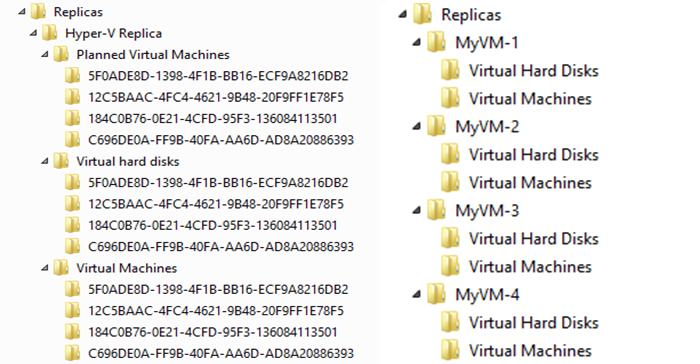
When replication is enabled on a VM, the process creates Replica virtual machine files that store everything. Each of these folders has a name that represents the GUID. It is unique for each source server. If, for some reason, Hyper-V setup wizard has the same UID, because it was already configured once, then you will receive this error. Since the process checks for any duplicate virtual machine before finalizing, the error shows up.
The alternative to this method is not to use the GUID. Microsoft Docs suggests the following:
- Enable replication for the virtual machine, and ensure initial replication is not started immediately (You can choose to schedule the initial replication for a later time)
- Once Replica virtual machine is created, use the Move wizard to move the storage of the virtual machine to the path of your choice (Storage migration)
- Once the storage migration is complete, you can start the initial replication for the virtual machine
5] Failed to perform the operation, Hyper-V is not in a valid replication state to perform the operation
It happens for two reasons. The first is when the server is not configured to be a replica server. So when the source initiates the replication process, the other end doesn’t know what to do with the input. The second is when the server blocks access to Hyper-V on the Replication server.
While the first cause can be fixed by preparing the replica server, the second is more of a firewall issue that an IT admin can resolve it for you.
I hope you were able to resolve these common Hyper-V Replication Errors. I am sure there can be more, so if you face any, let us know, and we will resolve it.
