
Are you looking to give your games a massive performance boost without sacrificing visual fidelity? NVIDIA DLSS makes this possible, turning demanding PC games into buttery-smooth experiences. In this article, we are going to see how you can turn on and use NVIDIA DLSS in a game.
What is NVIDIA DLSS?
NVIDIA DLSS stands for Deep Learning Super Sampling. It is a set of advanced technologies that use artificial intelligence to improve gaming performance. DLSS allows your graphics card to render a game at a lower resolution. Then it uses special AI processors called Tensor Cores on an RTX GPU to upscale the image to a higher resolution in real time. This process boosts performance while maintaining visuals that often look as good as or even better than the original resolution.
The technology has evolved dramatically across generations, with DLSS 4.5 introducing features like Multi-Frame Generation (MFG), which uses AI to generate multiple entirely new frames for each frame rendered by the game engine. The most advanced iteration, Dynamic Multi-Frame Generation, can dynamically adjust its multiplier to maximize smoothness across different games and scenes, achieving up to a 6x frame-rate multiplier by generating five AI frames for every one traditionally rendered frame. This suite of features works together to provide a seamless, high-fidelity, and high-performance gaming experience that was previously unattainable.
Prerequisites to use NVIDIA DLSS in a game
Before diving into the game settings, ensure your system meets the necessary requirements to use DLSS. Firstly, you need a compatible graphics card, as DLSS relies on the dedicated Tensor Cores found in NVIDIA GeForce RTX GPUs. This includes all models from the RTX 20-series and newer. Secondly, a modern operating system is required, specifically Windows 10 version 20H1 (build 19041) or newer (or any Windows 11 version).
Finally, and most crucially, you must have the latest software installed. This includes the GeForce Game Ready Driver, which contains the necessary optimizations for DLSS in the latest games. It is also highly recommended to have the latest version of the NVIDIA App installed, as it is the central hub for managing driver updates and advanced GPU features.
Turn on and use NVIDIA DLSS in a game on PC
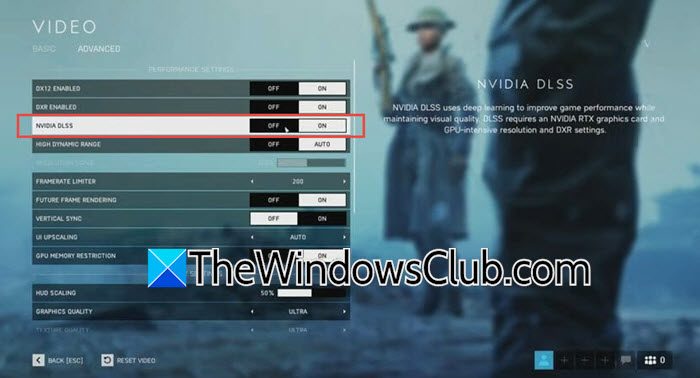
For most users, the simplest way to enable DLSS is directly through a game’s graphics menu. Follow the steps mentioned below to enable NVIDIA DLSS in a game.
- Launch the game and navigate to its main Settings, Options, or System menu.
- Look for the Graphics, Display, or Video section.
- Within this section, find the setting labeled NVIDIA DLSS, DLSS, Deep Learning Super Sampling, or sometimes simply Image Upscaling. The exact name can vary between different game titles.
- Once you locate it, toggle the setting to On. This enables the core DLSS Super Resolution feature.
- After enabling it, a new menu option often appears, allowing you to choose a Quality Mode.
This selection lets you decide the balance between image quality and performance. We’ll explain these modes in the next section.
Understanding DLSS Quality Modes
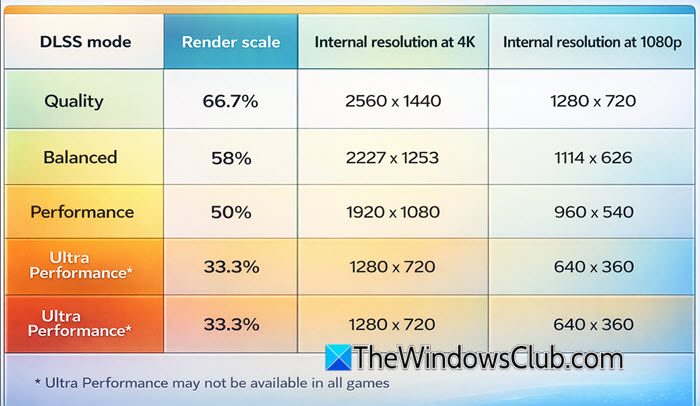
There are various DLSS Quality Modes that we need to understand. Go through the list given below.
- Quality Mode (66.7% render scale): At 4K: internal 2560×1440; at 1080p: internal 1280×720. Best for high-end GPUs and maximum image quality.
- Balanced Mode (58% render scale): At 4K: internal 2227×1253; at 1080p: internal 1114×626. Ideal middle-ground for most users.
- Performance Mode (50% render scale): At 4K: internal 1920×1080; at 1080p: internal 960×540. Best for competitive gaming and high frame rates.
- Ultra Performance Mode (33.3% render scale): At 4K: internal 1280×720; at 1080p: internal 640×360. Designed for 8K gaming with visual trade-offs.
- DLAA: Runs at native resolution (no downscaling). Provides the best anti-aliasing but no performance gain.
Hopefully, you now know everything there is to know about NVIDIA DLSS and are ready to use it in a game.
Read: How to enable DLSS 4.5 on supported GPU
Why can’t I activate DLSS?
DLSS cannot be activated for several reasons. The GPU may not meet the minimum requirements: Super Resolution requires an RTX 20 series or newer GPU, while Frame Generation requires an RTX 40 series or newer GPU. The necessary Windows setting, Hardware Accelerated GPU Scheduling (HAGS), might be disabled. Outdated GPU drivers are a common cause. Some games use an obsolete DLSS 1.x implementation that modern APIs no longer support. Finally, certain in-game settings, such as HDR or FPS caps, can conflict with the DLSS option and prevent it from activating.
Read: What are the best AI Games for Windows 11?
Can DLSS work on any game?
No, DLSS does not work on any game. It requires native integration by the game developer. NVIDIA officially lists over 950 games and applications with native RTX support. Industry reports indicate approximately 770 titles have native DLSS support, though the exact number continues to increase as new games are released with the feature.
Read: NVIDIA Image Scaling not showing or working in Windows.
