
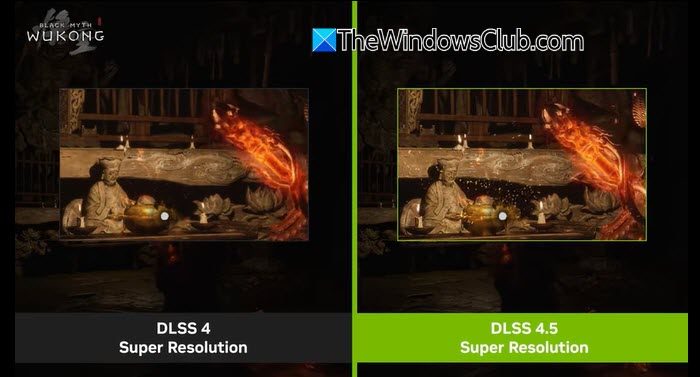
In this post, we will show you how to enable DLSS 4.5 on supported GPUs. NVIDIA has recently released the DLSS 4.5 update to its AI-based rendering technology. Unlike earlier versions that focused mainly on boosting frame rates, DLSS 4.5 combines both performance and image quality improvements, making it one of the most significant upgrades NVIDIA has delivered for gamers.
With sharper edges, more accurate lighting, reduced ghosting, and far better motion stability, the new AI model produces clearer and more natural-looking visuals. What’s especially impressive is that DLSS 4.5 isn’t limited to brand-new graphics cards. Every GeForce RTX owner can access it through the NVIDIA app.
Key Features of DLSS 4.5
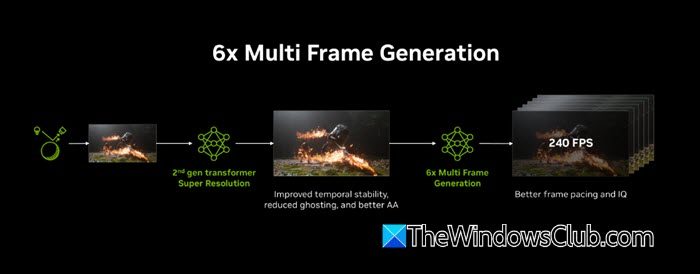
- 2nd-generation Transformer AI model for significantly better Super Resolution
- 5× higher computational investment compared to the original DLSS 4 Transformer
- Native FP8 precision support for higher performance with minimal quality loss (not available to GeForce RTX 20 and 30 Series GPUs).
- More context-aware AI upscaling for finer detail and better scene understanding
- Smarter use of motion and pixel data for more accurate, precise video output
- Dynamic 6x Multi Frame Generation exclusive to RTX 50 series GPUs
- Linear color space processing for more realistic lighting and reflections
- Backward compatibility with existing DLSS games via the NVIDIA App
How to enable DLSS 4.5 on supported GPU
To enable DLSS 4.5 on a supported GPU, you need to follow these steps:
- Check if you have a compatible GPU
- Ensure your NVIDIA app is up to date
- Install the latest NVIDIA Game Ready Driver
- Enable DLSS 4.5 using the NVIDIA app
Let us see this in detail.
1] Check if you have a compatible GPU
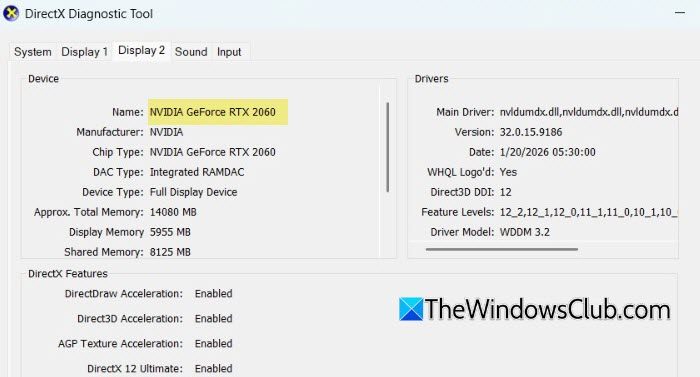
DLSS 4.5 relies on NVIDIA’s Tensor Cores, which are only available on GeForce RTX graphics cards. This means the feature will not work on GTX or older GPUs, even if the game itself supports DLSS.
To use DLSS 4.5, your system must have any of the following:
- GeForce RTX 20 Series
- GeForce RTX 30 Series
- GeForce RTX 40 Series
- GeForce RTX 50 Series
Note: All RTX generations support DLSS 4.5 Super Resolution. However, advanced features like Dynamic Multi Frame Generation and 6× Multi Frame Generation are exclusive to RTX 50 series GPUs.
To check your GPU on Windows 11, press Win + R, type dxdiag, and press Enter.
In the DirectX Diagnostic Tool window, switch to the Display tab. Look for your GPU name under Device.
If your GPU model starts with RTX, your system is compatible with DLSS 4.5.
2] Ensure your NVIDIA app is up to date
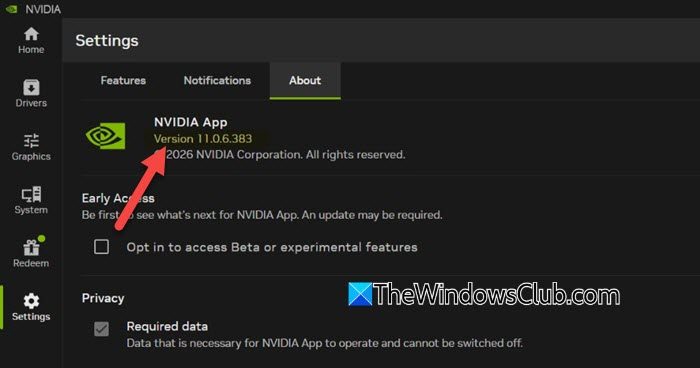
To use DLSS 4.5, you need NVIDIA App version 11.0.6 or later, along with the latest GeForce Game Ready driver.
To confirm your app version:
- Open the NVIDIA App.
- Click Settings (gear icon) in the left sidebar.
- Select About.
- Check the version number listed there.
If NVIDIA has released a newer version, the app will automatically download and apply it the next time you launch it.
3] Install the latest NVIDIA Game Ready Driver
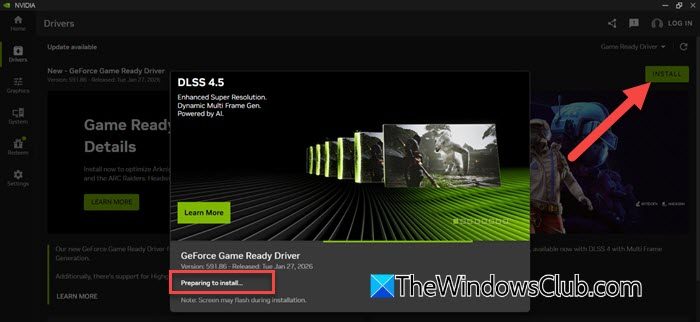
For DLSS 4.5 to work correctly, make sure you are running the latest driver version available for your GPU. The rollout is tied to GeForce Game Ready Driver version 591.74 or newer.
- Open the NVIDIA App.
- Click Drivers in the left sidebar.
- Download and install the latest Game Ready Driver.
Restart your PC once the installation is complete.
4] Enable DLSS 4.5 using the NVIDIA app
Once you have the latest NVIDIA Game Ready driver installed, you can enable DLSS 4.5 on a supported GPU. You can either apply the new model globally or fine-tune it per game.
Option A: Enable Per Game
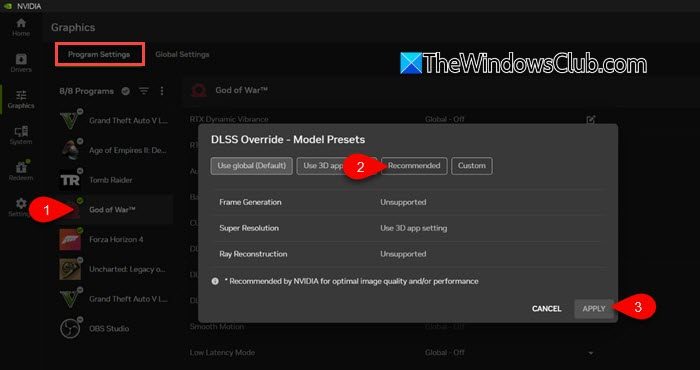
- Go to Graphics > Program Settings.
- Select the game you want to tune.
- Click the edit icon next to DLSS Override – Model Presets.
- Select Recommended, then click Apply.
Note:
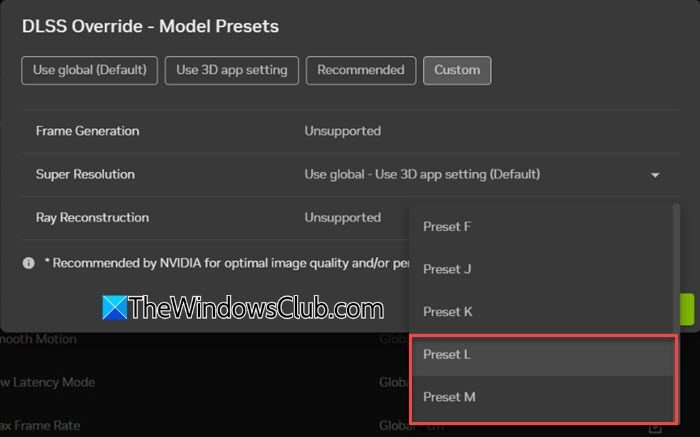
- The new “Recommended” option replaces “Latest” to better align with the two new DLSS 4.5 Super Resolution models: Model M and Model L. It sets Preset M to DLSS Performance mode, Preset L to DLSS Ultra Performance mode, and Preset K to the remaining modes.
- If you choose Custom under DLSS Override – Model Presets, you’ll be able to manually select a DLSS model.
- NVIDIA recommends per-game tuning for now, as many titles don’t yet have full native support for DLSS 4.5.
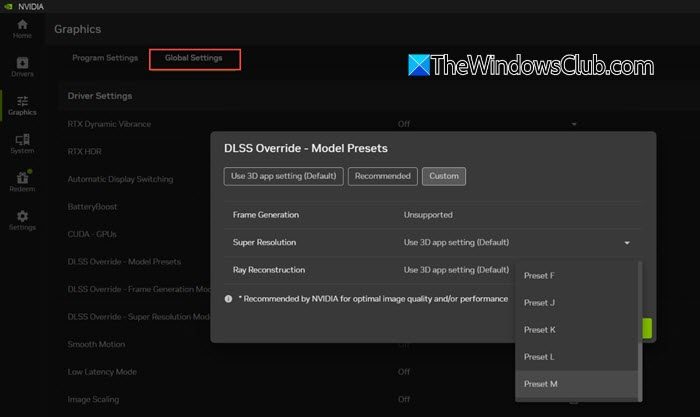
Option B: Enable Globally
- Open the NVIDIA App.
- Go to Graphics > Global Settings.
- Scroll down to DLSS Overrides.
- Click the edit icon next to DLSS Override – Model Presets.
- Select Recommended and click Apply.
Understanding DLSS 4.5 Model Presets
A] Preset M – Optimized for Performance Mode
Preset M is the flagship DLSS 4.5 model built on the second-generation transformer architecture. It is designed to deliver the biggest image quality improvement in Performance mode, where fewer real pixels are rendered.
- Best for 1080p to 4K upscaling, high-FPS gaming
- Sharper detail, reduced ghosting, better edge clarity
- Also works in Quality, Balanced, and DLAA modes
- Recommended if you want the “true” DLSS 4.5 experience
B] Preset L – Optimized for Ultra Performance (4K & 8K)
Preset L is designed specifically for 4K and 8K Ultra Performance mode, where the base render resolution is extremely low.
- Best for 4K/8K displays with Ultra Performance enabled
- Higher frame rates at extreme resolutions
- Slightly softer image than Preset M
- Still an improvement over DLSS 4.0 models
I hope you find this useful.
Read: How to clean install NVIDIA Graphics Driver in Windows.
Is DLSS 4.5 for 40 series?
Yes, DLSS 4.5 is fully supported on NVIDIA RTX 40-series GPUs. While RTX 40 does not support the new Dynamic or 6x Multi Frame Generation features (those are exclusive to RTX 50), it still benefits greatly from the image quality improvements in DLSS 4.5. With the latest driver and NVIDIA App, RTX 40 users can enable DLSS 4.5 today.
What is DLSS 4.5 available on?
DLSS 4.5 Super Resolution is available on all NVIDIA GeForce RTX GPUs, including the RTX 20, 30, 40, and 50 series. However, advanced features like Dynamic Multi Frame Generation and 6× Multi Frame Generation are exclusive to RTX 50-series GPUs. You can enable it, provided you have the latest NVIDIA App and Game Ready Driver installed.
Read Next: NVIDIA installer cannot continue, error code 0xE6000000.
