
If you want to sync two external hard drives on Windows 11/10 computer, then this post will be helpful to you. Whether you want to back up from one external hard drive to another, or for some other reason, it can be done easily with the free tools covered in this post. While one tool supports one-way sync, another covered in this post offers multiple synchronization settings.
How to Sync Two External Hard Drives in Windows 11/10
In this article, we have covered a command-line tool and free software to sync two external hard drivers. These are:
- XCOPY
- FreeFileSync.
Let’s see how to use these tools to sync two external hard drives.
1] Sync Two External Hard Drives using XCOPY command-line

XCOPY is a built-in command-line tool for Windows 11/10 that lets you sync data from one external hard drive to another. It supports one-way sync. To use this tool, first, you need to open Command Prompt window and execute a command with the necessary parameters for syncing two external hard drives. Here are those parameters and their explanations:
- /e: This parameter lets you copy directories as well as sub-directories from the source hard drive to the destination hard drive including the empty ones
- /d: This parameter copies only changed or newly added data or files from the source external hard drive to the destination. That means, only those files are added to the destination that is present in the source hard drive but not in the destination hard drive
- /c: This parameter is used to continue the copying process even if some error occurs. For example, if the error occurs because of some read-only files or permission protected files, the copying process won’t stop
- /y: If a prompt occurs to confirm you want to overwrite a file that is already present in the destination, then this parameter will suppress that prompt so that the copying process will remain to continue.
So, let’s say you have a source external hard drive named H, and you want to sync it with a destination hard drive named I, then your command would be:
Xcopy h: i: /e /d /c /y
The sync process will take time, depending on the size of the data on the source hard drive. Once the process is complete, your data will be successfully synced from the source to the destination hard drive.
You don’t have to start the entire sync process repeatedly for the same external hard drives. The next time you run the sync process between the two hard drives, only the changed or newly added files on the source drive will be copied to the destination drive.
Related: How to Clone a Hard Drive on Windows?
2] Sync Two External Hard Drives using FreeFileSync
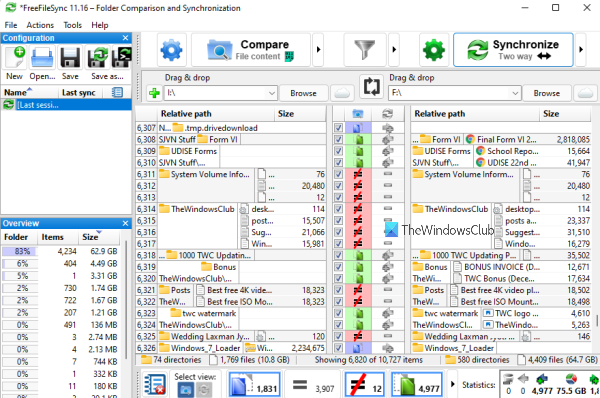
FreeFileSync is an open-source tool and one of the best free file and folder synchronization software. The good thing is it can also be used to sync two external hard drives. Another best part about this tool is that you can use it to perform two-way sync, create mirror backup of source data to the destination, or copy only new and updated files from the source to the destination. To use this tool for syncing two external hard drives, download and install this tool. After that, follow these steps:
- Open the interface of this tool
- Click on the Browse button available in the top-middle part of its interface. A Select Folder box will pop up
- Now, instead of selecting a folder, simply select the source external hard drive
- Click on the Browse button available on the top right side of its interface. Again, a Select Folder box will pop up
- Now select the destination hard drive
- Click on the Synchronization Settings button (green color icon) available on the top part of its interface
- In the Synchronization Settings window, go to the Synchronization tab
- Select a synchronization variant (Two-way, Update, or Mirror). You can also create a custom synchronization variant and select it
- Click on the OK button present in the Synchronization Settings window. Now you will come back to the main interface of this tool
- Hit the Synchronize button available on the top-right part of its interface. After this, it will start comparing the content of files
- When the process is completed, a Start synchronization box will pop-up
- In that box, press the Start button.
Finally, depending on the synchronization variant, it will begin the synchronization process. Once the process is complete, both of your external drives will be successfully synced.
Hope this helps.
Can you use 2 external hard drives on a PC?
Yes, you can connect two external hard drives to a PC. In fact, you can connect more than two external hard drives or USB drives to a computer. It depends on the number of free USB ports on your computer or laptop that are available to connect external hard drives or USB drives.
How do I mirror two hard drives?
Mirroring two hard drives is a two-way sync process. That means both drives will have the same data. Whenever you delete, modify, or add data to either hard drive, the changes are synced to both drives when you begin and complete the mirroring process. There exist some good free tools that you can use to mirror two hard drives.
Read next: How to create Mirrored Volume in Windows.
